

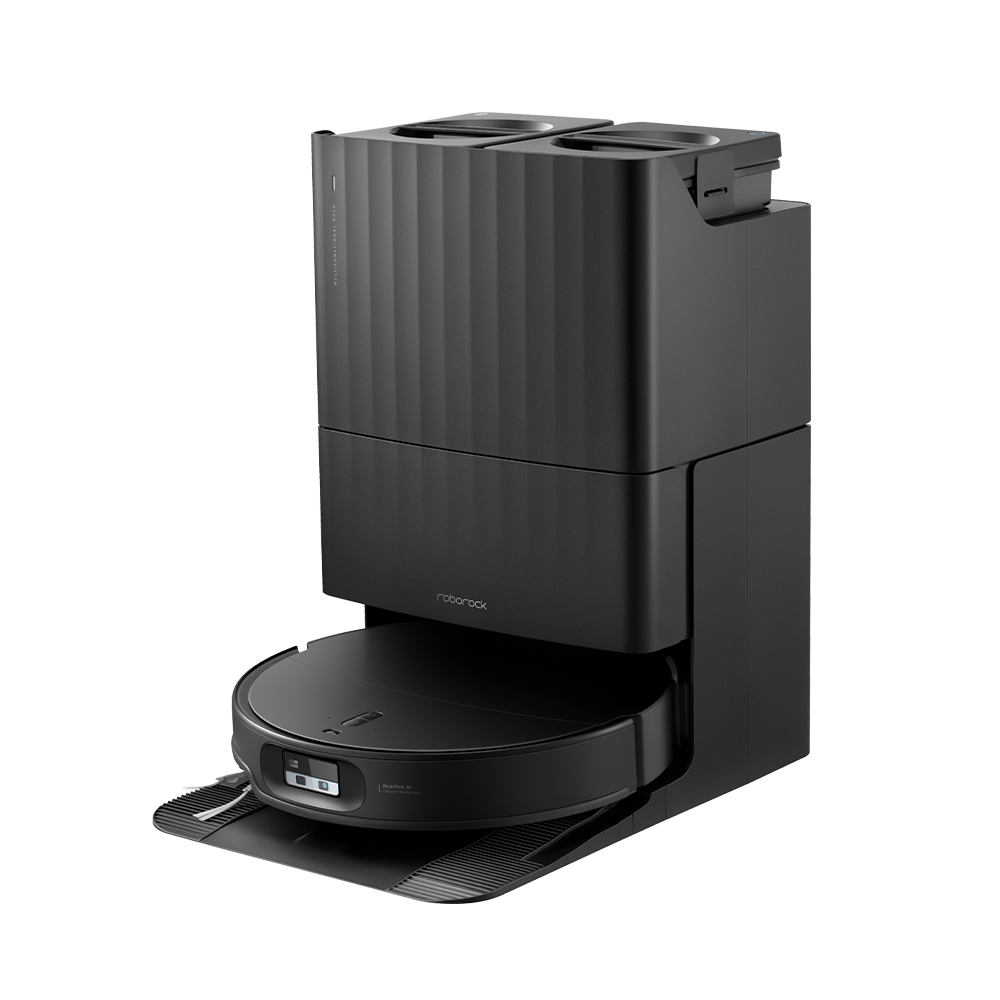
The Roborock Qrevo Edge 2 is a powerful, intelligent robot vacuum designed for modern homes. It offers advanced mapping, strong suction, and smart mopping features. But even the most reliable tech can run into problems. If your Qrevo Edge 2 isn’t performing as expected, this guide will help you identify and fix common issues.
Whether you’re new to robot vacuums or a seasoned user, you’ll find practical solutions and expert advice here.
Basic Troubleshooting Steps
Before diving into specific issues, it’s smart to start with the basics. These steps often solve the most common problems.
- Restart the robot: Turn off the Qrevo Edge 2, wait 30 seconds, and turn it back on.
- Check for blockages: Remove dust, hair, and debris from brushes, wheels, and sensors.
- Update firmware: Connect to the Roborock app and check for updates. Keeping firmware current solves many bugs.
- Check Wi-Fi connection: Make sure the robot and your phone are on the same network. Move the docking station closer to your router if needed.
Many users overlook the importance of regular cleaning and firmware updates. These simple steps prevent most malfunctions and keep your robot working smoothly.
Charging And Battery Problems
A robot vacuum is useless if it can’t charge. Charging and battery issues are among the most reported problems with the Qrevo Edge 2.
Robot Won’t Charge
If your Qrevo Edge 2 refuses to charge:
- Check power outlet: Plug another device into the outlet to confirm it works.
- Inspect docking station: Make sure it’s clean and the contacts aren’t blocked by dust or hair.
- Align robot properly: Place the robot onto the dock and listen for the charging beep.
- Replace damaged cables: Look for frayed wires or loose connections.
Battery Drains Quickly
If the battery doesn’t last as long as before:
- Clean brushes and wheels: Resistance increases power usage.
- Update firmware: Battery optimization is often improved in updates.
- Reduce suction power: Lower settings in the app extend battery life.
- Replace battery: If it’s over two years old, performance may drop. New batteries restore runtime.
A surprising insight: Many users don’t realize that dust on charging contacts can prevent charging even if the robot and dock look clean. Wipe these contacts gently with a dry cloth once a week.
Cleaning Performance Issues
If your Qrevo Edge 2 isn’t cleaning as well as it should, the problem could be simple or complex. Let’s walk through the possibilities.
Poor Vacuuming
- Empty the dustbin: If it’s full, suction drops.
- Clean main brush: Hair can wrap around it and reduce effectiveness.
- Check filter: A clogged filter limits airflow. Replace it every 3-6 months.
- Adjust suction settings: Use “Turbo” for carpets, “Quiet” for hard floors.
Mopping Problems
- Fill water tank: The robot won’t mop if it’s empty.
- Check mop pad: If it’s dirty or worn, replace it.
- Use suitable cleaning solution: Only use Roborock-approved solutions.
- Clean sensors: Dirty sensors can cause the robot to avoid mopping areas.
Missed Spots
- Update map: Re-map your home if the robot misses rooms.
- Remove obstacles: Cords, socks, and toys block the robot’s path.
- Adjust no-go zones: Make sure you haven’t restricted areas by accident.
A non-obvious tip: If your home has dark-colored carpets, the Qrevo Edge 2’s cliff sensors might mistake them for drop-offs, causing it to avoid those areas. This is a common issue with robot vacuums, not just Roborock.
Navigation And Mapping Errors
The Roborock Qrevo Edge 2 uses advanced LiDAR and AI mapping, but sometimes it gets confused. These steps help fix navigation problems.
Robot Gets Stuck
- Clear the area: Remove obstacles and loose items.
- Lift rugs: Thin rugs can bunch up and trap the robot.
- Check wheels: Remove tangled hair or debris.
Mapping Issues
- Re-map your home: In the app, delete the old map and start a new mapping run.
- Update firmware: Mapping bugs are often fixed with updates.
- Clean sensors: Dusty sensors reduce mapping accuracy.
Path Repetition
If the robot repeats paths or misses areas:
- Reset mapping: Sometimes the map data gets corrupted.
- Check for reflective surfaces: Mirrors and shiny floors can confuse sensors.
- Relocate docking station: Place it in an open area for better navigation.
Here’s a comparison of mapping accuracy before and after a firmware update:
| Firmware Version | Mapping Accuracy (%) | Missed Rooms | Average Navigation Time |
|---|---|---|---|
| 1.0.0 | 85 | 2 | 55 min |
| 1.2.0 | 94 | 0 | 48 min |
Updating firmware can boost mapping accuracy by nearly 10%, and reduce navigation time.

App And Connectivity Problems
The Roborock app is essential for controlling the Qrevo Edge 2. If you’re having trouble with the app or Wi-Fi, try these fixes.
App Doesn’t Connect
- Restart phone and robot: Simple, but often works.
- Update app: Outdated apps can’t connect reliably.
- Check Wi-Fi band: Roborock supports 2.4GHz, not 5GHz.
- Reconnect robot: Remove it from the app and add it again.
Robot Not Responding To Commands
- Check Wi-Fi signal: Move the docking station closer to your router.
- Update firmware: Communication bugs are often fixed with updates.
- Clear app cache: In your phone’s settings, clear the Roborock app cache.
Lost Connection During Cleaning
- Avoid thick walls: Wi-Fi can drop if the robot moves far from the router.
- Use mesh Wi-Fi: Mesh networks cover larger homes better.
- Enable offline cleaning: The robot can finish cleaning even if the connection is lost.
Many users don’t realize the importance of Wi-Fi band compatibility. If your router is set to 5GHz only, the Qrevo Edge 2 won’t connect.
Error Codes And Alerts
The Qrevo Edge 2 displays error codes for easy troubleshooting. Here are the most common codes and their solutions.
| Error Code | Meaning | Solution |
|---|---|---|
| 1 | Wheel stuck | Remove debris, restart robot |
| 5 | Sensor dirty | Clean sensors |
| 8 | Brush jammed | Remove hair, restart robot |
| 11 | Cliff sensor error | Clean sensor, avoid dark carpets |
| 21 | Battery fault | Replace battery, contact support |
If you see an error code not listed here, check the official Roborock support page for a full list.

Maintenance Tips For Long-term Reliability
Proper maintenance prevents most problems and extends the life of your Qrevo Edge 2.
- Clean brushes weekly: Remove hair and dust.
- Wipe sensors and charging contacts: Dust can cause errors and charging failures.
- Replace filters and mop pads: Every 3-6 months, depending on use.
- Update firmware monthly: New features and bug fixes improve performance.
- Store robot in a cool, dry place: Avoid direct sunlight.
Here’s a quick comparison of maintenance frequencies:
| Part | Recommended Cleaning | Replacement Interval |
|---|---|---|
| Main Brush | Weekly | 12 months |
| Filter | Monthly | 6 months |
| Mop Pad | After each use | 3 months |
| Sensors | Weekly | As needed |
Surprisingly, skipping filter replacement is a top cause of poor cleaning, but many owners forget about it.
When To Contact Support
If you’ve tried all troubleshooting steps and your Qrevo Edge 2 still has issues, it’s time to contact Roborock support. Provide:
- The robot’s serial number.
- A description of the problem.
- Steps you’ve tried already.
- Photos or videos if possible.
Support teams respond faster if you’re clear and detailed. For warranty and repair information, check the official Roborock website.
For advanced troubleshooting and technical manuals, you can also consult Roborock Support.
Frequently Asked Questions
What Does It Mean When My Qrevo Edge 2 Flashes A Red Light?
A flashing red light usually signals a critical error. Check the app for the specific error code, then follow the suggested fix. Common causes include brush jams or battery faults.
Can I Use Any Cleaning Solution In The Qrevo Edge 2’s Mop Tank?
No. Only use Roborock-approved solutions. Other liquids can damage the mop system and void the warranty.
Why Does My Robot Avoid Certain Areas In My Home?
The most likely reasons are blocked sensors, set no-go zones, or dark carpets confusing the cliff sensors. Clean the sensors and check your app settings.
How Often Should I Update The Firmware?
Update firmware monthly or whenever you see a new version in the app. This keeps your robot running smoothly and fixes bugs.
Is It Normal For The Robot To Return To The Dock Before Finishing Cleaning?
If the battery is low, the Qrevo Edge 2 will return to the dock to recharge, then resume cleaning. If it happens often with a full battery, check for software or mapping errors.
The Roborock Qrevo Edge 2 is a feature-rich robot vacuum, but like any smart device, it needs regular care and sometimes troubleshooting. With these tips, you can solve most problems yourself and keep your robot cleaning efficiently. Remember, small maintenance steps make a big difference.
If your issues persist, don’t hesitate to reach out to Roborock’s expert support. Enjoy a cleaner home with confidence!

