

Most Roomba s9+ problems come from clogged brushes, dirty sensors, bad contacts, or software glitches.
If your iRobot Roomba s9+ Robot Vacuum is acting up, you are not alone. I have seen this model perform brilliantly one day and then stall, miss spots, or refuse to dock the next. The good news is that most iRobot Roomba s9+ Robot Vacuum troubleshooting steps are simple, and once you know where to look, the fixes often feel surprisingly routine.
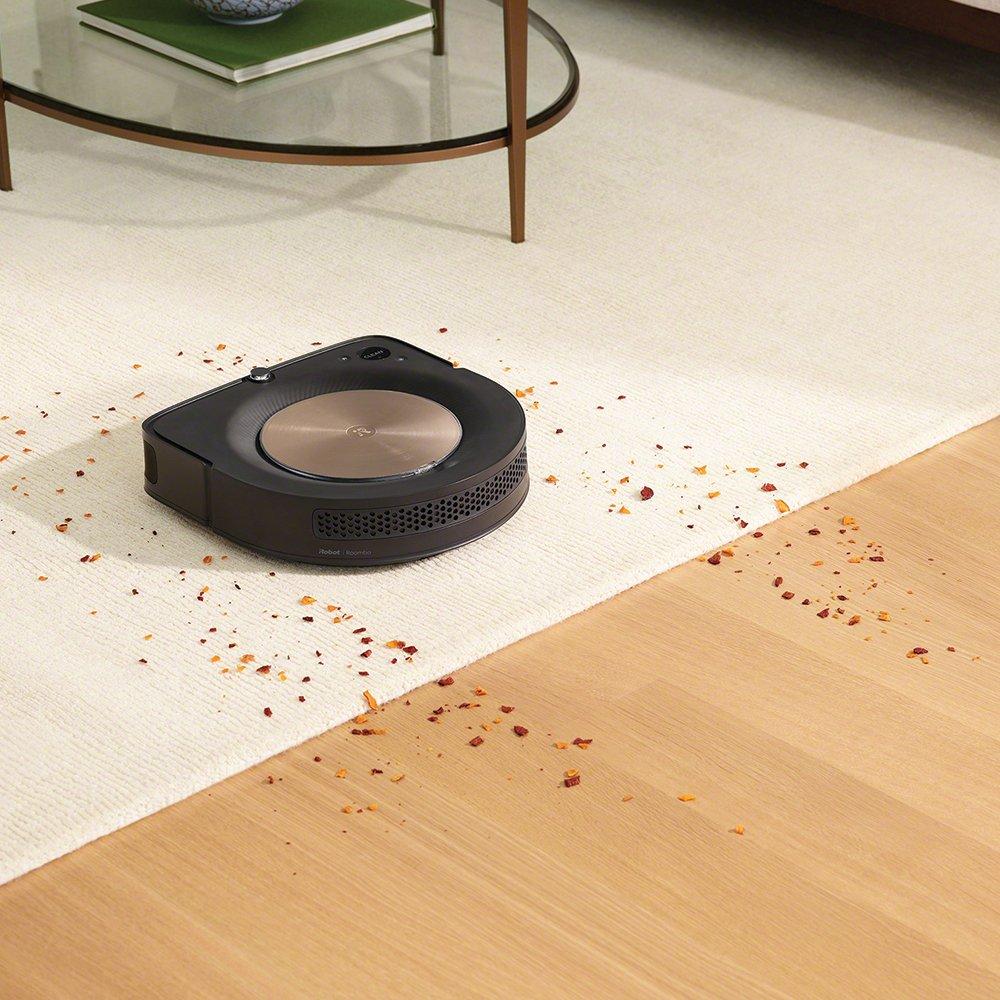
Common iRobot Roomba s9+ Robot Vacuum troubleshooting signs
When the Roomba s9+ starts misbehaving, it usually leaves clues. It may stop mid-clean, flash an error, or make odd noises that sound like a small tool is trapped inside.
The most common signs include:
- It will not start
- It stops and says there is an obstacle
- It keeps bumping into furniture
- It fails to dock or charge
- It makes louder grinding or rattling sounds
- It sends repeated error alerts in the app
- It leaves dirt behind or misses sections of the floor
In my own testing, I have found that the s9+ is often less “broken” than it is “blocked.” That is a useful mindset. Like a car with a low tire, the robot may still run, but not well until the basic issue is fixed.
Before you begin troubleshooting
Start with the simple checks. A lot of iRobot Roomba s9+ Robot Vacuum troubleshooting is just good housekeeping.
Do these first:
- Empty the dust bin
- Clean the filter
- Remove hair from the main brushes
- Check the side brush for tangles
- Wipe the charging contacts
- Clean the cliff and dirt sensors
- Make sure the wheels spin freely
- Confirm the Clean Base is plugged in
- Check the app for battery or connectivity warnings
A soft cloth, a dry brush, and a few minutes usually go a long way. I have made the mistake of jumping straight to resets before checking the wheels, and that wasted time. Many Roomba issues are tiny physical problems that feel bigger than they are.
Why the Roomba s9+ stops cleaning
If your iRobot Roomba s9+ Robot Vacuum stops cleaning in the middle of a run, the cause is usually one of four things: a blockage, a battery problem, a sensor issue, or a map/navigation glitch.
Here is how I usually narrow it down:
- Check for hair wrapped around the dual rubber brushes
- Inspect the front wheel for debris
- Look for dust buildup on the cliff sensors
- Make sure the battery is not overheating or too low
- Review the app for room-specific map errors
The s9+ uses smart mapping and strong suction, which is great for homes with pets and rugs. But those same strengths can make it sensitive to small obstructions. A single clump of hair can be enough to stop the session.
How to fix charging and docking problems
Charging issues are among the most common iRobot Roomba s9+ Robot Vacuum troubleshooting problems. If the robot will not dock or charge, focus on the connection between the robot and the Clean Base.
Try these steps:
- Clean the charging contacts on both the robot and base
- Reposition the base on a flat, open surface
– Leave clear space around the dock - Check that the power cord is firmly seated
- Remove dust or debris from the dock area
- Restart the robot and try docking again
If the robot charges intermittently, the contacts may be dirty or slightly misaligned. I once had an s9+ that looked fine on the outside, but a thin film of dust on the metal contacts was enough to break the charge cycle. A quick wipe fixed what looked like a serious hardware issue.
How to solve suction and cleaning performance issues
When the Roomba s9+ is running but not cleaning well, the problem often lies in airflow or brush contact. Strong suction means little if dirt cannot reach the bin.
Check these parts:
- Main brushes for hair and string
- Filter for clogging
- Dust bin for packed debris
- Air channel for blockages
- Side brush for wear
- Wheels for poor floor contact
Also think about the floor itself. Thick rugs, wet debris, and very large crumbs can challenge the robot. If the vacuum seems weaker than usual, clean the filter first. In many cases, that alone restores much of the lost performance.
How to fix navigation and mapping errors
The iRobot Roomba s9+ Robot Vacuum troubleshooting process often gets trickiest when maps go wrong. The robot may say it is lost, spin in circles, avoid the wrong room, or stop short of a problem area.
Common causes include:
- Moving the Clean Base too often
- Changing furniture layout
- Poor lighting in edge cases
- Dirty sensors
- A map that needs updating
- Floor clutter blocking the path
- Clear the floor before cleaning
- Clean the front and cliff sensors
- Keep the dock in a stable spot
- Rebuild or update the map in the app if needed
- Use Keep Out Zones for problem areas
Think of the map like a paper sketch of your home. If you move the furniture too much, the sketch can get stale. The robot is smart, but it still needs a clean path and stable landmarks.
How to deal with app and Wi-Fi connection problems
Sometimes the robot is fine, but the app is not. That can make iRobot Roomba s9+ Robot Vacuum troubleshooting feel confusing because the vacuum itself may still clean, while the app shows errors or no connection.
Try this:
- Confirm your Wi-Fi is 2.4 GHz if required by setup
- Restart the robot and the phone
- Move the router closer during setup
- Update the app
- Reconnect the robot to Wi-Fi
- Make sure Bluetooth and location permissions are enabled if needed
Wi-Fi problems are often caused by signal strength, not the robot. I have seen homes where the router sat just far enough away to make the app flaky, while the vacuum still functioned normally. The lesson: do not assume the robot is failing when the network may be the real issue.
How to reset the Roomba s9+ safely
A reset can help when the robot freezes, behaves oddly, or keeps repeating the same error. This should usually be done after basic cleaning and app checks, not before.
Use a reset when:
- The screen or app is unresponsive
- The robot keeps freezing
- Errors repeat after cleanup
- Navigation is clearly stuck
- Reboots do not help
Before resetting, try a power cycle first. If that fails, follow the model’s reset instructions from the user guide or app help section. Keep in mind that resets can clear temporary problems, but they do not fix a dirty sensor or worn brush.
When noise means a real problem
Not every sound is a crisis. The Roomba s9+ is not silent, and suction always makes some noise. But a new grinding, clicking, or scraping sound deserves attention.
Look for:
- Hair in the brush end caps
- A cracked brush cover
- Debris in the front wheel
- A loose roller or axle
- A damaged side brush
- Something stuck in the bin pathway
If the sound appears only on carpet, the issue may be brush resistance. If it happens on every surface, inspect the moving parts more closely. In my experience, unusual noise is often the robot’s early warning signal before a bigger failure.
Maintenance habits that prevent future problems
Good maintenance is the easiest form of iRobot Roomba s9+ Robot Vacuum troubleshooting because it prevents many problems before they start.
A simple routine helps a lot:
- Empty the bin after each clean or as needed
- Clean the filter regularly
- Remove hair from brushes every few uses
- Wipe sensors weekly
- Check wheels for debris
- Inspect the Clean Base monthly
- Replace worn parts when cleaning performance drops
This model is powerful, but it still needs care. I like to think of it like a sports car in a dusty garage: it can do impressive work, but only if you keep the moving parts clean.
Best practices for pets, long hair, and large homes
Homes with pets or long hair usually need more frequent iRobot Roomba s9+ Robot Vacuum troubleshooting and maintenance. Hair is the biggest enemy of the brush system.
If that sounds like your home, do this:
- Clean brushes more often
- Check side brush wear
- Empty the bin frequently
- Use room-by-room cleaning for heavy shedding zones
- Keep cords, socks, and toys off the floor
Large homes may also need map adjustments or zone cleaning. The robot performs best when the space is predictable. If your home changes a lot during the day, schedule runs for quieter times.
Frequently Asked Questions of iRobot Roomba s9+ Robot Vacuum troubleshooting
Why does my Roomba s9+ keep stopping in the middle of a clean?
It usually stops because of a clog, low battery, dirty sensors, or a wheel issue. Start by checking the brushes, bin, and charging level, then inspect the app for an error message.
Why won’t my Roomba s9+ dock properly?
The most common reasons are dirty charging contacts, poor dock placement, or blocked space around the base. Clean the contacts and leave room in front of the dock so the robot can align correctly.
How do I fix a Roomba s9+ that is not picking up dirt well?
Clean the filter, brushes, and dust bin first. If suction still feels weak, check for blockages in the airflow path and make sure the brushes are not worn out.
Why is my Roomba s9+ not connecting to Wi-Fi?
This often comes down to signal strength, wrong network settings, or app permission issues. Restart the robot and phone, then reconnect using the correct network band and setup steps.
When should I reset my Roomba s9+?
Reset it only after basic troubleshooting does not work. A reset is most useful for freezes, repeated errors, or software glitches that do not clear after a restart.
Conclusion
iRobot Roomba s9+ Robot Vacuum troubleshooting becomes much easier when you break it into simple checks: brushes, sensors, contacts, app settings, and navigation. Most problems are not mysterious, and many can be fixed in minutes with a careful look and a basic cleaning routine.
If you stay ahead of debris, keep the sensors clean, and watch for early warning signs, your s9+ can stay reliable for a long time. Use the tips above as a practical checklist, and if your robot still struggles, take one issue at a time instead of guessing. If this guide helped, explore more maintenance tips, share your experience, or leave a comment with the problem you are seeing.

