

Most Roomba i7+ problems come from clogged parts, dirty sensors, Wi-Fi issues, or a full Clean Base.
If your iRobot Roomba i7+ Robot Vacuum is acting up, you are not alone. I have seen this model go from “smart helper” to “why are you acting like this?” more times than I can count. The good news is that most iRobot Roomba i7+ Robot Vacuum troubleshooting steps are simple, practical, and fast once you know where to look.
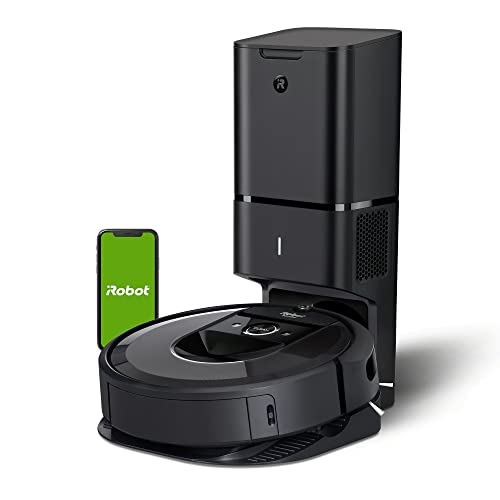
Common iRobot Roomba i7+ Robot Vacuum troubleshooting issues
The iRobot Roomba i7+ Robot Vacuum is built for convenience, but like any machine with brushes, sensors, batteries, and Wi-Fi, it can run into problems. In my experience, the biggest mistakes happen when people assume the robot is “broken” before checking the basics. A dirty wheel, a blocked brush, or a weak connection can create bigger symptoms than you might expect.
Some of the most common issues include:
- The vacuum will not charge
- The Clean Base does not empty the bin
- The robot stops in the middle of cleaning
- App connection or Wi-Fi pairing fails
- Error messages keep showing up
- Suction seems weak
- The vacuum makes unusual noises
- The robot misses rooms or cleans in a strange pattern
A lot of iRobot Roomba i7+ Robot Vacuum troubleshooting comes down to a simple rule: start with the physical parts first, then move to software and settings. That order saves time and keeps you from chasing the wrong problem.
How to troubleshoot charging and power problems
If your Roomba i7+ will not turn on, return to base, or charge fully, the issue is often with the dock, battery, or charging contacts. I always tell people to think of charging like handshakes. If the robot and dock do not make a clean connection, nothing else works.
Try these steps:
- Make sure the Home Base is plugged in tightly
- Check that the outlet works by testing another device
- Clean the charging contacts on both the robot and dock with a dry cloth
- Remove debris from the wheels and underside
- Place the robot directly on the dock and wait a few minutes
- Let the battery charge for several hours if it has been empty for a long time
If the battery is old, that can also be the cause. Rechargeable batteries wear out over time, and performance drops after repeated charge cycles. Industry battery guidance from consumer electronics commonly notes that lithium-ion batteries slowly lose capacity with age and use, so a weaker battery is not unusual in an older unit.
Useful checks:
- Look for the dock light
- Confirm the robot says it is charging in the app
- Try a different wall outlet
- Restart the robot if the charging status seems frozen
If the robot still will not charge, the dock power supply or battery may need replacement.
How to fix cleaning performance problems
When a Roomba i7+ starts leaving dirt behind, the issue is usually airflow, brush wear, or a full dust bin. I have made the mistake of blaming suction when the real problem was a tiny clog near the brush module. It is a lot like a sink drain: if the passage is blocked, the motor can be fine and still not move much air.
Check the following:
- Empty the dust bin
- Clean the filter
- Remove hair from the main brushes
– Inspect the side brush for tangles - Clear the air path from the bin to the vacuum channel
- Make sure the floor type matches the cleaning mode
Also check the cleaning schedule and suction settings in the app. On carpets, stronger suction may help. On hard floors, a clogged filter often causes more trouble than people realize.
Best practice:
- Replace the filter if it looks dusty or gray
- Clean brushes weekly if you have pets
- Avoid very wet messes, which this robot is not designed to handle
- Keep cords, rugs, and small objects off the floor before cleaning
How to troubleshoot Clean Base emptying issues
One of the best features of the iRobot Roomba i7+ Robot Vacuum is automatic dirt disposal, but that system can fail if the pathway is blocked. If the robot docks but does not empty, the problem is often in the bin, the bag, or the suction channel.
Here is what to check:
- Confirm the Clean Base bag is installed correctly
- Replace the bag if it is full
- Make sure the vacuum bin is seated properly
- Inspect the bin door and seal
- Remove debris from the robot’s emptying port
- Clean the dock intake path
A few times, I have found that a bag looked “mostly empty” but was packed tight enough to reduce airflow. That is an easy miss. The Clean Base depends on strong suction flow, so even a partial blockage can interrupt the process.
Try this simple sequence:
- Remove the robot from the dock
- Empty the robot bin manually
- Check the bag and replace it if needed
- Clean the dock opening
- Re-dock the robot and test again
If the robot still does not empty, listen for the dock motor. No sound may point to a power or internal dock issue.
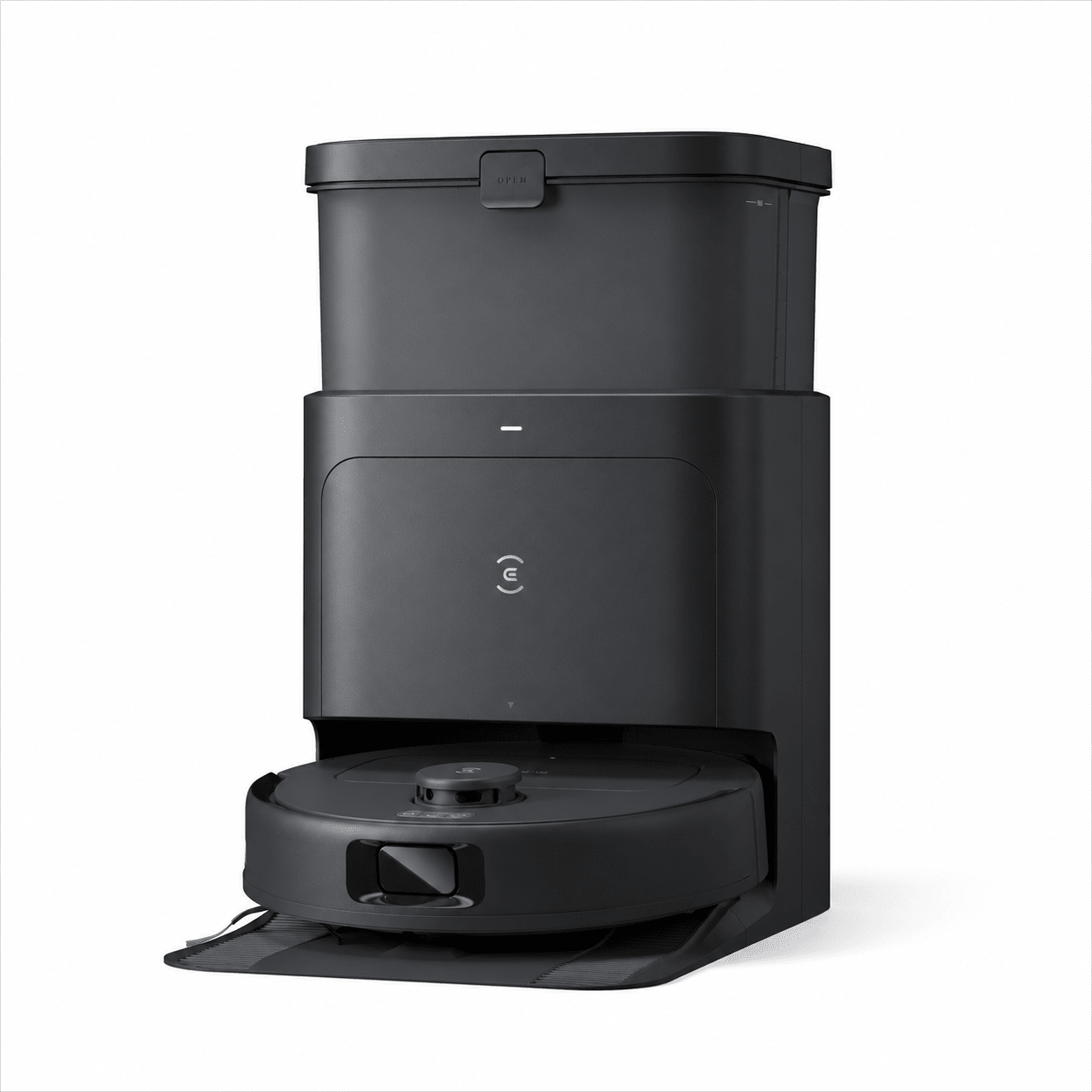
How to solve Wi-Fi and app connection problems
Many iRobot Roomba i7+ Robot Vacuum troubleshooting cases start with the app. If the robot will not connect, keep disconnecting, or refuses to update, the issue is often your network setup rather than the vacuum itself.
Common causes include:
- The Wi-Fi signal is weak near the dock
- The router uses unsupported settings
- The phone and robot are not on the same setup path
- The app needs an update
- The robot needs a reset or re-pairing
Roomba devices generally work best on 2.4 GHz Wi-Fi, and that is a common detail people overlook. I have seen smart-home setups fail simply because the phone was on one band and the robot setup expected another.
Try the following:
- Move the dock closer to the router if possible
- Restart the router, phone, and robot
- Update the app
- Forget and reconnect the Wi-Fi network
- Confirm your password is correct
- Avoid special network setups like captive portals
If the app is stuck, sign out and back in. Sometimes the fix is not dramatic at all. It is like restarting a frozen TV remote before assuming the batteries are dead.
How to handle error messages and alerts
Error messages are useful because they point you toward the real problem. The trick is not to panic when the robot speaks up. In many cases, the alert is telling you about a brush jam, stuck wheel, dirty sensor, or bin problem.
When you see an error:
- Write down the exact message
- Check the iRobot app for more details
- Remove the robot from the floor and flip it over
- Clear hair and debris from wheels, brushes, and sensors
- Clean the cliff sensors and charging contacts
- Restart the robot after cleaning
The robot’s sensors are small but important. A thin layer of dust can confuse them, especially on dark floors or in low light. I learned early on that sensor cleaning is one of the cheapest fixes with the highest payoff.
If an error keeps returning:
- Look for hidden debris in the brush module
- Inspect the front caster wheel
- Make sure the bin is locked in place
- Check for damaged parts that may need replacement
How to clean sensors, brushes, and wheels correctly
A clean robot is a better robot. That sounds obvious, but it is the part most people skip until a problem starts. Regular cleaning is one of the most important parts of iRobot Roomba i7+ Robot Vacuum troubleshooting because dust builds up faster than you think.
Focus on these areas:
- Cliff sensors
- Charging contacts
- Front caster wheel
- Side brush
- Main brush rollers
- Dust bin and filter
A good cleaning routine:
- Wipe sensors with a soft, dry cloth
- Remove hair from brush ends and axles
- Spin the front wheel to check for smooth movement
- Tap the dust bin to remove fine dust
- Replace the filter on schedule
Do not use water on electronic parts. A damp cloth is okay on some exterior surfaces, but keep liquid away from openings and contacts. Think of it like cleaning glasses: gentle care works better than force.
How to reset the iRobot Roomba i7+ Robot Vacuum
A reset can help when the robot freezes, behaves oddly, or ignores app commands. It will not fix broken hardware, but it can clear temporary glitches and refresh the system.
Before resetting, try a simple restart first:
- Hold the CLEAN button for about 20 seconds, or follow the device-specific restart method
- Wait for the robot to reboot
- Test it again after it reconnects
If the issue remains, a factory reset may help, but use it carefully. A factory reset usually clears saved maps, Wi-Fi connections, and preferences. That means you may need to set up your home again from scratch.
Use a reset when:
- The app keeps crashing with the robot
- The robot won’t complete setup
- Navigation seems badly confused after updates
- Repeated errors continue after cleaning and charging checks
A reset is a last-mile fix, not the first move. I usually save it for when the easy mechanical checks have already been done.
How to improve navigation and mapping issues
The Roomba i7+ uses smart mapping, but mapping can fail if the home layout changes or sensors are dirty. Furniture moved around, mirrors, dark rugs, and clutter can all make the robot act uncertain.
Try these steps:
- Clear the floor before starting a run
- Open doors to rooms you want cleaned
- Remove cords, socks, and small toys
- Clean the sensors and camera lens area
- Let the robot complete a full run to rebuild its map
If the robot keeps missing sections, the map may need adjustment in the app. Saved maps are helpful, but they are not magic. They work best when the environment stays fairly stable.
Helpful tip:
- Run the robot in daylight at first if navigation seems weak
- Avoid placing the dock in a cramped area
- Keep reflective surfaces and thick fringe rugs under control
When to replace parts instead of troubleshooting more
At some point, iRobot Roomba i7+ Robot Vacuum troubleshooting reaches a limit. If a part is worn out, cleaning will only help for so long. That is especially true for filters, brushes, batteries, and sometimes the Clean Base bag system.
Consider replacement if:
- The battery no longer holds a charge
- Brushes are bent, cracked, or missing bristles
- The filter is old and clogged beyond cleaning
- The side brush is warped or loose
- The dock bag system has repeated airflow problems
In my experience, replacing worn parts often brings the machine back to life faster than hours of trial and error. It is one of those cases where a small spend saves a lot of frustration.
Prevention tips to avoid repeat problems
The easiest troubleshooting is the kind you never need. A few habits can keep the Roomba i7+ running smoothly for much longer.
Good habits include:
- Emptying and checking the robot bin regularly
- Replacing filters on time
- Cleaning brushes every week or two
- Clearing floors before each run
- Keeping the dock in an open, stable spot
- Updating the app and robot firmware when available
This is where experience matters. Most repeat problems are not random. They usually come from the same small issues building up over time, like dust in the sensors or hair in the brush ends.
Frequently Asked Questions of iRobot Roomba i7+ Robot Vacuum troubleshooting
Why is my iRobot Roomba i7+ not charging?
The most common reasons are dirty charging contacts, a bad outlet, or a dock connection issue. Clean the contacts and try a different outlet before assuming the battery has failed.
Why does my Roomba i7+ keep stopping during cleaning?
It may be stuck, have a clogged brush, or be seeing a sensor error. Check the wheels, brushes, and bin first, since those are the most common causes.
Why won’t my Roomba i7+ connect to Wi-Fi?
Roomba setup usually works best on a 2.4 GHz network, and weak signal can cause pairing failures. Restart the router, app, and robot, then try setup again.
Why is the Clean Base not emptying the bin?
A full bag, blocked intake, or poorly seated bin can stop the emptying cycle. Remove the bag, inspect the dock opening, and make sure the robot bin is locked in properly.
How often should I clean the Roomba i7+?
A quick check every week is a good habit, especially if you have pets or carpets. Clean the brushes, sensors, and bin more often if you notice performance drops.
Do I need to reset the Roomba i7+ often?
No, not normally. A reset is mainly for software glitches, setup problems, or repeated errors that do not go away after basic cleaning and charging checks.
Conclusion
iRobot Roomba i7+ Robot Vacuum troubleshooting is usually less about major failure and more about small, fixable issues that stack up. If you start with the basics like charging contacts, brushes, sensors, Wi-Fi, and the Clean Base, you can solve most problems without stress. The smartest approach is calm, step by step, and a little preventive care along the way.
If your Roomba i7+ is still acting up, use the sections above as a checklist and work through one item at a time. Small fixes often bring the biggest results. If you found this guide helpful, save it, share it, or leave a comment with the problem you’re facing next.

