

Pair a Shark robot vacuum by powering it on, connecting the app, and following the Wi-Fi setup steps.
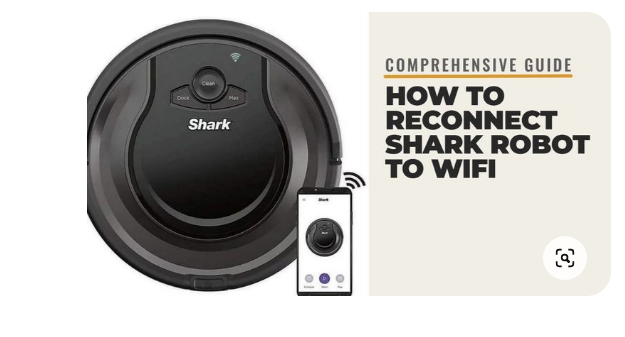
If you want your Shark robot vacuum to clean on schedule instead of sitting like a lost gadget, pairing is the key step. I’ve walked through this setup many times, and the good news is that most pairing issues are simple once you know the right sequence. In this guide, I’ll show you how to pair Shark robot vacuum models the easy way, plus the fixes that save time when the app, Wi-Fi, or Bluetooth does not cooperate.
How Shark robot vacuum pairing works
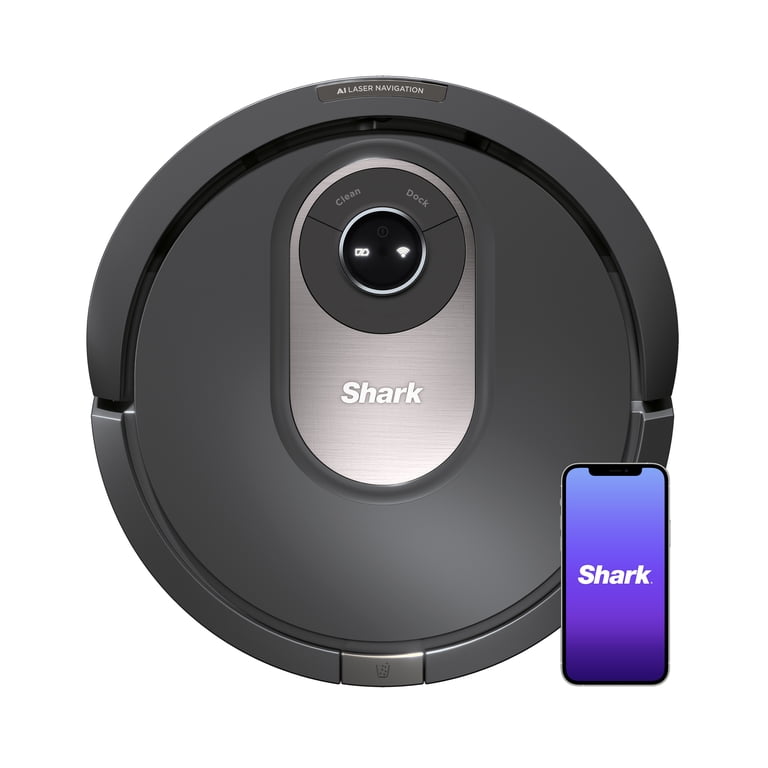
Pairing a Shark robot vacuum means connecting the vacuum to your phone, home Wi-Fi, or both, depending on the model. This lets you start cleaning from the app, set schedules, rename the robot, and get status alerts.
Most Shark robot vacuums use the SharkClean app for setup. In my experience, the process is a lot like introducing two people at a party. If they are on the same network and the timing is right, they connect fast. If not, the setup can feel awkward until you reset the meeting point.
Before you begin, make sure of these basics:
- Your robot is charged or on its dock
- Your phone is connected to a 2.4 GHz Wi-Fi network
- Bluetooth is turned on if your model uses it during setup
- The SharkClean app is installed and updated
- You are close to the vacuum and your router during pairing
Many setup problems come from using the wrong Wi-Fi band. Most Shark robot vacuums do not pair well with 5 GHz networks during initial setup, so 2.4 GHz is usually the safe choice.

How to pair Shark robot vacuum step by step
Here is the most reliable way to pair Shark robot vacuum models. The exact buttons may vary a little by model, but the process is usually very similar.
1. Charge the robot first
Place the vacuum on the dock and let it charge for at least 2 to 3 hours before setup if possible. A low battery can interrupt pairing and cause random disconnects.
I learned this the hard way with one unit that kept dropping the setup screen halfway through. The battery was too low, and once it charged fully, the process worked on the first try.
2. Download the SharkClean app
Install the SharkClean app on your iPhone or Android phone. Open the app and create an account if you do not already have one.
Make sure your phone’s operating system is updated enough to support the app. Older software can cause the app to freeze or fail to show the vacuum correctly.
3. Turn on the vacuum
Press the power button on the robot vacuum if it is not already on. Some models also need you to hold a specific button until a light starts blinking.
A blinking Wi-Fi or status light usually means the vacuum is ready for pairing. If you do not see any indicator lights, check the dock connection and battery level first.
4. Add the device in the app
In the SharkClean app, tap to add a new robot vacuum. The app will guide you through the setup steps and may ask for location permissions, Bluetooth access, and Wi-Fi details.
This part matters more than many people think. If permissions are denied, the app may not detect the vacuum even if everything else is correct.
5. Connect to 2.4 GHz Wi-Fi
Choose your home Wi-Fi network and enter the password carefully. Shark robot vacuums usually work best with 2.4 GHz because it has better range and broader device support.
If your router combines 2.4 GHz and 5 GHz under one name, you may need to split the bands in your router settings or create a separate 2.4 GHz network. This small change often solves setup problems fast.
6. Wait for confirmation
Once the app says the vacuum is paired, let it finish any firmware updates. Do not close the app too early, because the vacuum may still be syncing settings.
After that, test the connection by starting a short cleaning job from the app. If the robot responds quickly, pairing is complete.

What to do if Shark robot vacuum will not pair
Pairing problems are common, but most are fixable. When I troubleshoot these units, I usually start with the simplest causes first.
Check the Wi-Fi band
This is the biggest issue for many users. If your vacuum cannot see the network, it may be trying to connect to 5 GHz instead of 2.4 GHz.
Try these fixes:
- Connect your phone to the 2.4 GHz network
- Move closer to the router
- Restart the router and vacuum
- Temporarily turn off the 5 GHz band if needed
Reset the robot’s network connection
If the vacuum remembers an old router or a failed setup, reset the Wi-Fi settings on the robot. The exact button combination depends on the model, so check the manual or on-screen app instructions.
A reset clears the old connection and gives you a clean start. Think of it like wiping a chalkboard before writing again.
Reinstall or refresh the app
If the app freezes or does not detect the robot, log out and back in. If that fails, reinstall the SharkClean app and try again.
Also check these common phone issues:
- Bluetooth is off
- Location permissions are disabled
- The app does not have local network access
- VPN is active and interfering with setup
Move closer during setup
Distance matters more than people expect. During pairing, keep the phone, vacuum, and router in the same room if possible.
I have seen setups fail simply because the router was in a basement and the robot was trying to connect from two rooms away. A stronger signal usually makes the process much smoother.
Update firmware after pairing
Sometimes the vacuum pairs but acts buggy until it updates. Let the firmware finish before testing schedules or smart controls.
Firmware updates can improve stability, fix bugs, and improve app communication. If the update fails, restart both the app and vacuum, then try again.

Tips for a smooth Shark robot vacuum setup
A little prep can save a lot of frustration. These habits make pairing cleaner and faster.
- Use a 2.4 GHz network only during setup
- Keep the vacuum fully charged
- Restart your router before pairing
- Turn off VPNs on your phone
- Stand near the vacuum while pairing
- Confirm that your Wi-Fi password is correct
- Keep the app updated
- Avoid setup during heavy network use, like streaming or gaming
In real life, I treat pairing like setting up a new TV. If you rush it, you miss a step. If you slow down and check the basics, it usually works with far less stress.
Another helpful tip is to name the vacuum something simple in the app. Short names are easier to remember when you use voice commands or schedules later.
Why pairing matters for Shark robot vacuum owners
Pairing is not just a setup task. It unlocks the features that make the robot truly useful.
Once paired, you can usually:
- Start and stop cleaning from your phone
- Create cleaning schedules
- See battery and status alerts
- Control cleaning modes
- Use voice assistant integration on supported models
- Update the vacuum more easily
This turns the robot from a basic cleaner into a daily helper. Instead of manually pressing buttons, you get a device that fits into your routine.
For busy homes, that matters. If you have pets, kids, or a lot of foot traffic, a paired Shark robot vacuum can feel like one less thing to think about.
Common mistakes to avoid when pairing Shark robot vacuum
Many setup failures come from a few repeat mistakes. Avoiding them can save time and frustration.
- Trying to connect on a 5 GHz network
- Skipping phone permissions
- Pairing while the battery is low
- Standing too far from the router
- Using an outdated app
- Entering the wrong Wi-Fi password
- Ignoring app prompts for firmware updates
I have also seen people try to pair while another family member is changing router settings. That can break the process midstream. If possible, keep the network stable until setup is complete.
When to contact support
If you have tried the basics and the Shark robot vacuum still will not pair, it may be time to contact support. This is especially true if the robot never shows a setup light or the app keeps giving an error after multiple resets.
Support can help with:
- Model-specific reset steps
- App compatibility issues
- Hardware defects
- Router conflicts
- Firmware problems that need deeper troubleshooting
Before you call, write down your model number, router name, and the exact error message. That small detail often speeds up the fix.
Frequently Asked Questions of How to Pair Shark Robot Vacuum
Why won’t my Shark robot vacuum connect to Wi-Fi?
Most of the time, the problem is a 2.4 GHz versus 5 GHz mismatch or a weak signal during setup. Also check that Bluetooth, location, and local network permissions are enabled on your phone.
Do I need the SharkClean app to pair my vacuum?
Yes, for most smart Shark robot vacuums, the app is the main tool for pairing and control. It also helps with schedules, firmware updates, and status checks.
Can I pair Shark robot vacuum without internet?
You may be able to use some basic on-device functions without internet, but app pairing usually needs an active Wi-Fi connection. Smart features and remote control generally will not work fully offline.
Why does the app not find my Shark vacuum?
The vacuum may not be in pairing mode, or your phone may not have Bluetooth and location access turned on. It can also happen if the vacuum is too far from the router or if the app is outdated.
How do I reset Shark robot vacuum pairing?
Most models have a Wi-Fi or network reset option through a button sequence or app menu. After resetting, reconnect the robot to your 2.4 GHz network and follow the setup prompts again.
Can I use one Shark robot vacuum with two phones?
Yes, in many cases you can sign in on more than one phone with the same Shark account. That makes it easy for family members to start or monitor cleaning.
Conclusion
Pairing a Shark robot vacuum is usually simple once you focus on the right basics: charge the robot, use the SharkClean app, connect to 2.4 GHz Wi-Fi, and stay close during setup. Most problems come from small things like network bands, app permissions, or low battery, and those are all fixable.
If your vacuum is still giving you trouble, take it step by step instead of rushing. A calm reset and a clean Wi-Fi setup can make all the difference. Try the tips above, and if you found this guide helpful, explore more smart home setup advice or leave a comment with your model and issue.

