
Setting up a robot vacuum can feel overwhelming, especially if you’re new to smart home technology. The Roborock Saros 10R is a premium robot vacuum that offers high performance, smart mapping, and convenient controls. But to get the best results, you need to set it up correctly from the start. This guide will walk you through every step, from unboxing to advanced features, so your Saros 10R works efficiently in your home. Even if English is not your first language, you’ll find this article easy to follow, with simple words and clear instructions.
Unboxing And Preparing The Roborock Saros 10r
Before starting, make sure you have all the items that should come with your Saros 10R.
- Roborock Saros 10R robot vacuum
- Charging dock
- Power cable
- Dustbin and filters
- Mop attachment (if included)
- User manual
- Extra accessories (brushes, cleaning tools)
Check that nothing is missing or damaged. If something is wrong, contact Roborock support or your seller.
Where To Place The Charging Dock
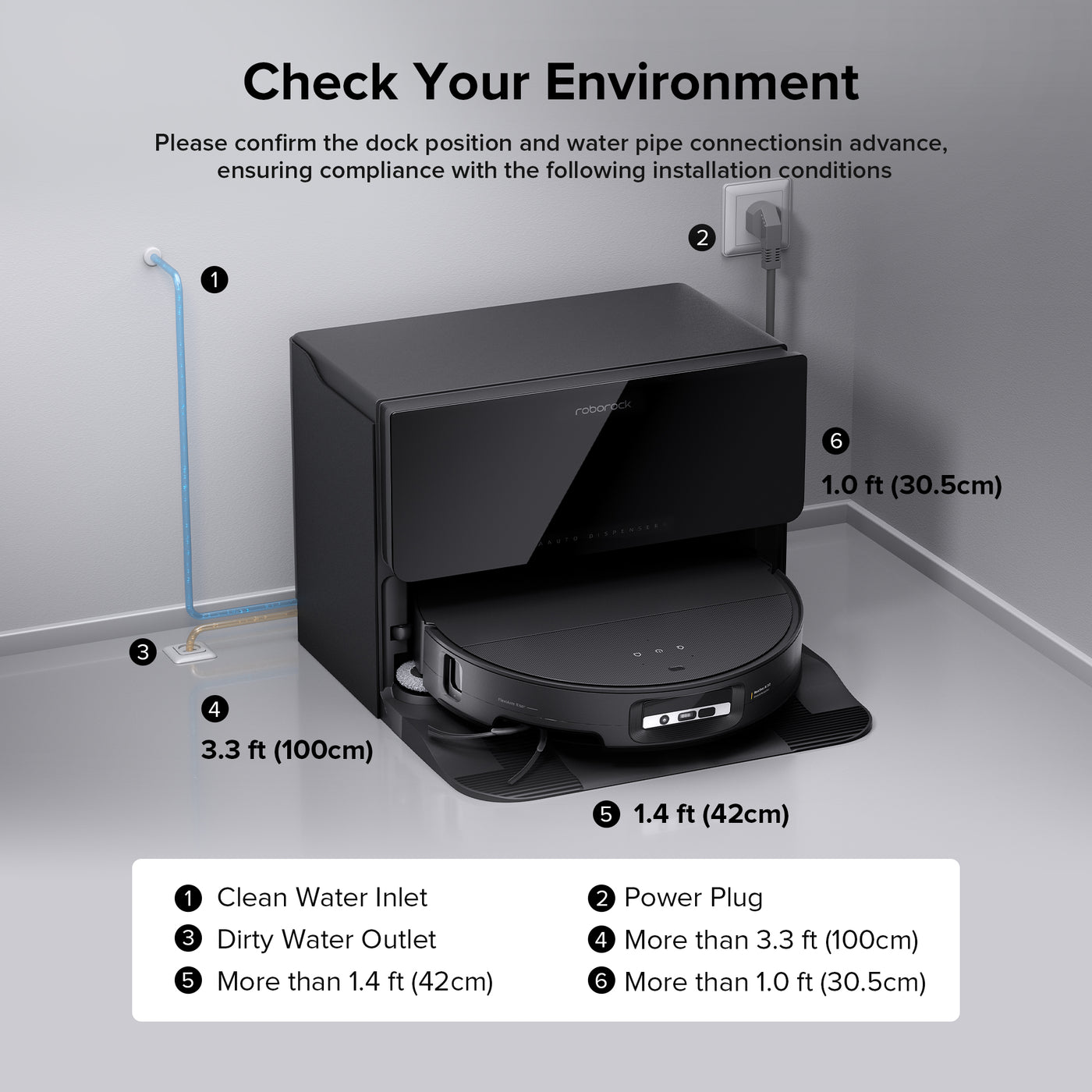
The charging dock is where your Saros 10R will return for charging and resting. Choose a place with these conditions:
- Flat, hard floor (no carpet under the dock)
- At least 1.5 feet (0.5 meters) clear space on each side
- At least 4 feet (1.2 meters) clear space in front
- Near a power outlet
- Away from stairs, heat sources, or water
Plug in the dock and make sure the indicator lights turn on. If the lights don’t turn on, check the cable and outlet.
First Steps Before Powering On
Before you turn on the Saros 10R:
- Remove all protective films and packaging
- Install the main brush and side brush (if not already installed)
- Insert the dustbin and filter
- Attach the mop module if you plan to use the mopping feature
Take a moment to read the quick-start guide included in the box. Many beginners skip this, but it can prevent simple mistakes.
Powering Up And Connecting To Wi-fi
Now it’s time to turn on your Saros 10R. Press the power button on top for about 3 seconds until you hear a beep or see the lights flash.
Connecting To The Roborock App
The Roborock App helps you control, schedule, and monitor your Saros 10R. You can download it from the App Store (iOS) or Google Play (Android).
- Open the app and create an account.
- Tap “Add Device” and select “Saros 10R.”
- Follow the instructions to connect the vacuum to your Wi-Fi. Make sure you use a 2.4 GHz network (not 5 GHz), as most robot vacuums do not support 5 GHz.
- Enter your Wi-Fi password when asked.
- Wait for the vacuum to connect. The app will show a confirmation.
If you have trouble connecting, restart your router and try again. Some users forget to switch their phone to 2. 4 GHz Wi-Fi, which can cause problems.
Pairing With Voice Assistants
The Saros 10R works with Amazon Alexa and Google Assistant. To connect:
- Open the Roborock app
- Go to “Settings” > “Voice Assistant”
- Follow the steps to link your Roborock account with Alexa or Google
- Give commands like “Start cleaning” or “Return to dock”
Not all features are available through voice control, but basic actions work well.
Mapping Your Home
One of the best features of the Saros 10R is smart mapping. This lets the robot understand your home’s layout and clean more efficiently.
Starting The First Mapping Run
- Clear the floors of small objects, cords, and fragile items.
- Open all doors you want the robot to map.
- Press “Start” in the app or on the robot.
- Let the Saros 10R run without interruption.
The robot uses LiDAR sensors and cameras to scan and build a map. This first run can take 30–60 minutes, depending on your home size.
Example: Mapping Efficiency
A 1,200 sq. Ft. apartment usually takes about 45 minutes to map. If you block rooms or move furniture during mapping, the robot’s map will be less accurate.
Editing And Saving The Map
After mapping, open the app to see the map. You can:
- Label rooms (e.g., Kitchen, Bedroom)
- Set “no-go zones” (places the robot should avoid)
- Divide or merge rooms
Saving the map lets you use advanced features like room-specific cleaning and custom schedules.
Setting Cleaning Modes And Schedules
The Saros 10R offers several cleaning modes. Choose the one that fits your needs.
- Auto Mode: Cleans all mapped areas
- Room Mode: Cleans specific rooms
- Spot Mode: Cleans a small area (good for spills)
- Mop Mode: For mopping hard floors
Adjusting Cleaning Power
You can set suction levels in the app:
- Quiet: Lowest suction, longest battery life
- Balanced: Good for everyday cleaning
- Turbo: Strong suction for carpets
- Max: Highest power for deep cleaning
Cleaning Power Comparison
Here’s a comparison of cleaning power and battery life:
| Mode | Suction (Pa) | Battery Life (min) | Noise Level (dB) |
|---|---|---|---|
| Quiet | 1200 | 180 | 58 |
| Balanced | 2000 | 150 | 65 |
| Turbo | 2700 | 120 | 70 |
| Max | 3500 | 90 | 74 |
For homes with thick carpet, use Turbo or Max mode. For hard floors, Balanced is usually enough.
Scheduling Automatic Cleaning
You can set schedules in the app:
- Daily or weekly cleaning
- Choose specific rooms or whole house
- Set the time (e.g., clean at 9: 00 AM every Monday)
Smart scheduling is often missed by beginners. It saves time and keeps your home tidy without manual effort.
Using The Mop Feature
If your Saros 10R comes with a mop attachment, you can mop hard floors.
Installing The Mop Module
- Fill the water tank with clean water (not hot, not soap)
- Attach the mop cloth to the module
- Slide the module onto the bottom of the robot
- Select “Mop Mode” in the app
Setting Mop Intensity
You can adjust water flow in the app:
- Low: For delicate floors
- Medium: Everyday mopping
- High: Tough stains
Mop Mode Comparison
| Setting | Water Usage (ml/min) | Floor Type |
|---|---|---|
| Low | 1.2 | Laminate, wood |
| Medium | 2.0 | Tile, vinyl |
| High | 3.5 | Stone, tough stains |
Never use cleaning solutions unless Roborock approves them. Some chemicals can damage the robot.
Maintenance And Care
Regular care is important for long-lasting performance.
Cleaning The Dustbin And Filters
- Empty the dustbin after each run
- Wash the filter every 2 weeks (dry before reinstalling)
- Replace filters every 4–6 months
Cleaning Brushes And Sensors
- Remove hair from the main brush weekly
- Clean side brush and wheels monthly
- Wipe sensors with a dry cloth to prevent errors
Mop Cloth And Water Tank
- Wash the mop cloth after each use
- Empty and rinse the water tank weekly
Typical Maintenance Schedule
| Part | Action | Frequency |
|---|---|---|
| Dustbin | Empty | After every use |
| Filter | Wash/Replace | Every 2 weeks / 4 months |
| Main Brush | Clean | Weekly |
| Sensors | Wipe | Monthly |
| Mop Cloth | Wash | After use |
Most users forget to clean sensors, which can cause navigation errors. This step is easy but often skipped.
Troubleshooting Common Problems
Even the best robot vacuums can face issues. Here are solutions for typical problems:
- Not connecting to Wi-Fi: Check if you’re using 2.4 GHz, restart router and robot
- Robot stuck: Clear obstacles, use no-go zones in the app
- Poor cleaning: Clean brushes, replace filter, check suction setting
- Error messages: Check the app for details, follow suggested actions
If problems persist, consult the Roborock website or contact support. You can also find useful guides on Roborock Support.
Advanced Features And Customization
The Saros 10R offers smart options for advanced users.
Multi-floor Mapping
You can save up to 4 maps for different floors. To set up:
- Move the robot to a new floor
- Start a mapping run
- Save the new map in the app
Custom Cleaning Zones
Set special zones for cleaning (e. g. , entryway after rain). Mark these in the app and schedule extra cleaning.
Firmware Updates
Keep your Saros 10R updated through the app. Updates fix bugs and add new features. Many users forget this step, but it helps keep your robot at peak performance.
Frequently Asked Questions
How Long Does It Take To Fully Charge The Roborock Saros 10r?
Charging from empty takes about 4–5 hours. It’s best to keep the robot on the dock when not in use so it’s always ready.
Can The Saros 10r Clean Multiple Floors?
Yes, you can save maps for up to 4 floors. Move the robot and dock to each floor, map it, and save the map in the app.
What Is The Best Way To Set No-go Zones?
Use the app to mark no-go zones or virtual walls. Place them around fragile items, pet bowls, or stairs. This prevents the robot from entering unwanted areas.
Is It Safe To Use Cleaning Solutions In The Water Tank?
Only use water unless Roborock approves a specific solution. Most chemicals can damage the robot’s internal parts.
How Often Should I Replace The Filters And Brushes?
Replace filters every 4–6 months and brushes every 6–12 months. If you have pets or heavy use, replace them sooner.
Roborock Saros 10R is a powerful and intelligent robot vacuum. With careful setup and regular maintenance, it can clean your home efficiently for years. Remember to check the app for updates, use mapping wisely, and follow the maintenance schedule. If you ever have trouble, Roborock’s support team and online resources are there to help.
Smart cleaning is easy when you take a few minutes to set up your Saros 10R the right way.