

If you're reading this, chances are your robot vacuum is spinning circles near the sofa instead of gliding home to recharge. It's a common failure, but it's rarely a serious one. Most docking problems trace to one of three sources: the robot can't find the dock, it can't connect once it gets there, or it never heads back because of a battery or software issue.
Manufacturer specs show that most robots trigger the return-home routine at 20 to 30 percent battery, and the dock's infrared beacon only reaches a few feet. As of 2026, even premium mapping models from Roborock, Ecovacs, and Dreame still rely on that same short-range beacon for final docking. Let's pinpoint your exact problem.
Quick Answer
A robot vacuum usually fails to dock because of a blocked sensor, dead battery, or map error. Clean the IR lenses and charging contacts first. Then check the battery level and map in the app.
Most docking problems are simple to fix in minutes.
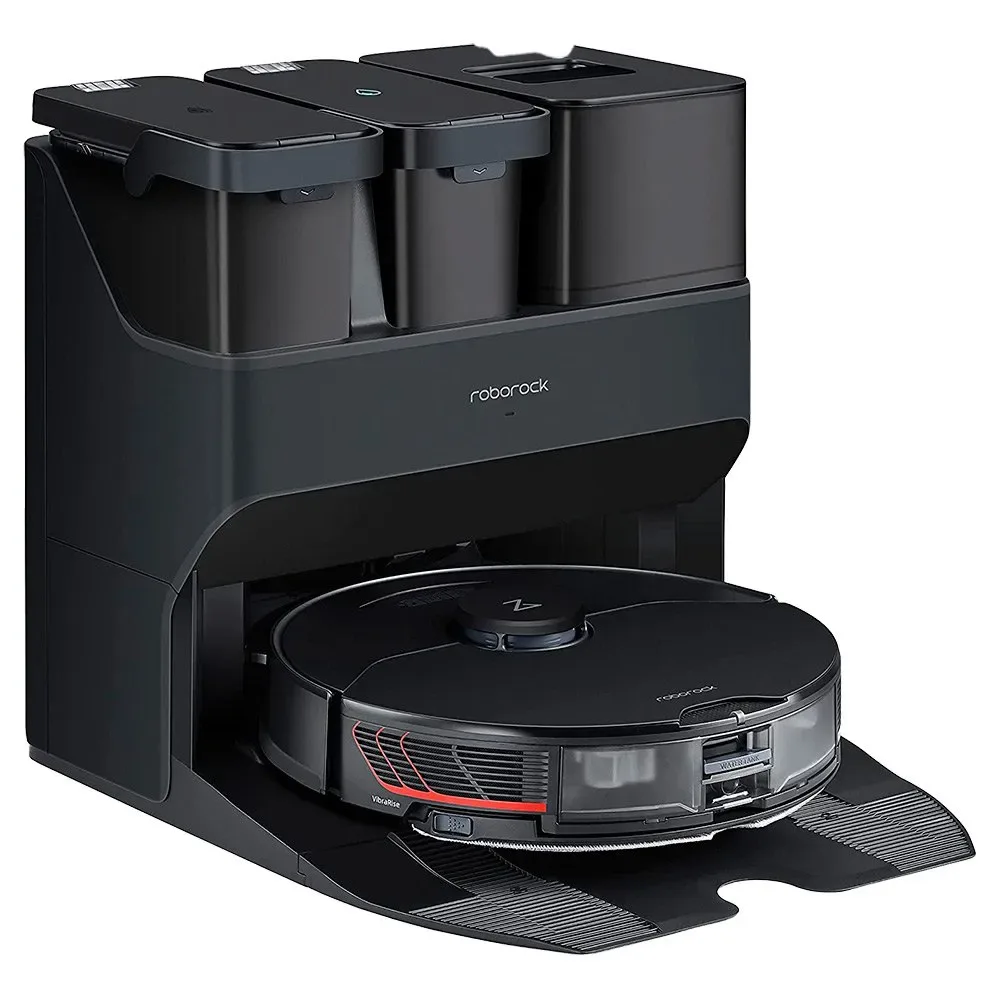
Image source: Web (Bing) / tradeinn.com (Web image (fair-use with source credit))
Start Here: Why Your Robot Vacuum Won't Dock and How to Narrow It Down Fast
Your robot vacuum isn't returning because it can't find the dock. Or it finds the dock but can't connect. Or it has lost its map entirely.
Start with the easiest checklist first: power, obstructions, and dock placement. Most docking failures are simple to fix without any tools.
Every docking failure falls into one of three branches. Your robot's behavior tells you which branch you're in.
Branch 1: The robot never leaves for the dock. If you press "return to base" in the app and nothing happens, or the robot wanders aimlessly, the problem is usually mapping, battery, WiFi, or firmware.
Branch 2: The robot reaches the dock but can't connect. This is the bump, spin, back up, and fail pattern. Dirty charging contacts, misalignment, or a blocked IR sensor are the usual culprits.
Branch 3: The robot gets close but stops short. This often points to a battery that's too weak to finish the trip, or a map that has the dock positioned in the wrong spot.
Match your robot's behavior to a branch, then jump to the matching section below. That saves you from working through fixes that don't apply.
Quick Checks Before You Troubleshoot: Power, Obstructions, and Dock Placement
Before you reset anything, run the three quickest checks. These catch more docking failures than you'd think.
Is the charging dock plugged in and powered? Look at the dock's indicator light. If it's off, the power adapter might have worked loose, or the outlet might be dead. Plug the base into a known working outlet.
Is the dock area blocked? The IR beacon and the robot's sensors need an unobstructed path. Most manufacturers recommend about 1.5 feet of clearance on each side of the dock, and 3 feet of clear floor space in front. Move shoes, pet bowls, power strips, stray cables, or a fallen cardboard box out of that zone.
Is your robot in Do-Not-Disturb mode? Some models suppress automatic dock-return behavior during scheduled quiet hours. Check the app if the robot just sits there idle.
Are you seeing an error code? Most robots flash or announce a specific error, like "wheel obstruction" or "cliff sensor blocked." The app will usually translate it for you.
Skip straight to deeper troubleshooting only if all of these check out. Even for hardwood-friendly robot models, the placement rules look the same, and the sensors still need those clearances.
Does the Robot See the Dock? (IR Beacon and Sensor Issues)
If it reaches the dock area and starts circling, the answer is no. The dock isn't sending a signal the robot can read. The final few inches of docking depend on an infrared beacon on the base.
The robot uses its map to get near the dock, then locks onto that IR signal to land on the contacts. If that signal is blocked, the robot will mill around, bump the dock, or stop a foot away.
Here's the test: press "return to base" in the mobile app, then watch the robot. If it reaches the dock zone and starts circling, it's an IR signal problem, not a navigation one.
Clean the IR receiver on the robot first. It's usually a small dark lens on the front or bottom edge. A thin film of dust is enough to break the link.
Wipe it gently with a dry microfiber cloth.
Then clean the IR emitter on the dock itself. It sits near the charging pads, often behind a small clear window. Same deal: dry cloth, gentle pressure, no liquid.
If the emitter lens is dull or scratched, the dock may need to be replaced.
Some models let you test the dock beacon in the app's sensor diagnostics screen. If everything looks clean and the robot still won't dock, use the camera on your phone. The camera sensor can usually pick up the IR flash from the emitter.
You'll see it flicker, and that's a good sign the beacon is alive.
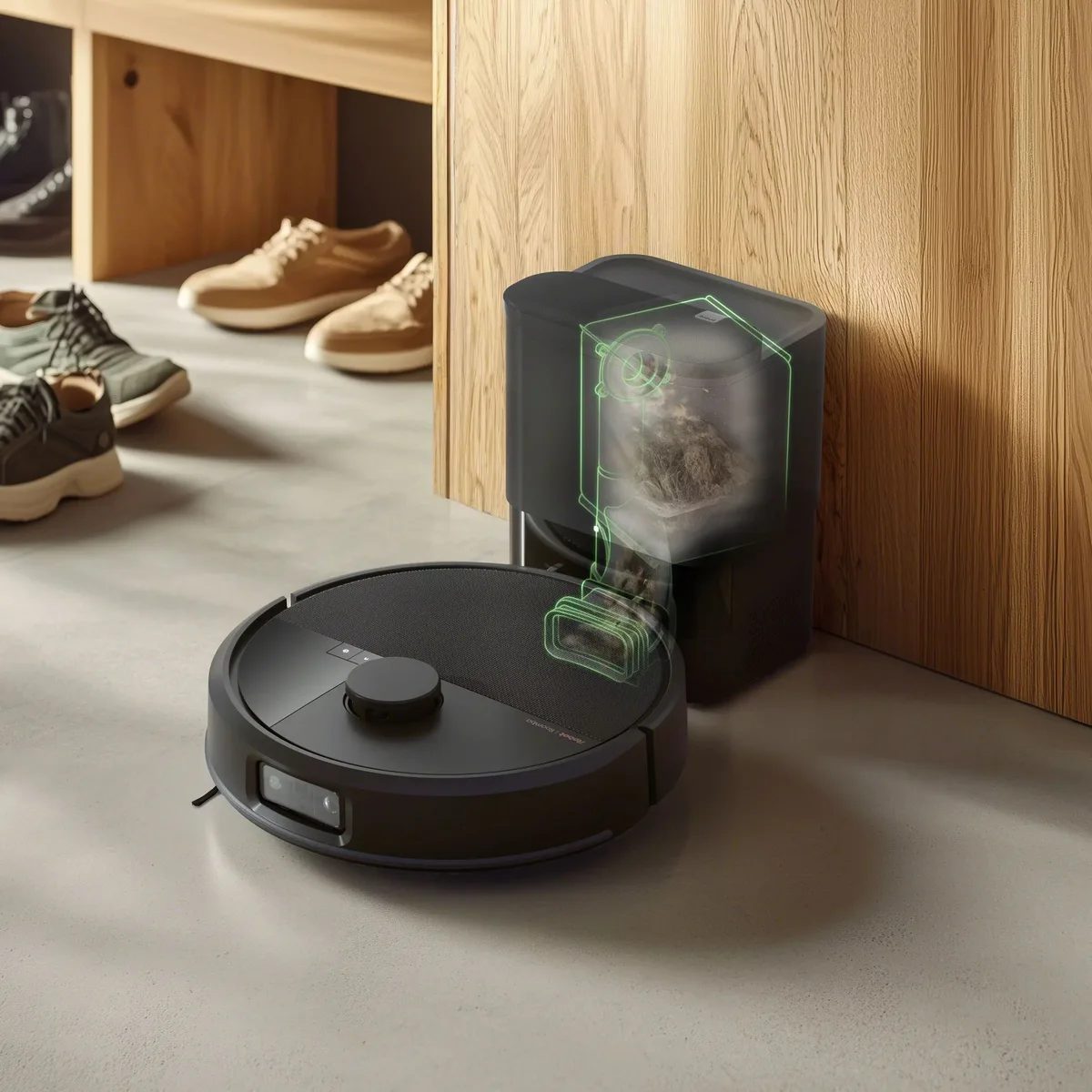
Image source: Bing (Web (fair-use with source credit))
Is the Robot's Battery Too Low to Make It Home?
If the robot shuts down before reaching the dock, yes. Most robots are programmed to head back when the battery hits 20 to 30 percent. That is usually enough reserve to cross a large home.
But battery health drops with time, and a pack down to 60 or 70 percent of its original capacity won't hold the same reserve.
The symptom is easy to spot. The robot starts heading for the dock, then freezes, flashes a low-battery error, or powers off before it arrives. If you see that pattern, the battery is the problem, not the dock.
Pick the robot up manually and place it on the charging contacts. That gets it powered up right away. Then check the battery health reading in the app.
Many apps show capacity as a percentage of the original. Anything under 70 percent is a candidate for replacement.
Also watch for battery swelling, or a robot that runs shorter and shorter each month. Those are stronger signs of a worn pack than a one-off docking failure. A weak battery can also cause the robot to shut down mid-clean in a random spot, which confuses the map and blocks future routes back to the dock.
For older models, schedule shorter cleaning sessions. That leaves enough juice for the return trip. Per IEEE research on autonomous mobile navigation systems, the dock-return reserve is a deliberate design margin, and it shrinks as the pack ages.
If It Gets Close but Won't Connect: Dirty Contacts and Misaligned Dock
This is the classic failure: the robot finds the dock, bumps it, backs off, tries again, and sits there. The navigation did its job. The connection failed.
Start with the charging contacts. The metal pads on the robot and the pogo pins on the dock collect dust, pet hair, and grime. That layer of gunk insulates the circuit. Wipe both sets of contacts with a soft, dry cloth.
If they're truly grimy, use a microfiber cloth barely damp with water, then dry them fully before the next attempt.
Check the dock's alignment. The base needs to sit perfectly flat on the floor. A bunched rug, a warped floorboard, or a dock edged onto a transition strip will tilt it slightly. That tilt is enough to stop the metal from touching properly.
Straighten the dock and press down firmly on the base to seat it.
Inspect the robot's underside. Some models have a small protection flap over the charging ports. That flap can get jammed with a thread or carpet fiber. Turn the robot upside down, inspect the contacts with a flashlight, and clear any debris you see.
Check for worn pogo pins. The spring-loaded pins on the dock should press back smoothly. If a pin is stuck or bent, the base needs a replacement part, not a reset.
| Symptom | Most Likely Cause | First Fix |
|---|---|---|
| Bumps the dock but misses the pads | Misaligned base | Straighten the dock and press it flat |
| Touches the dock, then backs away | Dirty contacts | Wipe both sets of pads with a dry cloth |
| Stops a few inches short | Low battery or dead zone | Place the robot on the dock manually |
| Circles next to the dock | Blocked IR sensor | Clean the emitter and receiver lenses |
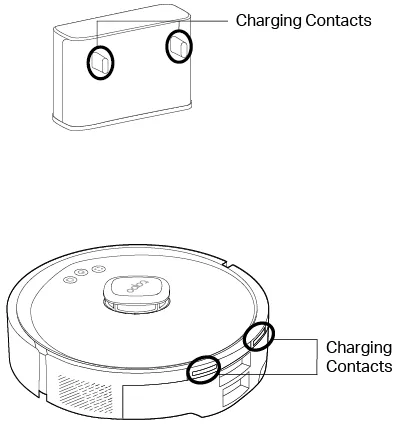
Image source: Web (Bing) / tp-link.com (Web image (fair-use with source credit))
After cleaning and realigning, press "return to base" in the app. If the light ring flashes and the robot sits still, connection confirmed. That fix just saved you a factory reset.
If It Circles or Bumps the Dock: Pathing and Navigation Sensor Problems
When the robot finds the dock but keeps circling, it's usually a navigation sensor issue. The IR beacon works, but the robot can't line up properly.
Check the cliff sensors first. Those little lenses on the bottom edge detect floor changes. A smudge of dirt or pet hair can make the robot think there's a drop right before the dock.
It will back away repeatedly. Wipe them all with a dry microfiber cloth.
Then check the bumper. If it's stuck on a pebble or a hair tangle, the robot can't make that final contact push. Inspect the wheels and wheel encoders too.
A slow wheel makes the robot drift just enough to miss the charging pads.
Some robots have a "sensor test" or "dock alignment" page in the app. Use it. That diagnostic screen shows you exactly which sensors are live and which are blocked.
It saves you a lot of guesswork.
If It Never Heads to the Dock at All: Map Errors and No-Go Zones
If you press "return to base" and nothing happens, the map is likely the problem. The robot either doesn't know where it is, or it thinks the dock sits inside a restricted zone.
Open the map in your app and look for no-go zones or virtual walls placed over the dock. This happens more often than you'd think, especially after you've set up a new boundary for a pet bowl or an area rug. Move the boundary line and try again.
Check if the map looks faded or corrupted. Many apps show this as a lighter-colored floor plan or a "map lost" prompt. If the map looks damaged, a fresh remap is the most reliable fix.
It takes about ten minutes, but it clears most docking logic failures.
Confirm you're on the right floor map as well. Multi-floor homes sometimes switch maps incorrectly. The robot tries to dock in the living room while it's actually upstairs in the bedroom.
The Self-Emptying Base Factor: When the Dock's Charging Circuit Is the Problem
Self-emptying docks add a layer of complexity. The base is now a charging station, a dustbin, and a motorized unit all in one. If the charging circuit fails, the whole system acts dead.
Check the base's dustbin and filter first. A full bin or a clogged filter can trigger a fault that cuts power to the charging contacts. Most models show a bin-full indicator in the app.
Inspect the base's charging pins next. If the pogo pins look pitted or stuck, they can't make solid contact. A stuck internal latch on the self-empty bay can also stop the docking sequence from completing.
For self-emptying models, verify the base's vacuum motor engages when it should. If it doesn't run, the robot may dock physically but never receive a charge. That points to a hardware fault inside the base, not the robot.
WiFi, App, and Firmware Sync Issues That Disrupt the Return Trip
Your robot can be physically perfect but software-confused. Weak WiFi at the dock is a common cause. If the robot can't reach the cloud, it can't fetch its latest map or accept the return-to-base command.
Check the signal strength in the app's network settings. You want a solid connection, not a weak or dropping one. If the dock sits far from your router, a WiFi extender or a mesh node usually fixes it.
Reboot both the app and the robot. A simple power cycle clears a surprising number of sync errors. Then check for pending firmware updates and let them install while the robot sits on the dock.
Many manufacturers release docking algorithm fixes in these updates. Skipping them leaves you with stale navigation software.
If the map keeps vanishing after updates, a corrupt map file is likely. Delete the map and run a fresh mapping pass. It's tedious, but it beats fighting an invisible crash every day.
Dock Placement Mistakes That Confuse the Robot's Navigation
Where you put the dock matters more than most people realize. This isn't about aesthetics. It's about sensor physics.
Avoid large mirrors or glass surfaces near the dock. Camera-based mapping systems can get visually confused by reflections. Also keep the dock out from under furniture overhangs.
A low sofa skirt can block the IR signal or confuse the robot's upward-facing sensors.
Make sure the dock sits on a hard, level floor. A dock placed on thick carpet can tilt slightly, which breaks the charging connection. A dock next to a step can trigger the cliff sensors, making the robot refuse to approach at all.
Finally, keep the path from the main cleaning area to the dock clear. Cables, toys, and loose rugs are the top obstacles in that final return leg. A clear runway means a clean landing.
The same principle applies when you adjust the height on an upright vacuum for different floor types: match the machine to the surface.
The Reset Ladder: Power Cycling, Remapping, and Factory Reset
Start with the easiest reset: power cycle the robot. Turn it off, wait 10 seconds, turn it back on. That clears temporary software glitches without touching your map.
Next rung is a map delete. Most apps store the map both locally and in the cloud. Deleting it forces a fresh mapping pass, which usually takes 8 to 15 minutes.
Factory reset is the last rung. It wipes everything, including maps, schedules, WiFi settings, and robot preferences. Treat it as a final step, not a first move.
If a factory reset doesn't fix the docking behavior, the problem is hardware. Move to manufacturer support rather than resetting again.
Maintenance Habits That Prevent Dock Issues Long-Term
Clean the dock once a month. Wipe the IR emitter lens, charging pins, and the base's dustbin filter. Two minutes of upkeep prevents most contact issues.
Check the robot's sensors every few weeks. Clean the cliff sensors, bumper, and IR receiver. Pet hair and dust build up fast, especially in homes with shedding animals.
Update firmware regularly and let the app auto-install patches. Each update can refine the docking algorithm and fix navigation bugs. Regular upkeep on any vacuum keeps it running longer.
That's true for robots and upright models alike.
Common Mistakes to Avoid When Diagnosing a Robot Vacuum
Don't run a factory reset before checking the simple stuff. That wipes your map and often leaves you in the same spot, just with extra setup work.
Don't assume it's the robot when it's the dock. The dock's charging pins can fail silently. Place the robot on the contacts manually to confirm the base still charges.
Don't ignore wheel and brush jams. A tangled brush roll can stall the robot mid-dock, and it will lose its position on the map. Clear the brush roll before tweaking the map.
It's the same habit you'd build removing hair from an upright vacuum brush.
When to Stop Troubleshooting and Contact Manufacturer Support
Call support if you've cleaned all sensors, verified power, confirmed the dock, and still no luck. This usually points to a fault in the charging circuit or navigation board.
Use the app's self-diagnostic tool first. It can flag battery failures or wheel errors faster than a manual check. Specific errors point to specific replacement parts.
Check your warranty status as well. Most robot vacuums carry at least a one-year manufacturer warranty. A defective unit shouldn't cost you extra out of pocket.
Frequently Asked Questions
Why does my robot vacuum stop inches away from the dock?
Dirty IR sensors or charging contacts are the usual cause. Wipe both sets of lenses and pads with a dry cloth. Check that the dock sits level on a hard floor.
How long does a robot vacuum take to return to the dock?
Most models complete the return trip in 3 to 8 minutes. If it takes longer, the map may be stale, or the dock's infrared beacon signal is weak.
Can a robot vacuum dock with a completely dead battery?
No, it needs some power to navigate home. If the battery is fully drained, manually place the robot on the charging contacts to revive it.
Why does my robot vacuum keep losing its map?
Corrupted map data or failed firmware updates usually cause this. Delete the map in the app, run a fresh mapping pass, and check for pending updates. It's similar to how you'd fix a hose issue on an upright vacuum, by removing the broken piece and starting clean.
Does a dirty filter prevent docking?
On self-emptying docks, yes. A full dustbin or clogged filter can trip a fault that cuts power to the charging pins. Empty the bin and replace the filter if needed.

