

Xiaomi robot vacuums have become increasingly popular for their ability to automate household cleaning, offering convenience and freeing up valuable time. However, like any sophisticated electronic device, they can sometimes encounter issues. When your Xiaomi robot vacuum isn’t performing as expected, it can be frustrating.
This guide is designed to help you diagnose and resolve common problems, ensuring your device gets back to keeping your floors spotless. We’ll cover everything from connectivity issues and navigation errors to charging problems and cleaning performance hiccups.
Key Takeaways
- Connectivity Issues: Most Wi-Fi connection problems stem from incorrect password entry, router distance, or 2.4GHz band incompatibility.
- Navigation & Mapping Problems: Obstacle avoidance sensors, dirty brushes, and incorrect map configurations are primary causes of navigation failures.
- Charging & Power Issues: Ensure the charging dock is properly positioned, the robot’s contacts are clean, and the power outlet is functional.
- Cleaning Performance Deficiencies: Clogged dustbins, full filters, worn brushes, and incorrect cleaning modes can significantly impact cleaning effectiveness.
- App & Software Glitches: Regularly update the Mi Home app and robot vacuum firmware, and try restarting both the app and the device.
- Maintenance is Key: Consistent cleaning of sensors, brushes, filters, and dustbins is crucial for preventing most common issues.
Understanding Common Xiaomi Robot Vacuum Error Codes And Indicators
Xiaomi robot vacuums often signal problems through voice prompts, LED indicator lights, or error codes displayed within the Mi Home app. Recognizing these signals is the first step toward effective troubleshooting. While specific codes can vary slightly between models, some common ones appear across the range.
Voice Prompts And Led Indicators
Your robot vacuum will often audibly announce the issue or display a specific light pattern. For instance, a persistent red flashing light might indicate a general error, while a specific voice prompt like “The dustbin is full” or “The bumper is stuck” clearly points to the problem area.
Familiarizing yourself with your specific model’s manual or the in-app help section is invaluable for decoding these signals.
Error Codes In The Mi Home App
The Mi Home app is your central hub for controlling and monitoring your robot vacuum. When an error occurs, it will often be logged in the app, providing a more detailed explanation. These error codes can range from simple notifications, like “Returning to dock,” to more complex issues, such as “Cannot find charging dock” or “Cliff sensor error.
” Understanding these codes allows for targeted troubleshooting.
Common Error Code Categories
- Navigation Errors: These relate to the robot’s ability to move around your home, such as getting stuck, falling down stairs, or failing to map areas.
- Cleaning Performance Errors: These indicate the robot isn’t cleaning effectively, often due to a full dustbin, clogged filters, or worn brushes.
- Power and Charging Errors: Problems with the robot not charging or not returning to its dock fall into this category.
- Sensor Errors: Issues with the robot’s sensors (e.g., cliff sensors, bumper sensors, LDS sensors) can lead to various malfunctions.
Troubleshooting Connectivity And Wi-fi Issues
One of the most frequent challenges users face is connecting their Xiaomi robot vacuum to their home Wi-Fi network. A stable connection is essential for app control, scheduling, and receiving firmware updates.
Initial Connection Steps
Before diving into troubleshooting, ensure you’ve followed the initial setup correctly. This typically involves:
- Downloading the Mi Home App: Available on both iOS and Android.
- Creating or Logging into your Mi Account: This is necessary for device management.
- Putting the Robot into Pairing Mode: Usually done by pressing and holding specific buttons on the robot until a prompt is heard or an indicator light flashes.
- Selecting the Correct Wi-Fi Network: Crucially, ensure you are connecting to a 2.4GHz Wi-Fi band. Most Xiaomi robot vacuums do not support 5GHz networks.
- Entering the Wi-Fi Password Accurately: Double-check for typos.
Common Connectivity Problems And Solutions
- “Failed to connect” or “Device offline” in the app:
- Check Wi-Fi Band: Confirm you are attempting to connect to a 2.4GHz network. Many routers broadcast both 2.4GHz and 5GHz bands under the same SSID (network name). You might need to temporarily disable the 5GHz band or create a separate SSID for the 2.4GHz band in your router settings.
- Router Proximity: The robot may be too far from the router during the initial setup. Move the robot closer to the router and try again. Once connected, it can often operate effectively at a greater distance.
- Incorrect Password: Re-enter your Wi-Fi password carefully. Passwords are case-sensitive.
- Router Limitations: Some routers have a limit on the number of connected devices. Check your router’s settings.
- Firewall or Security Settings: Ensure your router’s firewall isn’t blocking the robot vacuum.
- Restart Devices: Try restarting your router, modem, and the robot vacuum. Power cycling can often resolve temporary network glitches.
- Robot frequently goes offline:
- Signal Strength: The robot might be experiencing weak Wi-Fi signal in its usual operating areas. Consider a Wi-Fi extender or mesh network to improve coverage.
- Interference: Other electronic devices can interfere with Wi-Fi signals. Try to keep the router away from microwaves or other high-interference devices.
- Router Settings: Check if your router has features like “Access Control” or MAC filtering enabled that might be preventing the robot from reconnecting.
Resetting Network Settings
If persistent issues arise, you may need to reset the robot’s network settings. This is typically done by pressing and holding a combination of buttons on the robot for a specific duration (refer to your model’s manual). After resetting, you will need to go through the pairing process again.
Addressing Navigation And Mapping Failures
A robot vacuum’s ability to navigate efficiently is paramount to its cleaning performance. Issues with mapping, getting stuck, or random movement patterns can be frustrating.
Understanding Navigation Technologies
Xiaomi robot vacuums primarily use a combination of sensors, including:
- LDS (Laser Distance Sensor): Creates a map of your home.
- Cliff Sensors: Prevent falls down stairs.
- Bumper Sensors: Detect collisions with obstacles.
- Wall Sensors: Help the robot navigate along walls.
- Gyroscope/IMU: Aids in tracking movement and orientation.
Common Navigation Problems And Solutions
- Robot gets stuck frequently:
- Obstacle Identification: Ensure the robot can clearly see its surroundings. Remove small objects, cables, and loose rugs from the floor.
- Bumper Sensor Check: The front bumper should move freely. If it’s stuck, the robot won’t detect obstacles correctly. Gently try to dislodge it. Clean around the bumper mechanism.
- Low Furniture: If the robot gets stuck under very low furniture, you might need to block off access to these areas using virtual walls in the app or physical barriers.
- Dark Surfaces: Some robots struggle with very dark or highly reflective surfaces, as their sensors might misinterpret them.
- Robot fails to map the area or creates inaccurate maps:
- Initial Mapping Run: Ensure the first mapping run is done in an uncluttered environment with good lighting. The robot needs a clear path to build an accurate map.
- LDS Sensor Obstruction: The LDS sensor, usually located in the top turret, must be clean and unobstructed. Dust or debris can impair its function. Gently wipe it with a dry, soft cloth.
- Map Corruption: In the Mi Home app, you can often reset or re-map the area. Delete the old map and initiate a new mapping run.
- Changes in Environment: If you significantly rearrange furniture or add new obstacles, the robot might struggle with the updated environment. Re-mapping might be necessary.
- Robot cleans the same area repeatedly or misses spots:
- Algorithm Issues: This can sometimes be a software glitch. Ensure your robot’s firmware and the Mi Home app are updated. Restarting the robot can also help.
- Sensor Malfunction: If cliff sensors are dirty or malfunctioning, the robot might avoid entire sections of rooms. Clean all sensors.
- Zone Cleaning/No-Go Zones: Double-check that you haven’t accidentally set up restrictive no-go zones or virtual walls that are preventing the robot from accessing certain areas.
- Robot falls down stairs:
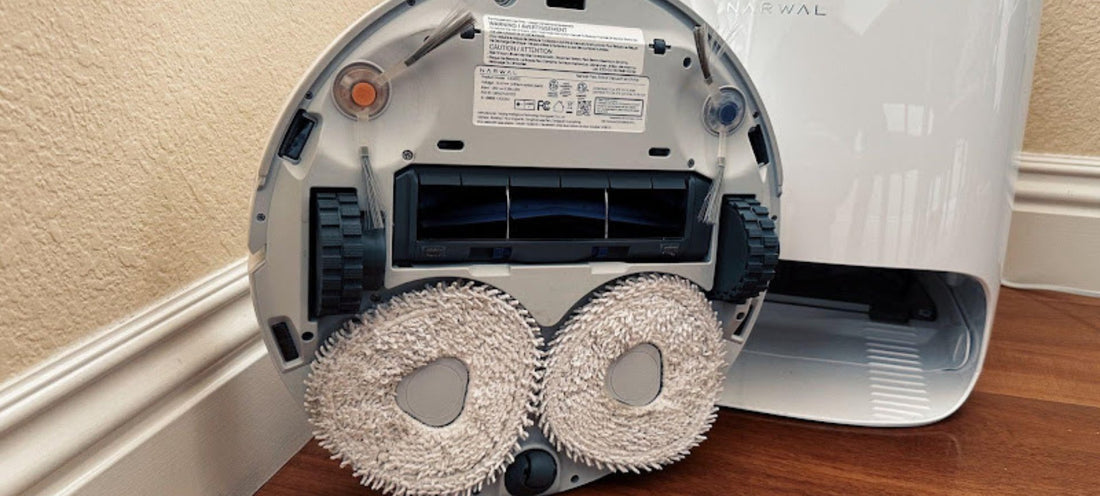
- Cliff Sensor Functionality: This is a critical safety feature. Ensure all cliff sensors (located on the underside of the robot) are clean and free of debris.
- Environment: Very dark carpets or highly reflective surfaces near edges can sometimes fool cliff sensors. If you notice this, consider placing a physical barrier or a contrasting tape strip near the edge.
Using Virtual Walls And No-go Zones Effectively
The Mi Home app allows you to create virtual walls and no-go zones on the map. These are powerful tools for managing where your robot cleans.
- Virtual Walls: Act like physical barriers, preventing the robot from crossing a designated line. Useful for blocking off doorways to rooms you don’t want cleaned or areas with many cables.
- No-Go Zones: Define specific rectangular or square areas on the map where the robot will not enter. Ideal for protecting pet bowls, delicate furniture, or areas prone to tangles.
Make sure these settings are correctly configured and haven’t been accidentally altered.

Troubleshooting Charging And Power Issues
A robot vacuum is useless if it can’t charge. Issues with the charging dock or the robot’s power system can bring your cleaning routine to a halt.
Ensuring Proper Dock Placement And Connection
The charging dock needs to be positioned correctly for the robot to find and connect to it reliably.
- Clearance: Ensure there is adequate clear space around the dock. Xiaomi recommends at least 0.5 meters (1.6 feet) on both sides and 1.5 meters (5 feet) in front of the dock. Avoid placing it in high-traffic areas or corners where the robot might struggle to maneuver.
- Surface: The dock should be placed on a hard, level surface against a wall. Avoid placing it on carpets, which can cause instability.
- Power Outlet: Verify that the power outlet is functional by plugging in another device. Ensure the power adapter is securely connected to both the dock and the outlet.
- Dock Indicator Light: Most charging docks have an indicator light. Consult your manual to understand what the light status signifies (e.g., solid light usually means power is connected).
Robot Cleaning Contacts
The charging contacts on both the robot and the dock are crucial for a successful charge.
- Cleanliness: Over time, dust and debris can accumulate on these metal contacts, hindering the electrical connection.
- Cleaning Method: Use a dry, soft cloth or a cotton swab lightly dampened with isopropyl alcohol to gently clean the contacts on the robot’s underside and on the charging dock. Ensure the contacts are completely dry before attempting to charge.
- Damage: Inspect the contacts for any signs of corrosion or physical damage.
Robot Not Returning To Dock
This is a common and frustrating issue. Reasons can include:
- Dock Unreachable: The robot may be too far from the dock, or its path is blocked. Try manually placing the robot on the charging contacts to see if it initiates charging.
- Low Battery: If the battery is critically low, the robot may not have enough power to navigate back to the dock. In such cases, you might need to manually place it on the dock.
- Dock Position: Re-evaluate the dock’s placement based on the clearance guidelines mentioned earlier.
- Software Glitch: A simple restart of the robot and the Mi Home app can sometimes resolve this.
- Damaged Dock or Robot Contacts: As mentioned, dirty or damaged contacts can prevent docking.
Charging Speed And Battery Health
- Initial Charge: Allow the robot to charge fully (typically several hours) before its first use.
- Slow Charging: If charging seems unusually slow, check for obstructions around the dock or ensure the power adapter is the original one supplied.
- Battery Degradation: Like all rechargeable batteries, the Li-ion battery in your robot vacuum will degrade over time. If your robot consistently fails to hold a charge or runs for a significantly shorter period than it used to, the battery may need replacement. Contact Xiaomi support or a qualified repair service for battery replacement options.
Improving Cleaning Performance
Even with a fully charged robot that navigates well, poor cleaning performance can be a significant issue. This often relates to the robot’s ability to collect dirt and debris effectively.
Dustbin And Filter Maintenance
The dustbin and filters are the primary collection points for dirt, and they require regular attention.
- Empty the Dustbin: This is the most frequent maintenance task. Xiaomi robot vacuums have varying dustbin capacities, but they should typically be emptied after each cleaning cycle, especially if you have pets or high-traffic areas. A full dustbin severely impacts suction power.
- Clean/Replace Filters:
- HEPA Filter: Most Xiaomi models use a HEPA filter designed to trap fine dust particles. These filters are usually not washable. They should be tapped firmly against a trash bin to remove dust and replaced periodically (e.g., every 3-6 months, depending on usage and air quality).
- Pre-filter: Some models have a pre-filter screen that can be washed. Ensure it is completely dry before reinserting it into the robot.
- Check for Blockages: Ensure there are no blockages in the dustbin’s entry port or within the robot’s internal airway leading to the dustbin.
Brush Maintenance
The main brush and side brushes are responsible for agitating and sweeping debris into the vacuum’s path.
- Main Brush:
- Hair and Debris: Hair, threads, and other debris frequently get tangled around the main brush. Regularly remove the brush (usually by releasing clips on the underside) and carefully cut away any tangled material. Xiaomi often provides a small cutting tool for this purpose.
- Wear and Tear: Over time, the bristles on the main brush can wear down. If the brush appears significantly flattened or damaged, it may need replacement to maintain optimal cleaning.
- Side Brushes:
- Tangles: Side brushes can also accumulate hair and string. Remove them (usually by unscrewing a single screw) and clean them thoroughly.
- Bent Bristles: If the bristles become bent, you can sometimes straighten them by soaking the brush head in warm water.
- Replacement: Side brushes are relatively inexpensive and should be replaced when worn or damaged.
Sensor Cleaning For Optimal Performance
As mentioned in navigation, dirty sensors can indirectly affect cleaning performance.
- Cliff Sensors: Ensure they are clean to prevent the robot from unnecessarily avoiding areas.
- Wall/Edge Sensors: Clean these to ensure the robot effectively cleans along edges and walls.
- LDS Sensor: A clean LDS sensor ensures accurate mapping, leading to more efficient cleaning patterns.
Using The Right Cleaning Mode
The Mi Home app offers various cleaning modes. Ensure you are using the appropriate one for your needs.
- Suction Power: Higher suction power settings will clean more effectively but will also drain the battery faster. Use the appropriate setting for your floor type (e.g., higher for carpets, lower for hard floors).
- Room Cleaning vs. Zone Cleaning: For regular maintenance, whole-house cleaning is usually sufficient. For specific messes, use the zone cleaning feature.
Advanced Troubleshooting: Software And Firmware Updates
Keeping your robot vacuum’s software and firmware up-to-date is crucial for performance, bug fixes, and new feature implementation.
Updating The Mi Home App
Ensure you are using the latest version of the Mi Home app available from your device’s app store. App updates often include improvements to device compatibility and user interface.
Firmware Updates For The Robot Vacuum
Xiaomi regularly releases firmware updates for its robot vacuums. These updates can address performance issues, improve navigation algorithms, enhance Wi-Fi stability, and fix bugs.
- Checking for Updates: Navigate to your robot vacuum’s settings within the Mi Home app. There should be an option to check for and install firmware updates.
- Update Process: Ensure the robot is on its charging dock and has a sufficient battery charge (ideally above 50%) before initiating a firmware update. The update process can take some time, and the robot may restart multiple times. Do not interrupt the process.
- Benefits: Firmware updates are often the solution to newly discovered bugs or performance regressions.
Resetting The Robot Vacuum
If you encounter persistent software glitches or the robot becomes unresponsive, a factory reset might be necessary.
- How to Reset: The method varies by model, but it usually involves pressing and holding one or more buttons on the robot for an extended period (e.g., 10-20 seconds) until you hear a confirmation sound or see a specific indicator light pattern. Consult your specific model’s manual for the exact procedure.
- Consequences: A factory reset will erase all saved maps, Wi-Fi settings, and user configurations. You will need to set up the robot again from scratch, including re-pairing it with the Mi Home app and re-mapping your home. This should be considered a last resort.
Maintenance Schedule For Optimal Performance
Proactive maintenance is the best way to prevent most common troubleshooting issues. Establishing a routine can significantly extend the life and improve the performance of your Xiaomi robot vacuum.
Daily/after Each Use
- Empty Dustbin: Crucial for maintaining suction power.
- Check Brushes: Quickly inspect main and side brushes for any immediate tangles or debris.
Weekly
- Clean Main Brush: Remove and thoroughly clean the main brush, cutting away any tangled hair or fibers.
- Clean Side Brushes: Remove and clean side brushes.
- Wipe Down Robot Body: Clean the exterior of the robot, paying attention to sensors.
- Clean Sensors: Wipe down all cliff sensors, bumper sensors, and LDS sensor.
- Check Dustbin and Filters: Ensure the dustbin is clean and tap out the HEPA filter.
Monthly (or As Needed)
- Replace HEPA Filter: Replace the HEPA filter if it appears visibly dirty or clogged, or if you notice a decrease in suction power. Recommended replacement is typically every 3-6 months, but adjust based on your environment.
- Clean Charging Contacts: Ensure clean charging contacts on both the robot and the dock for reliable charging.
- Inspect Wheels: Check the drive wheels and the caster wheel for debris or damage. Clean them as needed.
As Needed
- Deep Clean Charging Dock: Occasionally wipe down the charging dock itself.
- Replace Brushes: Replace worn-out main or side brushes.
- Battery Check: If performance significantly degrades, consider battery health.
Common Xiaomi Robot Vacuum Models And Their Specifics
While many troubleshooting steps are universal, some issues or features might be model-specific. Xiaomi offers a wide range of robot vacuums, from the more basic Mi Robot Vacuum-Mop Essential to advanced models like the Xiaomi Robot Vacuum X10+.
| Model | Key Features | Common Issues | Specific Troubleshooting Tips |
|---|---|---|---|
| **Mi Robot Vacuum-Mop Essential** | Gyroscope navigation, basic mapping, vacuuming & mopping | Less precise navigation, potential for getting stuck in complex layouts, basic app features. | Ensure clear paths for gyroscope navigation. Regularly clean sensors as it relies heavily on them. Map may need frequent re-runs if furniture is moved. |
| **Mi Robot Vacuum-Mop 2 / 2 Pro** | LDS navigation, advanced mapping, improved suction, intelligent mopping | Wi-Fi connectivity issues (2.4GHz only), occasional map inaccuracies, brush tangling. | Verify 2.4GHz connection. Ensure LDS sensor is clean. Regularly clean main brush for hair tangles. Update firmware via Mi Home app. |
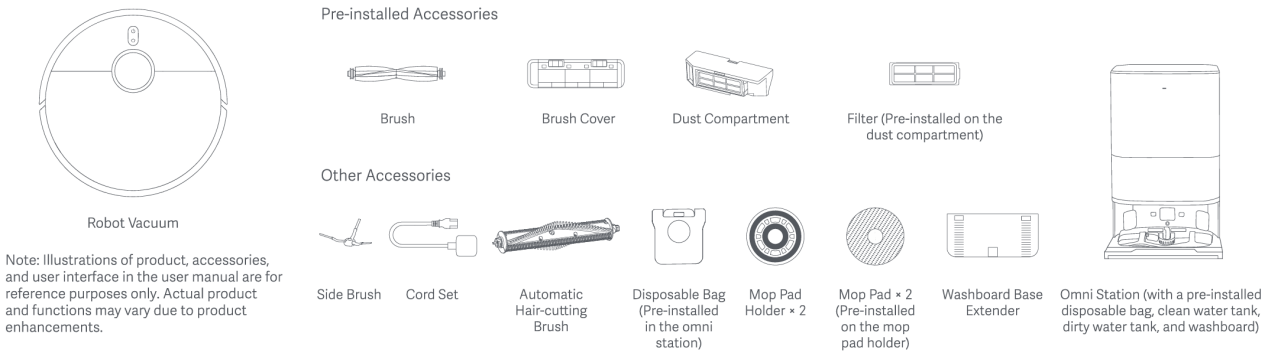
| **Xiaomi Robot Vacuum X10+** | Obstacle avoidance (AI camera), auto-empty & mop washing station, advanced LDS | Station connectivity/maintenance (cleaning brush, water tank), AI obstacle avoidance misidentification. | Ensure the auto-empty station is properly set up and connected to Wi-Fi if applicable. Keep the station’s cleaning brush and water tanks clean. Report any persistent AI misidentifications via the app feedback for potential firmware improvements. Refer to the station’s manual for its specific troubleshooting. |
| **Xiaomi Robot Vacuum S10 / S10 Pro** | LDS navigation, vacuuming & mopping, decent suction power | Similar to Mop 2 series: Wi-Fi, map accuracy, brush issues. | Follow standard LDS navigation troubleshooting: clean sensors, clear paths, ensure 2.4GHz Wi-Fi. Check app for specific error codes related to navigation or docking. |
*Note: Specific features and troubleshooting steps can vary slightly even within the same model series

