

You've just watched your robot vacuum spin in a circle, bump the same chair three times, and then give up. You open the app, and the map looks like a toddler drew it. So, why is your robot vacuum not mapping correctly?
In our research across manufacturer support threads and aggregate user reviews, most mapping failures come down to one of five things: dirty sensors, a moved charging dock, low battery, weak Wi-Fi, or clutter on the floor. The good news? Every one of those is fixable.
Why Is My Robot Vacuum Not Mapping Correctly?
Image source: Bing (Web (fair-use with source credit))
Quick Check: 5 Things That Cause Most Mapping Failures
Your robot vacuum is not mapping correctly for one of five reasons. Dirty sensors. A moved dock.
Low battery. Weak Wi-Fi. Clutter.
Start here before you blame the hardware.
| Cause | What happens | Quick fix |
|---|---|---|
| Dirty sensors | A blocked LiDAR or camera means a blind robot | Wipe sensors with a dry cloth |
| Moved dock | The map shifts orientation, and the robot drifts | Re-map from the new dock position |
| Low battery | The mapping run stops before the map saves | Charge fully before mapping |
| Weak Wi-Fi | The map never syncs to the app | Reboot router, use 2.4 GHz |
| Clutter | Collisions mess up the robot's position estimate | Clear cables, toys, and shoes |
How Robot Mapping Actually Works (and Where It Usually Fails)
Robot vacuums build floor plans using SLAM, which stands for Simultaneous Localization and Mapping. The robot figures out where it is while drawing a map of the room at the same time. Every pass and every collision feeds back into that model.
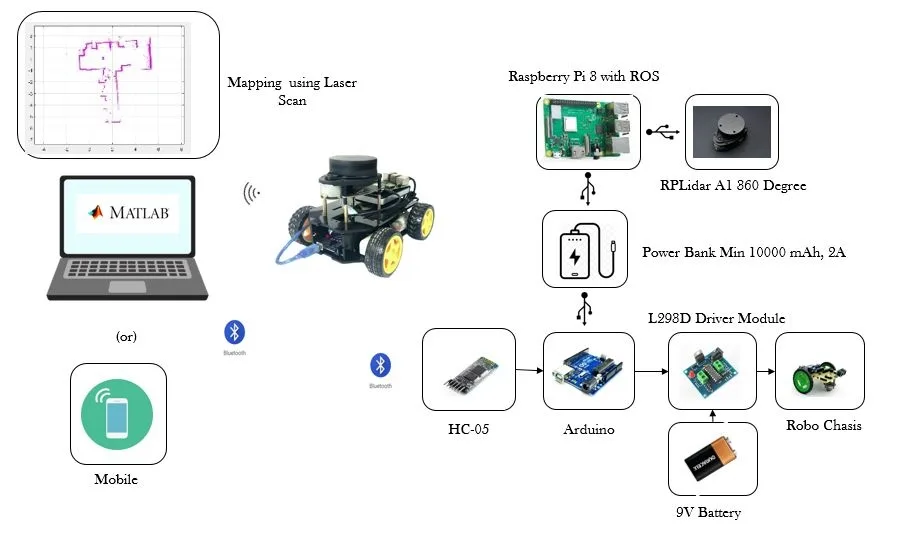
Image source: Bing (Web (fair-use with source credit))
As of 2026, most consumer robot vacuums use one of three navigation approaches. Each fails differently.
| Navigation type | How it sees the room | Typical failure point |
|---|---|---|
| LiDAR (laser turret) | Spins and measures distances up to 50 meters | Dirty turret, low furniture blocking the beam |
| vSLAM (camera) | Tracks visual landmarks | Dark rooms, reflective surfaces, smudged lens |
| Gyroscope + odometry | Estimates distance and rotation | Drifts over time, no real floor plan |
The core technology comes from decades of peer-reviewed robotics research documented by the IEEE. SLAM needs consistent reference points. Change the room's appearance mid-run, and the robot can't match what it sees to what it already recorded.
Symptom Check: Match What You See to the Likely Cause
Each mapping failure leaves a fingerprint in the app. Match your symptom to the right fix.
| What the app shows | What's happening | First move |
|---|---|---|
| "Map failed" | Battery died or sensors were blocked | Charge fully, clean sensors, re-map |
| Map rotated 90° or 180° | Robot started from a different orientation | Delete map, re-map from the dock |
| One room missing | A door was closed during mapping | Open all interior doors, re-map |
| Map stretched or doubled | Robot was picked up mid-run | Re-map without touching it |
| Map won't sync | Wi-Fi dropped or app cache is stale | Reboot router and app |
If the map saved but cleaning still looks random, check the cleaning history. Overlapping paths and repeated trips mean the robot is losing its position mid-run. That points to sensor confusion, not hardware failure.
The Re-Mapping Checklist: How to Run a Clean, Accurate Map
This checklist eliminates the variables one by one. Run every step in order.
- Charge the robot fully. Most brands need at least 80% battery to start a mapping run.
- Clean every sensor. Wipe the LiDAR turret, camera lens, bumper, and cliff sensors with a dry microfiber cloth.
- Reset the dock position. Place it against a flat wall with 1.5 feet of clearance on each side and 3 feet in front.
- Clear the floor. Pick up loose cables, toys, pet bowls, and anything the robot could push.
- Open all interior doors. The robot maps what it can reach.
- Turn on the lights. Camera-based robots need visible contrast.
- Delete the old map. Look for "Delete Map," "Reset Map," or "Create New Map."
- Start from the dock. Don't carry the robot to another room.
- Let it finish. Don't nudge the robot or move furniture mid-run.
- Wait for the save confirmation. The map only saves if the app confirms it.
If the robot returns to the dock but the app still shows the old map, reboot the robot before trying again.
App Trouble: Why the Map Won't Save, Sync, or Shows Up Rotated
Sometimes the robot draws a perfect map, and the app is the weak link.
| App issue | Root cause | Fast fix |
|---|---|---|
| Map won't save | Battery dipped at the end of the run | Charge fully, re-map |
| Map rotated | Dock moved or starting position changed | Delete map, restart from dock |
| Map not syncing | Weak Wi-Fi or stale app cache | Reboot router, restart app |
Most robot vacuums only connect to 2.4 GHz Wi-Fi networks. If your phone is on 5 GHz, the app may not fetch the map from the robot. Move your phone to the 2.4 GHz band and try again.
Check for a firmware update before deleting maps. Manufacturers ship navigation fixes as over-the-air (OTA) updates. A stale firmware version can cause repeated map corruption.
Dirty Sensors and Dock Placement: The Quiet Fixes That Actually Matter
Dirty sensors are the most common quiet failure. LiDAR turrets and camera lenses collect dust, hair, and grease over time. A thin smudge is enough to blur the robot's spatial awareness.
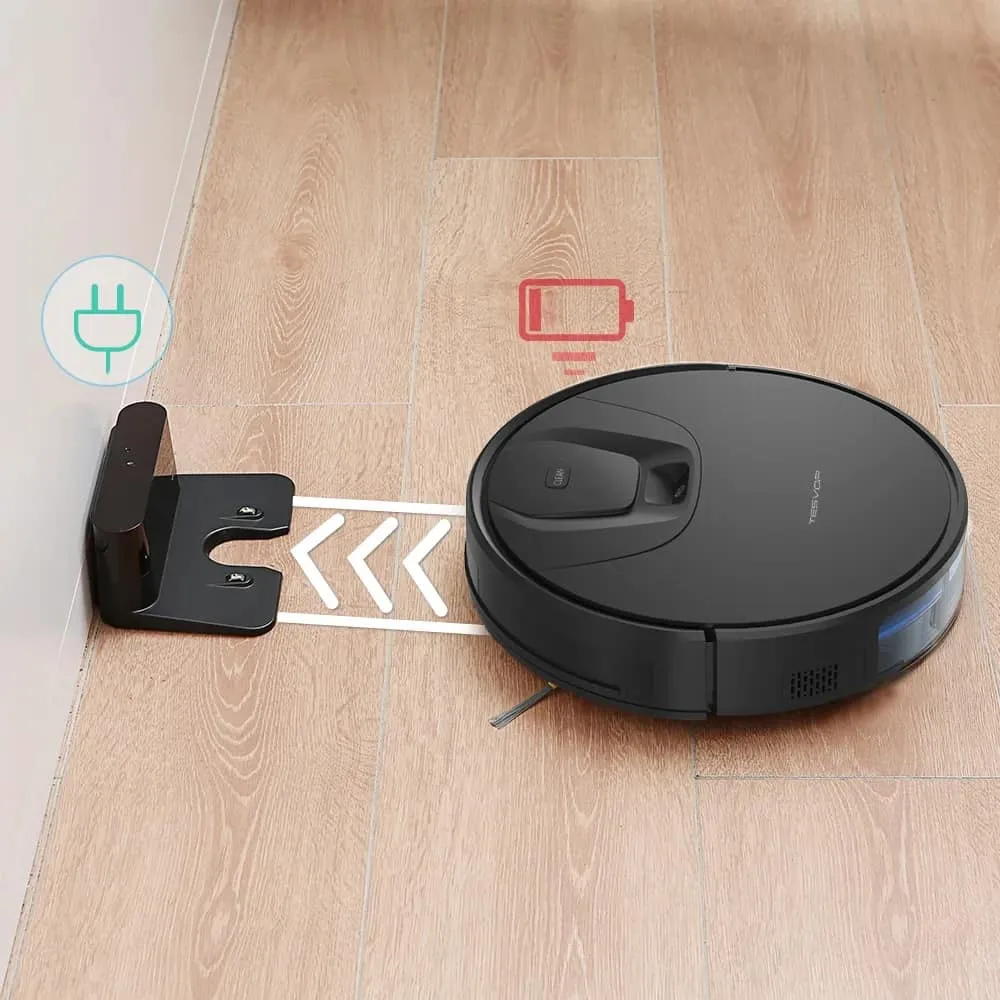
Image source: Web (Bing) / storage.googleapis.com (Web image (fair-use with source credit))
Clean the sensors with a dry microfiber cloth. Use a cotton swab for the camera lens. Check the cliff sensors on the underside for dust bunnies.
Never spray liquid directly onto any sensor.
The dock is the origin point for the robot's coordinate system. If it wobbles, the robot starts each run from a different position. The map rotates, and the robot drifts.
Keep the dock on level flooring with clearance on all sides.
Mapping Mistakes That Wreck Accuracy (And How to Avoid Them)
| Mistake | Why it breaks the map | The fix |
|---|---|---|
| Picking up the robot mid-run | The SLAM model loses its position estimate | Let the run finish |
| Moving furniture during mapping | Reference points change | Re-map after big changes |
| Leaving doors closed | Rooms stay missing | Open all doors for mapping |
| Running on low battery | The map doesn't save | Charge to 100% |
| Skipping sensor cleaning | The map gets distorted | Wipe sensors before mapping |
Aggregate user reviews show these mistakes cause more failed maps than defective hardware. Fix them once, and most robots map correctly on the next attempt.
Tricky Rooms and Floor Changes: Dark Carpets, Sun, and Reflective Surfaces
Some homes are just harder to map. Dark carpets absorb light and confuse camera-based robots. Glossy tiles, mirrors, and glass doors bounce laser pulses and create phantom obstacles.
Sunlight shifts shadows mid-run, which makes a vSLAM robot lose its landmarks.
If you own a camera-based robot, map in the evening when light is stable. Close curtains to block direct sun. For LiDAR models, mirrors can still cause boundary glitches.
After mapping, set a no-go zone over the mirror's reflection.
When to Factory Reset vs Start a New Map: The Decision Branch
- Start a new map if the app shows a map that's wrong or incomplete. Delete it, then run a fresh mapping pass.
- Factory reset if the robot can't build a map even in a clean, empty room.
- Factory reset if the robot has stopped responding to app commands entirely.
A factory reset clears all saved maps, room names, and no-go zones. It also re-pairs the robot with the dock. That's why it should be a last resort.
Keep It Accurate: Simple Habits That Maintain Your Map Over Time
Maps degrade as your home changes. Keep yours stable with these habits:
- Clean the LiDAR and camera weekly, or every five runs.
- Keep the charging dock in its permanent spot.
- Run cleaning with the same interior doors open as during mapping.
- Re-map after significant furniture changes.
- Keep the app and firmware current.
A clean brush roll helps the robot travel in straight lines. A clean filter prevents dust from recirculating toward the sensors. A robot that drifts during cleaning usually needs maintenance, not a new map.
The Order of Operations: If Nothing Has Worked, Do This
- Update the firmware and app.
- Clean all sensors, the wheels, and the charging contacts.
- Delete the saved map.
- Run a fresh mapping pass from the dock.
- If it fails again, factory reset the robot.
- If it still fails, contact manufacturer support.
Don't invert the order. A factory reset before a firmware update can erase the very fix that would have resolved the problem.
Frequently Asked Questions
Why does my robot vacuum keep losing its map?
Usually, the dock moved or the robot's sensors are dirty. Both conditions cause the robot to lose its position reference mid-run. Clean the LiDAR and camera, place the dock back in its original spot, and re-map.
How long does a robot vacuum mapping run take?
Typical mapping runs take 20 to 40 minutes per 1,000 square feet. LiDAR models are generally faster than camera-based ones. Let the run finish without interference so the map saves properly.
Why is my robot vacuum spinning in circles during mapping?
Spinning usually means the robot can't localize itself. It's searching for a reference point it can recognize. Dirty sensors, dark rooms, and reflective floors cause this.
Clean the sensors, turn on the lights, and re-map.
Does moving the charging dock delete the map?
Moving the dock doesn't automatically delete the map. It does shift the robot's starting frame of reference. If the map looks rotated after a dock move, delete the map and re-map from the new location.
Can I map just one room instead of the whole floor?
Most robot vacuums with multi-map support allow single-room mapping. Close all other doors and run a new mapping pass. The robot will save only the accessible area.

