

Mastering Your Tineco Robot Vacuum: A Comprehensive Troubleshooting Guide
Tineco robot vacuums are designed to simplify your life, offering automated cleaning and advanced features that keep your home spotless with minimal effort. However, like any sophisticated electronic device, they can occasionally encounter issues. From connectivity problems to unusual noises or cleaning performance dips, understanding how to troubleshoot common Tineco robot vacuum problems can save you time, frustration, and potentially the need for a service call.
This guide provides in-depth solutions for the most frequent challenges, empowering you to get your Tineco back to its optimal performance.
Key Takeaways
- Connectivity Issues: Most Tineco robot vacuums rely on Wi-Fi for smart features. Resetting your router, ensuring a strong signal, and re-pairing the device in the Tineco app are common fixes.
- Cleaning Performance: Reduced suction, missed spots, or uneven cleaning often stem from clogged filters, full dustbins, tangled brushes, or dirty sensors. Regular maintenance is key.
- Navigation Problems: If your Tineco gets stuck frequently, struggles to map rooms, or avoids certain areas, check for obstructions, ensure its sensors are clean, and verify that the environment is suitable for mapping.
- Charging & Power: Low battery life or failure to charge can be due to dirty charging contacts, a faulty charging base, or issues with the battery itself.
- App & Software Glitches: Sometimes, the Tineco app or the robot’s firmware can cause temporary problems. Updating the app and robot firmware, or force-closing and restarting the app, often resolves these.
- Unusual Noises: Strange sounds usually indicate a physical obstruction or a component issue, such as debris in the brush roll or a problem with the motor.
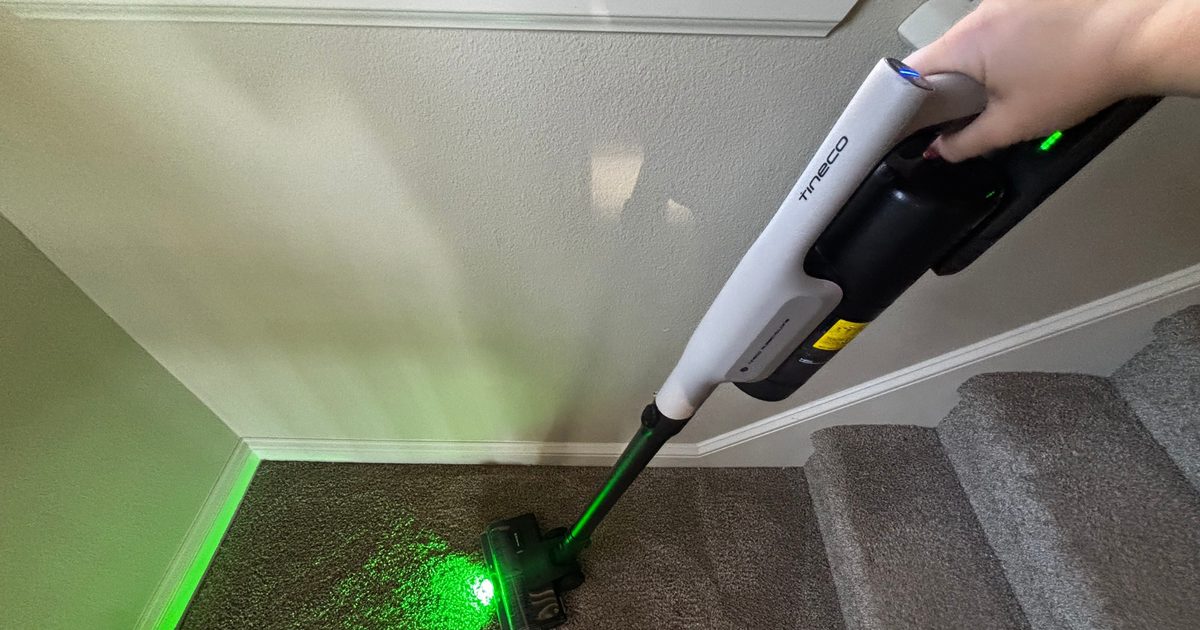
Common Tineco Robot Vacuum Problems And Solutions
Tineco’s range of smart vacuums, from the popular FLOOR ONE series (which offer both vacuuming and mopping) to dedicated vacuuming models like the U-series, share many core operational principles. When these devices don’t perform as expected, the root cause often lies in a few key areas.
Addressing these systematically can restore your Tineco to peak efficiency.
Sensor Issues And Navigation Failures
Tineco robot vacuums utilize a suite of sensors, including infrared, cliff, and collision sensors, to navigate your home, detect obstacles, and prevent falls. When these sensors are obstructed or malfunctioning, the robot can exhibit erratic behavior.
Dirty Or Obstructed Sensors
Symptoms: The robot frequently bumps into furniture harder than usual, repeatedly gets stuck in the same spots, or stops mid-clean with an error message. It might also struggle to return to its charging base.
Solution:
- Power Off: Turn off your Tineco robot vacuum.
- Locate Sensors: Identify all sensor ports on the robot. These are typically small, dark windows or grilles on the bumper, sides, and underside of the unit. Refer to your Tineco model’s manual for precise locations.
- Clean Gently: Use a dry, soft microfiber cloth to wipe each sensor. For stubborn dirt or smudges, a slightly dampened cloth (water only, no cleaning solutions) can be used, but ensure the sensors are completely dry before powering the robot back on. Compressed air can also be effective for dislodging dust from sensor grilles.
- Check for Obstructions: Ensure no stickers, debris, or foreign objects are lodged in or around the sensor areas.
Environmental Factors Affecting Navigation
Symptoms: The robot struggles to map new spaces, gets lost during cleaning cycles, or creates inaccurate room layouts in the app.
Solutions:
- Adequate Lighting: Tineco’s LiDAR or vSLAM navigation systems often rely on visual cues. Ensure rooms are adequately lit during the initial mapping process and subsequent cleaning cycles. Very dark rooms can hinder mapping accuracy.
- Reduce Clutter: During the first few mapping runs, minimize clutter on the floor. Large, dark, or highly reflective surfaces (like mirrors or glossy furniture) can sometimes confuse sensors.
- Stable Environment: Avoid significant changes to room layouts (moving furniture drastically) between mapping and cleaning if your Tineco relies heavily on its established map. Some models allow for map editing or re-mapping.
Software Glitches Affecting Navigation
Symptoms: The robot’s movement patterns become unpredictable, or it fails to follow designated cleaning zones or no-go areas set in the app.
Solution:
- Restart the Robot: Turn the robot off, wait 30 seconds, and turn it back on.
- Update Firmware: Check the Tineco app for any available firmware updates for your robot vacuum. Outdated software can lead to performance bugs.
- Re-map the Area: If navigation issues persist, consider deleting the existing map and performing a new mapping run. Ensure the environment is clear and well-lit for this process.
Cleaning Performance Issues: Suction, Brushes, And Filters
The primary function of your Tineco robot is to clean effectively. When it starts leaving debris behind, losing suction power, or failing to pick up dirt, the problem often lies with its core cleaning components.
Clogged Filters
Symptoms: Reduced suction power, dust being expelled back into the air, or the robot cleaning less effectively.
Solution:
- Locate and Remove Filter: Access the dustbin and carefully remove the filter(s). Tineco models typically have a primary filter and sometimes a HEPA filter.
- Clean or Replace:
- Washable Filters: Many Tineco filters are washable. Gently rinse them under cold running water until the water runs clear. Crucially, allow the filter to air dry completely for at least 24 hours before reinserting it. A damp filter can damage the motor and lead to mold growth.
- Non-Washable Filters: These filters need to be replaced periodically. Check your Tineco manual for recommended replacement intervals.
- Frequency: Clean filters every 1-2 weeks, depending on usage and the dustiness of your home. Replace them every 3-6 months.
Full Or Malfunctioning Dustbin
Symptoms: The robot stops cleaning frequently, indicates the dustbin is full even when it’s not, or picks up less debris than usual.
Solution:
- Empty the Dustbin: Remove the dustbin from the robot and empty its contents into a trash receptacle. Ensure the dustbin is properly seated back into the robot.
- Clean the Dustbin: Wash the dustbin with water if necessary, ensuring it is completely dry before reinstallation.
- Check for Blockages: Inspect the entry point of the dustbin and the internal pathways for any tangled hair or debris that might be preventing dirt from entering.
Tangled Or Damaged Brush Roll
Symptoms: The brush roll stops spinning, makes grinding noises, or the robot leaves lines of debris on the floor.
Solution:
- Access the Brush Roll: Turn the robot over and carefully remove the main brush roll assembly. This usually involves releasing a latch or cover.
- Remove Debris: Use scissors or a Tineco-provided cleaning tool to meticulously cut away any tangled hair, threads, or carpet fibers wrapped around the brush roll. Pay attention to the ends of the brush roll where debris tends to accumulate.
- Inspect for Damage: Check if the brush roll bristles are excessively worn or if the end caps are damaged. If the brush roll is significantly worn or broken, it will need to be replaced.
- Clean Brush Roll Housing: While the brush roll is out, clean the housing area to remove any accumulated dust or debris. Ensure the brush roll spins freely by hand before reinserting it.
Dirty Side Brushes
Symptoms: Debris is not being swept towards the main brush roll, particularly along edges and corners.
Solution:
- Remove Side Brushes: Most Tineco side brushes are attached with a single screw. Unscrew and remove them.
- Clean Thoroughly: Remove any tangled hair, strings, or debris. You can rinse the brushes with water and allow them to dry completely.
- Inspect for Wear: If the bristles are bent, frayed, or missing, the side brush should be replaced.
Connectivity And App Issues
Modern Tineco robot vacuums integrate with a smartphone app for control, scheduling, and monitoring. Connectivity problems can render many of these smart features unusable.
Wi-fi Connection Problems
Symptoms: The robot is offline in the app, fails to connect to Wi-Fi, or frequently disconnects.
Solutions:
- Check Wi-Fi Network: Ensure your home Wi-Fi network is functioning correctly. Try connecting another device to the same network.
- Router Proximity: Make sure the Tineco robot is within the Wi-Fi range of your router. Weak signals can cause intermittent connectivity. Consider a Wi-Fi extender if your home is large.
- Correct Network Band: Tineco robots typically connect to a 2.4GHz Wi-Fi network. If you have a dual-band router (2.4GHz and 5GHz), ensure you are trying to connect to the 2.4GHz band.
- Restart Router and Robot: Power cycle both your Wi-Fi router and your Tineco robot vacuum. Wait a minute after unplugging the router before plugging it back in.
- Re-pair Device: In the Tineco app, remove the robot from your account and then go through the setup process again to re-pair it with your Wi-Fi network.
App Not Responding Or Syncing
Symptoms: The app displays outdated information (e.g., robot’s location, battery status), commands sent from the app are not executed, or the app crashes.
Solutions:
- Force Close and Reopen App: On your smartphone, completely close the Tineco app (swipe it away from recent apps) and then reopen it.
- Update the App: Check your smartphone’s app store (Google Play Store or Apple App Store) for updates to the Tineco app.
- Restart Smartphone: Sometimes, a simple restart of your phone can resolve app-related glitches.
- Clear App Cache (Android): On Android devices, you can try clearing the Tineco app’s cache through your phone’s settings (Settings > Apps > Tineco > Storage > Clear Cache). Do not clear data unless instructed by support, as this may reset settings.
Firmware Update Failures
Symptoms: The robot fails to download or install firmware updates, leading to potential bugs or missing features.
Solution:
- Stable Connection: Ensure the robot is connected to a stable 2.4GHz Wi-Fi network and is sufficiently charged (at least 50%) or on its charging base during the update process.
- Retry Update: Cancel the current update attempt and try initiating it again through the Tineco app.
- Check Tineco Support: If multiple attempts fail, check the Tineco support website or contact customer service to see if there are known issues or alternative update methods for your specific model.
Charging And Power Issues
A robot vacuum that won’t charge or runs out of power prematurely is essentially useless. These issues can stem from simple maintenance oversights or component failures.
Robot Not Charging
Symptoms: The robot is placed on the charging base but shows no indication of charging (no lights, no app notification), or the charging indicator light blinks erratically.
Solutions:
- Clean Charging Contacts: Power off the robot. Use a dry microfiber cloth to clean the metal charging contacts on both the robot and the charging base. Sometimes, dust or grime can prevent a good electrical connection.
- Check Base Placement: Ensure the charging base is placed on a level surface against a wall, with adequate clearance around it as specified in your manual. The robot needs to align correctly with the base.
- Verify Power to Base: Confirm that the charging base is plugged into a working power outlet. Try a different outlet if unsure.
- Inspect Charging Cable: Check the charging cable for any visible damage.
- Reset Robot: Try performing a factory reset on the robot (refer to your manual for instructions). This can sometimes resolve internal power management glitches.
Battery Not Holding Charge / Short Runtime
Symptoms: The robot’s runtime is significantly shorter than advertised, or it frequently returns to the base to recharge mid-cycle even when the area is small.
Solutions:
- Battery Health: Lithium-ion batteries degrade over time. If your Tineco is several years old, the battery may simply be nearing the end of its lifespan and require replacement. Contact Tineco support for battery replacement options.
- Check for Obstructions: Ensure there are no persistent obstructions causing the robot to work harder than necessary (e.g., tangled brushes, excessively thick carpets it’s not designed for).
- Clean Sensors: Dirty sensors can cause the robot to navigate inefficiently, using more battery power.
- Environmental Factors: Extreme temperatures (very hot or very cold rooms) can affect battery performance.
Robot Won’t Power On
Symptoms: The robot is completely unresponsive, with no lights or sounds, even when placed on the charging base.
Solutions:
- Ensure Full Charge: Leave the robot on the charging base for at least 4-6 hours to ensure it has a full charge, especially if it has been stored for a long time.
- Check Charging Contacts: As mentioned above, clean the charging contacts on both the robot and the base.
- Try Manual Power Button: Some Tineco models have a physical power button. Ensure it’s not accidentally switched off.
- Contact Support: If the robot remains unresponsive after these steps, there might be a more serious internal issue, and you should contact Tineco customer support.
Unusual Noises During Operation
Strange sounds from your Tineco robot vacuum can indicate a variety of problems, from minor debris to more significant mechanical issues.
Grinding Or Scraping Noises
Symptoms: A persistent grinding or scraping sound during operation.
Causes & Solutions:
- Brush Roll Obstruction: The most common cause. Immediately stop the robot and check the main brush roll for tangled debris, foreign objects (like small toys or coins), or damage. Clean or remove the obstruction.
- Damaged Brush Roll: If the brush roll itself is cracked or its end caps are broken, it may not sit correctly, causing noise. Replace the brush roll.
- Foreign Object in Suction Path: Less common, but a small, hard object could be lodged in the suction inlet or debris pathway. Power off the robot and carefully inspect the inlet.
Whirring Or High-pitched Sounds
Symptoms: A loud whirring or high-pitched whine, especially when the robot is moving or suction is active.
Causes & Solutions:
- Fan/Motor Issue: This can indicate a problem with the vacuum motor or the fan assembly. Ensure filters are clean, as a clogged filter can strain the motor. If the noise persists after cleaning filters and checking for obstructions, it may require professional service.
- Loose Component: A component within the robot might be loose and vibrating at high speeds. This is less common but possible.
Clicking Noises
Symptoms: Intermittent clicking sounds.
Causes & Solutions:
- Bumper Sensor Activation: The robot’s bumper might be repeatedly triggering its collision sensors, especially if it’s navigating a cluttered area or encountering uneven surfaces. Ensure sensors are clean.
- Wheel Obstruction: Check the drive wheels for any debris caught in them that might cause them to click as they rotate.
Pro Tip: Always power off your Tineco robot vacuum before performing any physical cleaning or inspection of its components to prevent accidental activation or injury.
Tineco Floor One Series Specific Troubleshooting
The Tineco FLOOR ONE line (e. g. , FLOOR ONE S3, S5, S7 Pro) combines vacuuming and mopping, introducing additional components and potential issues related to water systems.
Poor Mopping Performance
Symptoms: The floor is not getting wet enough, water is leaking, or the cleaning is streaky.
Solutions:
- Water Tank Levels: Ensure the clean water tank is adequately filled and the dirty water tank is empty.
- Water Flow Settings: Check the Tineco app or the robot’s interface for water flow settings. Ensure it’s set appropriately for the level of cleaning needed.
- Nozzle Blockage: Inspect the water spray nozzle(s) for clogs caused by mineral deposits or debris. Clean them gently with a soft brush or needle.
- Brush Roller Saturation: Ensure the brush roller is properly seated and saturated with water. If the roller is too dry, it won’t distribute water effectively.
- Filter/Component Clogs: Check the water intake filters within the clean water tank and any other water pathway filters for debris.
Leaking Water
Symptoms: Water is leaking from the robot onto the floor, either when stationary or during operation.
Solutions:
- Tank Seals: Ensure both the clean and dirty water tanks are correctly installed and sealed. Check the rubber gaskets for damage or debris.
- Cracked Tanks: Inspect both water tanks for any cracks or damage. If a tank is cracked, it will need to be replaced.
- Internal Hoses/Connections: If leaks persist and tanks are intact, there might be an issue with internal water hoses or connections. This typically requires contacting Tineco support.
Odors From The Dirty Water Tank
Symptoms: An unpleasant smell emanating from the dirty water tank or the robot itself.
Solutions:
- Regular Emptying: Empty the dirty water tank after every cleaning cycle. Do not let dirty water sit.
- Thorough Cleaning: Wash the dirty water tank regularly with warm, soapy water. Ensure it is completely dry before reattaching.
- Clean Brush Roller: Hair and debris trapped in the brush roller can contribute to odors. Clean the roller frequently.
- Self-Cleaning Function: Utilize the self-cleaning function (if available on your model) after each use. This flushes the internal system and helps prevent odors.
- Deodorizer Pods: Some Tineco models support deodorizer pods. Ensure these are used correctly and replaced as needed.
Example: A user reported that their Tineco FLOOR ONE S5 Pro 2 was leaving streaks on their hardwood floors. After troubleshooting, they discovered that the dirty water tank wasn’t fully clicked into place, causing a slight misalignment and preventing proper suction of dirty water. Reseating the tank resolved the streaking issue.
Tineco Robot Vacuum Error Codes And Voice Alerts
Tineco robots often communicate problems through specific voice alerts or error codes displayed in the app. Knowing what these mean is crucial for quick diagnosis.
| Error Code/Voice Alert | Potential Cause | Recommended Action |
|---|---|---|
| “Brush is tangled.” | Hair, string, or debris wrapped around the main brush roll. | Stop the robot, clean the brush roll thoroughly. |
| “Dustbin is full.” | Dustbin is full or improperly seated. | Empty and clean the dustbin. Ensure it’s correctly installed. |
| “Clean the filter.” | Filter is clogged and reducing suction. | Remove, clean (if washable), and completely dry the filter. Replace if necessary. |
| “Wheel is stuck.” | One or both drive wheels are obstructed or unable to rotate. | Check wheels for debris, lift the robot over obstacles, or reset the robot. |
| “Cliff sensor is dirty.” | Cliff sensors are blocked by dust or debris. | Clean the cliff sensors located on the underside of the robot. |
| “Robot is stuck.” | Robot is physically trapped or unable to move. | Clear the surrounding area, lift the robot to a new location, or check for obstructions around wheels/bumpers. |
| “Add water to clean water tank.” | Clean water tank is empty (for mopping models). | Refill the clean water tank. |
| “Empty the dirty water tank.” | Dirty water tank is full (for mopping models). | Empty and clean the dirty water tank. |
| “Charging error.” / “Cannot charge.” | Issue with charging contacts, base, or power supply. | Clean charging contacts on robot and base. Ensure base is powered and properly connected. Try a different outlet. |
| “System error.” / “Please contact support.” | General internal error or hardware malfunction. | Restart the robot. If the error persists, contact Tineco Customer Support. |
| “Mapping error.” / “Cannot map room.” | Poor lighting, excessive clutter, or sensor issues hindering map creation. | Ensure adequate lighting, clear the floor, clean sensors, and try re-mapping. |
*Note: Specific error codes and voice alerts may

