

A robot vacuum usually won’t connect to WiFi because of weak signal, wrong band, router settings, or app setup issues.
A robot vacuum that keeps dropping off WiFi can turn a helpful smart home gadget into a frustrating box on wheels. I’ve seen this problem come up again and again, and the fix is often simpler than people expect once you know where to look. In this guide, I’ll walk you through the most common causes, the best troubleshooting steps, and the small details that often make the difference when your robot vacuum not connecting to WiFi becomes the whole problem.
Why your robot vacuum not connecting to WiFi is so common
A robot vacuum not connecting to WiFi is one of the most common smart-home setup problems. These devices are picky about networks, signal strength, and app permissions, and that makes the first connection feel harder than it should.
From my experience, the issue often comes down to one of three things:
- The vacuum only supports 2.4 GHz WiFi, not 5 GHz
- The router is too far away or has a weak signal in the room
- The app or password setup is slightly off
This is not usually a sign that the vacuum is broken. It is more like trying to get two people to talk when one of them is speaking the wrong language. Once the settings match, the connection often works fast.

First things to check when your robot vacuum not connecting to WiFi
Before you dive into advanced fixes, start with the basics. These simple checks solve a large share of robot vacuum not connecting to WiFi cases.
Confirm the vacuum supports your network band
Most robot vacuums work only on 2.4 GHz WiFi. Many home routers broadcast both 2.4 GHz and 5 GHz, but the vacuum may refuse the faster band.
What to do:
- Check the user manual or app setup screen
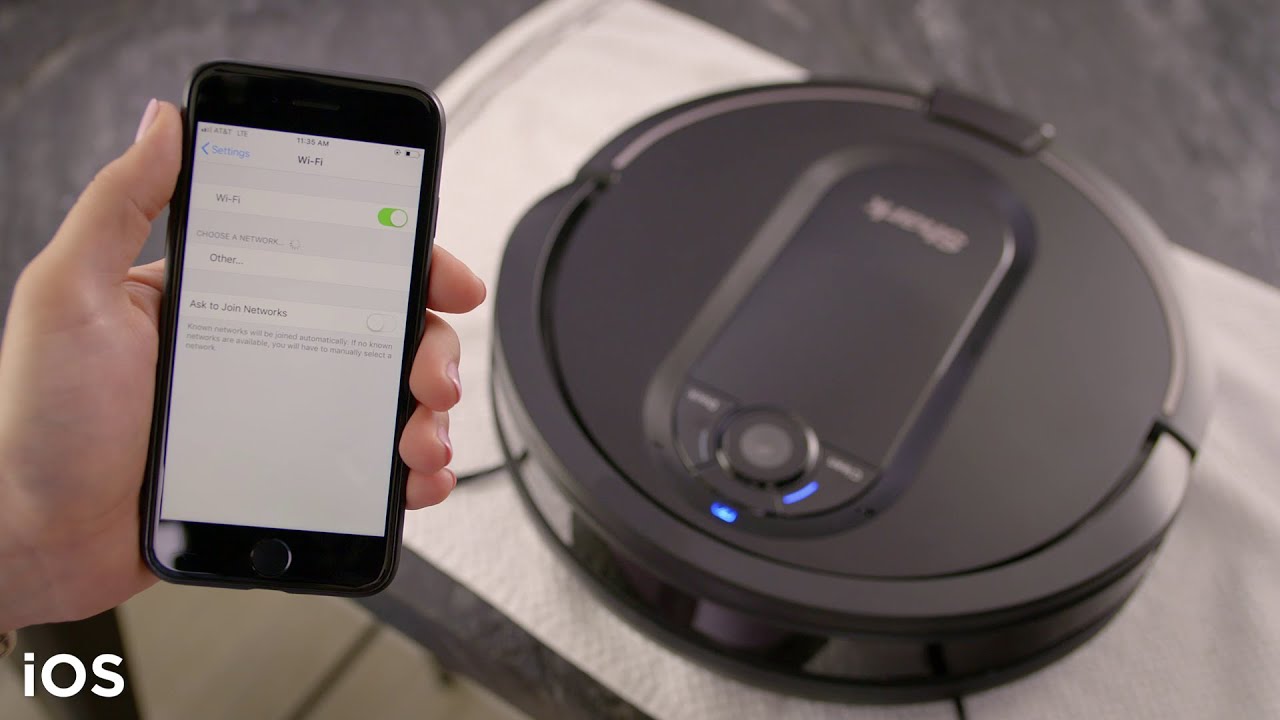
- Make sure your phone is on the same 2.4 GHz network during setup
- If your router combines both bands under one name, try splitting them
I once spent nearly an hour on a setup that failed for a tiny reason: my phone kept jumping to 5 GHz. The vacuum was fine. The network band was the real problem.
Check the WiFi password carefully
A wrong password is one of the simplest reasons a robot vacuum not connecting to WiFi happens. Even one extra space, a capital letter, or a special character can stop the setup.
Try this:
- Re-enter the password slowly
- Avoid copying and pasting if possible
- Make sure the router password has not changed recently
Make sure the signal is strong
Robot vacuums need a stable signal, especially during setup. If the dock or vacuum is too far from the router, connection may fail.
Useful signs of weak signal:
- The app keeps timing out
- The vacuum connects and then drops off
- Setup works near the router but fails in another room
If the router is far away, try moving the vacuum closer during setup. After it connects, you can move it back.
Common causes of robot vacuum not connecting to WiFi
When a robot vacuum not connecting to WiFi keeps happening, the cause is usually one of these issues. Knowing the root problem saves time and prevents random trial and error.
Router security settings are too strict
Some routers use settings that older smart devices do not like. Things like WPA3-only security, hidden SSIDs, or strict firewall rules can block setup.
Try these adjustments:
- Use WPA2 or WPA2/WPA3 mixed mode if possible
- Make sure the network name is visible
- Avoid guest networks unless the manual says they are supported
The app is outdated
The mobile app matters more than people think. If the app is old, it may not pair correctly with the vacuum or your phone’s operating system.
Best practice:
- Update the robot vacuum app
- Update your phone’s operating system
- Restart the app after updates
Bluetooth or location access is blocked
Many robot vacuums use Bluetooth or location permissions during setup. If those are disabled, the WiFi connection process may fail before it even starts.
Check that:
- Bluetooth is on
- Location access is allowed for the app
- The app has permission to find nearby devices
The router is using a channel the vacuum dislikes
Some smart devices struggle with certain WiFi channels, especially in crowded apartment buildings. This is not the most common issue, but it does happen.
A router reboot or channel change can help if:
- Many nearby networks are competing
- The vacuum worked before but now fails after a router update
- Other smart devices also act unstable
The vacuum needs a reset
If the device has stored a bad network profile, it may keep failing until you reset it. This is often the cleanest fix after multiple failed attempts.
Steps may include:
- Removing the device from the app
- Resetting the WiFi settings on the vacuum
- Reconnecting from scratch
This sounds dramatic, but it often clears out hidden setup errors.

Step-by-step fix for robot vacuum not connecting to WiFi
Here is the order I recommend when troubleshooting a robot vacuum not connecting to WiFi. It is simple, logical, and usually effective.
-
Restart the robot vacuum
Turn it off completely if the model allows it. Wait about 30 seconds, then turn it back on. -
Restart the router
Unplug the router for 30 to 60 seconds, then plug it back in. A fresh router session can fix temporary network bugs. -
Move closer to the router
Set up the vacuum in the same room as the router if possible. Distance matters more than most people expect. -
Confirm the correct network band
Use 2.4 GHz, not 5 GHz, unless your model explicitly supports both. -
Re-enter the WiFi password
Type it carefully and avoid autofill if it has caused issues before. -
Check app permissions
Make sure Bluetooth, location, and local network permissions are enabled. -
Remove and re-add the vacuum in the app
If the device is half-connected, starting over can solve the problem. -
Update firmware
If the vacuum gets online briefly, check whether firmware updates are waiting. -
Reset network settings on the vacuum
Use the model’s reset process and set it up again from scratch. -
Contact support if nothing works
If the vacuum still refuses to connect, the issue may be hardware-related or tied to the router model.
I’ve found that rushing through setup usually backfires. Slow, clean steps work better than repeated fast retries.

Router settings that can block a robot vacuum not connecting to WiFi
Your router may be doing its job too well. Some settings protect your network but get in the way of smart devices.
Things to review on your router
- WPA3-only security
- Hidden WiFi name
- MAC address filtering
- Guest network restrictions
- Parental controls
- Device limits
Why these settings matter
A robot vacuum is not like a laptop or phone. It often needs a simple, stable connection path. If the router expects modern authentication only, the vacuum may fail during pairing.
If you are unsure, test with the simplest setup possible:
- Use the main home network
- Keep the SSID visible
- Use 2.4 GHz
- Avoid guest mode during setup
Once the vacuum connects, you can test more advanced security settings later.

How to know if the problem is the vacuum or the network
When a robot vacuum not connecting to WiFi, the real issue could be the device, the app, or the router. A quick test can help you tell the difference.
Signs the problem is likely the network
- Other smart devices also disconnect
- The vacuum works only near the router
- Setup fails after a router change
- The app says the network is unsupported
Signs the problem is likely the vacuum
- The vacuum cannot find any network at all
- Resetting does not help
- The app fails on multiple phones
- The vacuum has a known WiFi hardware issue
One good test is to try connecting the vacuum to a mobile hotspot that uses 2.4 GHz. If that works, your home router is probably the problem.
Signs the problem is likely the app
- The device appears in Bluetooth but not WiFi
- The app crashes during pairing
- Login or permission errors appear
- The app is outdated

Smart habits that prevent robot vacuum not connecting to WiFi later
Once you fix a robot vacuum not connecting to WiFi issue, it helps to prevent it from happening again. A few small habits can make the connection more reliable.
Keep the router stable
Frequent router resets, password changes, or WiFi name changes can break the vacuum’s saved settings. If possible, keep the network name and password steady.
Place the dock in a good location
The charging dock should be in a spot with decent signal. Walls, metal furniture, and thick floors can weaken the connection.
Update firmware and apps regularly
Updates often fix pairing bugs and network problems. Think of them as tune-ups for the vacuum’s brain.
Avoid unnecessary network changes
If you change internet providers or swap routers often, be ready to reconnect the vacuum each time. Smart devices usually do not transfer settings as smoothly as phones do.

Real-world lessons from fixing robot vacuum not connecting to WiFi
In real use, the hardest part is usually not the vacuum itself. It is the small mismatch between the vacuum, the router, and the app.
A mistake I see often is people trying setup from the far side of the house. That is like trying to have a whisper conversation across a noisy room. The setup may work later, but the first pairing should be done close to the router.
Another common mistake is changing multiple settings at once. If you change the password, network name, and security mode all together, you may not know which change fixed the issue. I always suggest one change at a time.
My biggest lesson: start simple. Reboot, reconnect, and keep the network plain during setup. Fancy settings can come later.
Frequently Asked Questions of Robot vacuum not connecting to WiFi
Why does my robot vacuum keep saying wrong password?
This often happens because of a typo, saved autofill error, or a password that includes special characters the setup process struggles with. Re-enter it manually and make sure you are joining the correct 2.4 GHz network.
Can a robot vacuum connect to 5 GHz WiFi?
Some models can, but many cannot. Check the manual or the manufacturer app, because most common robot vacuums are designed for 2.4 GHz only.
Why does my robot vacuum connect and then disconnect?
That usually points to weak signal, router instability, or incompatible security settings. Moving the dock closer to the router and checking WPA2 or WPA3 settings can help.
Do I need Bluetooth for robot vacuum WiFi setup?
Many models use Bluetooth during the first setup step, so yes, it is often needed. If Bluetooth is off on your phone, pairing may fail before WiFi is even tested.
Should I use a guest network for my robot vacuum?
Usually no, unless the manufacturer specifically says it is supported. Guest networks sometimes block the device from speaking to the app or cloud service.
What if my robot vacuum still will not connect after a reset?
If a reset does not help, the issue may be with router compatibility, app permissions, or the vacuum’s WiFi module. At that point, contacting support is the best next step.
Conclusion
A robot vacuum not connecting to WiFi is frustrating, but it is usually fixable with the right order of steps. In most cases, the answer is a simple mix of 2.4 GHz WiFi, strong signal, correct app permissions, and a clean reset if needed.
The best approach is to stay calm, change one thing at a time, and keep the setup close to the router. If you apply the tips in this guide, you will have a much better chance of getting your robot vacuum online and running the way it should. If this helped, share it with someone having the same issue or leave a comment with your model and setup problem.

