

The Roborock Saros 10R is a popular robot vacuum that makes floor cleaning simple and efficient. However, like any smart device, it can face technical problems. Many users struggle when their vacuum stops working, gives error messages, or seems lost in the middle of a cleaning cycle.
This guide will help you solve common issues with the Saros 10R. With clear steps, practical tips, and expert advice, you’ll get your vacuum running smoothly again—without needing expensive repairs or waiting for customer support.
Understanding Roborock Saros 10r’s Most Common Problems
Every robot vacuum faces challenges. The Saros 10R is advanced, but sometimes it may not behave as expected. Before you start troubleshooting, it helps to know which issues are most frequent:
- Battery not charging or drains quickly
- Navigation errors or stuck on obstacles
- WiFi connection problems
- Brush or roller jams
- Dustbin detection issues
- Software update failures
- Noisy operation
- Water tank problems (for mopping models)
- Error codes on display
These problems may look simple, but the causes can be tricky. Many users miss hidden steps that could fix their vacuum faster.
How To Fix Charging And Battery Issues
One of the main complaints is that the Saros 10R does not charge or loses power fast. Here’s how to handle battery problems confidently.
Step 1: Check Charging Dock And Power Supply
First, make sure the charging dock is plugged in. The dock’s indicator light should be on. If not, try a different power outlet.
Step 2: Clean Charging Contacts
Dirty charging contacts block the flow of power. Use a dry cloth to wipe both the vacuum’s and dock’s contacts. Avoid wet cleaning.
Step 3: Inspect Battery Health
If your Saros 10R is older than 2 years, the battery may be worn out. You can check battery status in the Roborock app. If the battery drops from 100% to 0% in less than 30 minutes, consider a replacement.
Step 4: Avoid Overcharging
Leaving the vacuum on the dock for weeks can shorten battery life. Try to use it regularly. Many users don’t realize that even robot vacuums need occasional battery exercise.
Step 5: Reset The Vacuum
A simple reset can solve charging glitches. Hold the power button for 10 seconds until you hear a beep.
Solving Navigation And Stuck Problems
The Saros 10R uses advanced sensors, but sometimes it gets stuck or forgets its cleaning route.
Step 1: Clear Obstacles
Remove small objects, cables, and rugs before cleaning. The Saros 10R’s sensors can miss thin or transparent items.
Step 2: Clean Sensors
Dust on sensors can confuse the vacuum. Gently wipe sensors with a soft cloth. Pay attention to the front and side sensors.
Step 3: Update Maps
If your vacuum keeps bumping into walls, update the room map in the Roborock app. Older maps can make the vacuum lose its way.
Step 4: Check Wheel Movement
Sometimes, the wheels may be jammed by hair or debris. Turn the vacuum upside down, check for blockages, and remove them carefully.
Step 5: Move The Dock
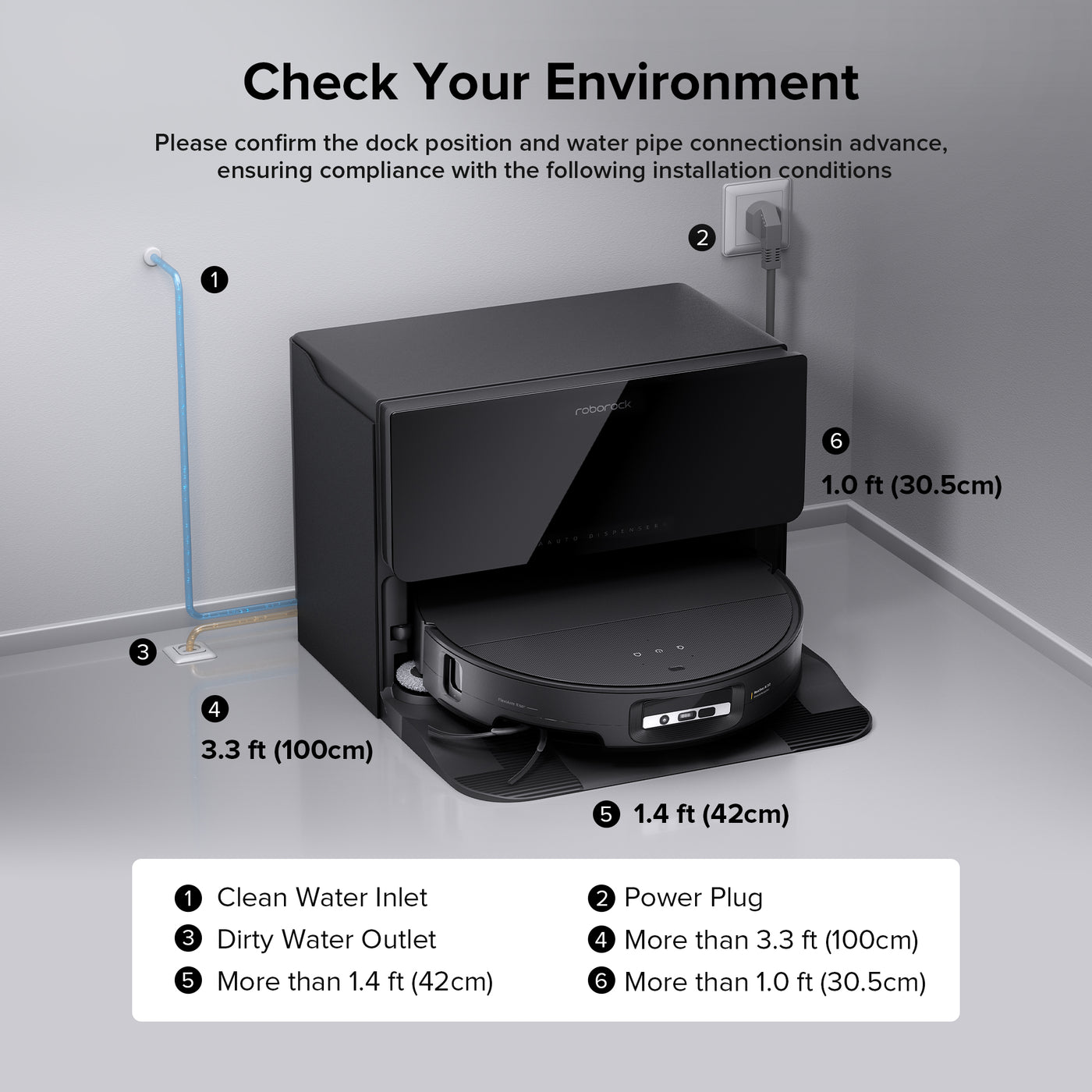
Place the dock in an open area. If the dock is hidden behind furniture, the Saros 10R may have trouble returning.
Fixing Wifi And App Connectivity Issues
Smart features only work when the Saros 10R connects to your WiFi and app. Here’s how to solve connection problems:
Step 1: Check Wifi Signal
The vacuum works best with 2.4GHz WiFi. If your router uses only 5GHz, switch to 2.4GHz or enable both bands.
Step 2: Reconnect The Device
Open the Roborock app, select your device, and choose “Reconnect. ” Follow the instructions carefully.
Step 3: Restart Router
Sometimes, a simple router restart solves hidden network glitches.
Step 4: Update Firmware
Outdated firmware can cause app sync issues. Check for updates in the Roborock app and install them if available.
Step 5: Use Guest Networks
If your main network has restrictions, set up a guest network for the vacuum. This avoids advanced security blocks.
Dealing With Brush, Roller, And Dustbin Problems
Blocked brushes or rollers stop the Saros 10R from cleaning properly. Dustbin detection errors also confuse users.
Step 1: Remove And Clean Brushes
Open the bottom cover, take out the main brush, and remove hair or debris. Clean the side brushes as well.
Step 2: Check Roller For Jams
Rollers can get stuck with large debris. Rotate them by hand to check for smooth movement.
Step 3: Clean Dustbin Sensors
Dustbin sensors can get dirty and fail to detect the bin. Use a dry cloth for cleaning.
Step 4: Reinsert Dustbin Correctly
Always align the dustbin as shown in the manual. A loose fit can cause detection errors.
Step 5: Replace Worn Brushes
If brushes look damaged or thin, replace them. Using old brushes reduces cleaning quality.
Handling Software Update And Error Codes
Software updates improve performance but can also introduce new bugs. Error codes help you identify problems, but many users don’t know what they mean.
Step 1: Read Error Codes Carefully
The Saros 10R shows codes like “E2” or “E5. ” Check the manual or the Roborock website for explanations.
Step 2: Restart And Retry Updates
If an update fails, restart the vacuum and your phone. Try updating again.
Step 3: Stable Internet Connection
Always update firmware when the vacuum is close to the router. Weak signals cause update failures.
Step 4: Factory Reset If Needed
If software problems persist, use the factory reset option in the app. This clears all settings and maps.
Step 5: Contact Support For Unknown Codes
If you see a code not listed in the manual, contact Roborock support. Some codes are rare and need expert help.
Fixing Noisy Operation
The Saros 10R should run quietly. If it makes loud or strange noises, something is wrong.
Step 1: Clean Internal Parts
Dust inside the vacuum can cause noise. Open the bottom and clean all moving parts.
Step 2: Check For Loose Screws
Loose screws can vibrate and make noise. Tighten any that you find.
Step 3: Lubricate Wheels
If wheels sound squeaky, apply a small amount of lubricant. Don’t use oil; special silicone grease works best.
Step 4: Replace Noisy Parts
If the noise continues, you may need to replace brushes or rollers.
Addressing Water Tank And Mopping Issues
If your Saros 10R supports mopping, water tank problems are common.
Step 1: Check Water Tank Seal
A loose seal can leak water. Remove the tank and check the seal.
Step 2: Clean Water Outlets
Mineral buildup can block water outlets. Rinse them with warm water.
Step 3: Use Distilled Water
Tap water can cause mineral deposits. Use distilled water for longer life.
Step 4: Change Mopping Cloth
If the cloth is dirty or damaged, replace it. Old cloths can reduce mopping performance.
Comparing Saros 10r With Other Roborock Models
To understand troubleshooting better, let’s compare Saros 10R with two popular models.
| Feature | Saros 10R | S7 MaxV | E5 |
|---|---|---|---|
| Battery Life | 180 min | 200 min | 150 min |
| Water Tank | Yes | Yes | No |
| App Support | Full | Full | Basic |
| Error Codes | Advanced | Advanced | Basic |
| Sensor Type | LIDAR | LIDAR + Camera | Infrared |
This comparison shows that the Saros 10R shares many features with premium models but has its own troubleshooting needs.
When To Replace Parts Or Call Support
Sometimes, DIY fixes are not enough. Here are signs you need professional help or replacement parts:
- Battery does not charge after reset and cleaning
- Brushes and rollers are damaged beyond repair
- Sensors do not respond after cleaning
- Software update fails repeatedly
- Error codes are not listed anywhere
If you face these problems, contact Roborock support or visit a service center.

Expert Tips For Preventing Future Issues
Regular maintenance is key to keeping your Saros 10R trouble-free.
- Clean sensors weekly to prevent navigation errors.
- Empty dustbin after every use to avoid detection problems.
- Check for firmware updates monthly in the app.
- Use original replacement parts for best performance.
- Store the vacuum in a dry place to protect electronics.
Many users ignore maintenance and face repeated issues. A little care saves time and money.
Quick Troubleshooting Table
Here’s a simple guide for solving the most common Saros 10R issues:
| Problem | Quick Fix | Extra Tip |
|---|---|---|
| Battery not charging | Clean contacts, check dock | Reset device if needed |
| Stuck on obstacles | Clear area, clean sensors | Update room map |
| WiFi not connecting | Use 2.4GHz, reconnect in app | Restart router |
| Brush jam | Remove and clean brushes | Replace if damaged |
| Water tank leaks | Check seal, clean outlets | Use distilled water |
Frequently Asked Questions
Why Does My Saros 10r Stop Charging Suddenly?
This is often caused by dirty charging contacts or a faulty power supply. Clean the contacts and check the dock’s plug. If the battery is old, it may need replacement.
How Do I Reset The Saros 10r?
Hold the power button for 10 seconds until you hear a beep. This restores default settings and solves many minor problems.
Can I Use The Saros 10r On Thick Carpets?
The Saros 10R works best on medium or thin carpets. Thick carpets may cause wheel jams or navigation errors. Remove obstacles for smoother operation.
What Do Error Codes Like “e2” Or “e5” Mean?
These codes show specific issues like sensor errors or wheel jams. Check the manual or the Roborock website for explanations. If you see unknown codes, contact support.
How Often Should I Clean The Saros 10r?
Clean sensors and brushes weekly, empty the dustbin after each use, and check for firmware updates monthly. This prevents most common problems.
Getting your Roborock Saros 10R working again is not difficult when you know what to do. Many issues can be solved in minutes with careful steps and regular maintenance. Remember, small details—like cleaning sensors or using the right WiFi band—can make a big difference. If you need more details, visit the official Roborock Support site. With these tips, your Saros 10R will clean efficiently and last longer, saving you time and effort every day.

