
Have you ever set your robot vacuum to clean, only to find dirt and dust left behind? It’s frustrating when you trust your device to do the job, but it doesn’t quite meet your expectations.
You might wonder why your robot vacuum isn’t picking up everything like it should. The truth is, there are simple reasons behind this, and understanding them can help you get a cleaner home with less effort. Keep reading to discover what might be causing your robot vacuum to miss spots and how you can fix it fast.
Common Causes Of Dirt Residue
Robot vacuums make cleaning easier, but sometimes they leave dirt behind. Understanding common causes of dirt residue helps improve their performance. Dirt residue can result from different issues. Identifying these issues is the first step to fixing the problem.
Clogged Brushes And Filters
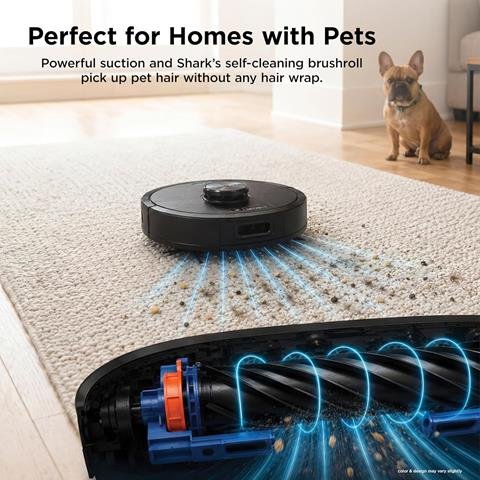
Brushes and filters trap dirt during cleaning. Dirt, hair, and dust can clog them over time. Clogged brushes spin less effectively. Filters blocked with dust reduce suction power. Regular cleaning of brushes and filters keeps your robot vacuum working well.
Worn Out Components
Parts like brushes and rollers wear down with use. Worn components do not pick up dirt properly. Rubber edges might crack or lose grip. Replacing worn parts can restore cleaning efficiency. Check these parts regularly for damage or wear.
Battery And Power Issues
Low battery power can affect cleaning strength. A weak battery reduces motor speed and suction. Robot vacuums may stop cleaning before finishing a task. Charging the battery fully ensures better performance. Replace old batteries to maintain power levels.
Navigation And Sensor Problems
Navigation helps the vacuum cover all floor areas. Dirty or faulty sensors cause missed spots. The vacuum might bump into obstacles or skip areas. Cleaning sensors gently improves navigation. Sensor problems may require professional repair or replacement.

Cleaning And Maintenance Tips
Keeping your robot vacuum clean and well-maintained helps it work better. Dirt and dust can build up on parts and cause poor cleaning. Regular care improves its suction and extends its life. Here are some simple tips for cleaning and maintenance.
How To Clean Brushes And Filters
Brushes pick up hair and dirt during cleaning. Remove tangled hair and debris from brushes often. Use a small tool or your fingers for this. Check the filters every week. Tap filters gently to remove dust. Wash filters with water if the manual says it is safe. Dry filters completely before putting them back.
Replacing Worn Parts
Brushes and filters wear out after many uses. Worn parts reduce cleaning power. Look for signs like frayed brushes or damaged filters. Replace these parts according to the user guide. New parts keep the vacuum running smoothly and clean better.
Battery Care For Optimal Performance
Battery health affects how long your vacuum runs. Charge the battery fully before using. Avoid leaving the vacuum plugged in all the time. Store it in a cool, dry place. Replace the battery if runtime drops significantly. Good battery care ensures strong and consistent cleaning.
Improving Vacuum Performance
Improving your robot vacuum’s performance helps it clean better and leave less dirt behind. Small changes can make a big difference. Adjusting settings, planning routes, and choosing the right mode all help your vacuum work smarter.
Adjusting Cleaning Settings
Check the vacuum’s cleaning settings often. Set it to a stronger suction for carpets or heavy dirt. Use a quieter mode for light cleaning on hard floors. Adjusting settings fits the vacuum to your floor type and dirt level.
Optimizing Cleaning Routes
Plan the vacuum’s path to cover all areas well. Avoid clutter that blocks the vacuum’s way. Clear cords and small objects. A clear path helps the vacuum clean every corner without missing spots.
Using The Right Cleaning Mode
Select the cleaning mode that matches your needs. Spot cleaning works for small messes. Full cleaning covers the entire room. Some vacuums have a deep clean mode for stubborn dirt. Using the right mode saves time and cleans better.

When To Seek Professional Help
Sometimes, cleaning your robot vacuum yourself is not enough. Problems may need expert attention. Knowing when to seek professional help saves time and avoids damage. Watch out for clear signs that show the vacuum needs repair or service.
Signs Of Hardware Failure
The vacuum might stop picking up dirt fully. Brushes may stop spinning or move unevenly. Strange noises or smells can come from inside. The battery may drain faster than before. Sensors might fail, causing poor navigation. These problems often mean hardware issues.
Warranty And Repair Options
Check the warranty before trying fixes yourself. Many robot vacuums come with repair coverage. Contact the manufacturer or seller for support. Authorized repair centers can fix complex problems safely. Using warranty services often costs less than new parts. Keep proof of purchase to claim repairs easily.
Preventive Measures For Consistent Cleaning
Keeping your robot vacuum running well needs small but regular steps. These steps help it clean your floors better and avoid leaving dirt behind. Taking care of your vacuum will save time and keep your home tidy.
Simple actions like cleaning parts and checking settings improve the vacuum’s work. Small habits make a big difference in how well your robot cleans every time it runs.
Regular Maintenance Schedule
Clean the brushes and filters often to stop dirt build-up. Check for hair or threads tangled around the rollers. Empty the dustbin after each use to keep suction strong. Replace worn parts as needed to keep your vacuum working well.
Keeping Floors Clear
Remove objects and cords from the floor before cleaning. Small items block the vacuum and cause it to miss dirt. Clear wide paths so the vacuum moves smoothly around the room. This helps it clean all areas without getting stuck.
Software Updates And Calibration
Update the vacuum’s software regularly to fix bugs and improve functions. Some models need calibration to map your home correctly. Follow the instructions to reset sensors or run calibration mode. This keeps your robot vacuum accurate and efficient.
Frequently Asked Questions
Why Does My Robot Vacuum Miss Dirt Spots?
Robot vacuums may miss dirt due to weak suction or full dustbins. Cleaning brushes and sensors regularly helps improve performance. Also, ensure the vacuum follows a proper cleaning path to cover all areas effectively.
How Often Should I Clean Robot Vacuum Brushes?
Cleaning the brushes weekly prevents hair and debris buildup. This maintains suction power and ensures the vacuum picks up dirt efficiently. Neglecting this can reduce cleaning effectiveness and cause the vacuum to leave dirt behind.
Can Robot Vacuum Sensors Affect Dirt Pickup?
Yes, dirty or blocked sensors can cause navigation errors. This leads the vacuum to miss areas or clean inefficiently. Regularly wipe sensors with a soft cloth to maintain accurate room mapping and thorough cleaning.
Does Battery Level Impact Robot Vacuum Cleaning?
Low battery levels can reduce suction power and cleaning duration. This may cause the vacuum to leave dirt behind. Keep the battery charged and replace it if it no longer holds a full charge for best results.
Conclusion
Robot vacuums can miss dirt for several reasons. Dirty brushes or filters reduce cleaning power. Low battery might stop the vacuum early. Thick carpets and clutter can block its path. Regular maintenance helps the vacuum work well. Check these simple issues to improve cleaning.
Keep your floors cleaner with small fixes. A little care goes a long way. Your robot vacuum can do better with attention. Try these tips and enjoy a cleaner home.