

Most Roomba j7+ issues come from clogs, dirty sensors, weak Wi-Fi, or a full bin system.
If your iRobot Roomba j7+ Robot Vacuum is acting up, you are not alone. I have seen this model handle tough daily messes very well, but like any smart home device, it can get confused by dirt, lighting, mapping glitches, or app connection problems. The good news is that most iRobot Roomba j7+ Robot Vacuum troubleshooting is simple once you know where to look, and this guide walks you through the real fixes that actually help.

Common iRobot Roomba j7+ Robot Vacuum problems and what they usually mean
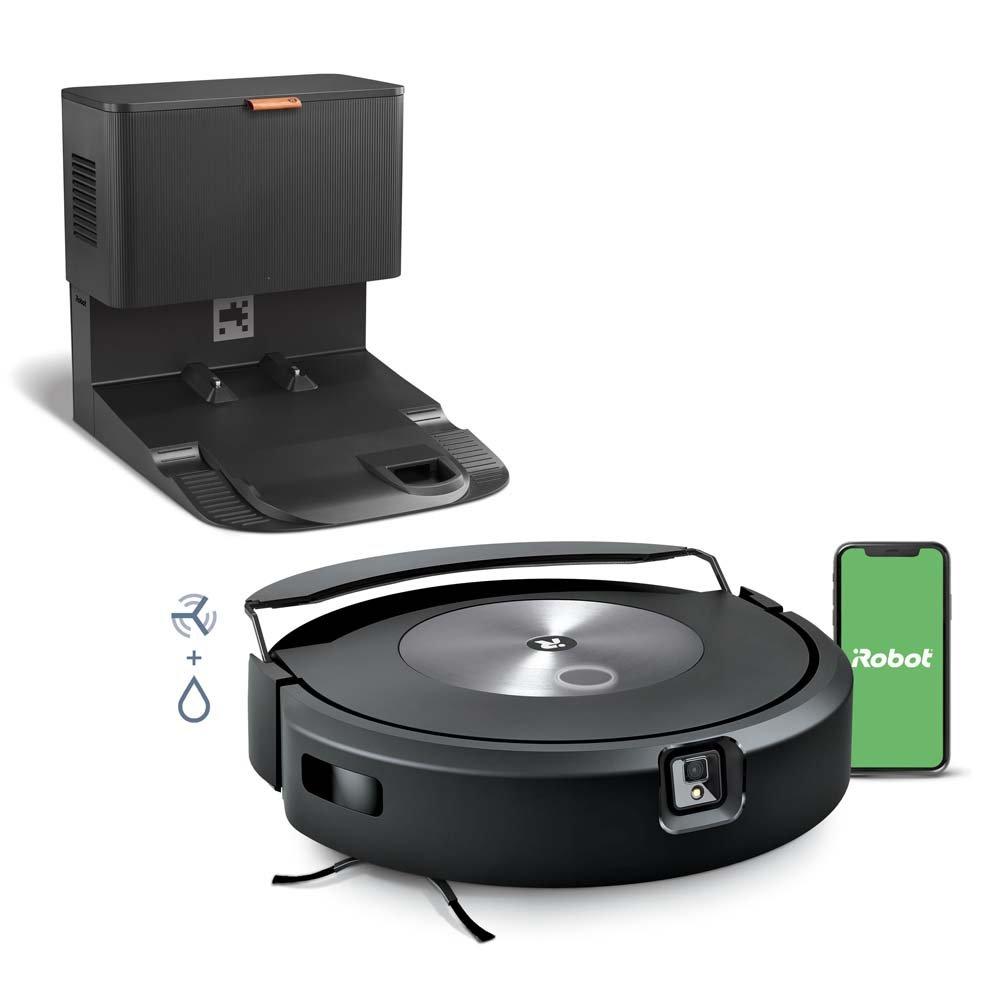
The iRobot Roomba j7+ Robot Vacuum is built to avoid obstacles, learn your floor plan, and empty itself with the Clean Base. That also means there are more parts that can trigger errors when something is off. When the robot stops, behaves strangely, or fails to dock, the problem is usually small and fixable.
Here are the issues I see most often:
- The robot will not start, even when charged
- It stops and says there is an error or blockage
- It misses rooms or cleans in odd patterns
- It fails to dock or return to the Clean Base
- The app will not connect or the map disappears
- It keeps getting stuck under furniture
- The bin full light stays on, even after emptying
Most of these problems are tied to maintenance, sensor dirt, software updates, or weak Wi-Fi. That is why iRobot Roomba j7+ Robot Vacuum troubleshooting works best when you check both the hardware and the app side.
First things to check before deeper troubleshooting
Before opening menus or resetting anything, I always start with the basics. This saves time and prevents unnecessary resets, which can wipe saved maps or settings.
Try these first:
- Make sure the battery has enough charge
- Check that the Clean Base is plugged in and powered on
- Confirm the dustbin is seated correctly
- Remove hair, string, or debris from the brushes
- Clean the front camera, cliff sensors, and charging contacts
- Restart the robot and the app
- Check that your Wi-Fi is working on 2.4 GHz if needed
A surprising number of Roomba issues come from dirty contacts or a bin that is not fully latched. I once helped a user who thought the robot had a battery failure, but the real issue was a thin layer of dust on the charging pads. That tiny layer was enough to stop proper charging.

iRobot Roomba j7+ Robot Vacuum troubleshooting by symptom
Roomba j7+ will not turn on
If the robot seems dead, the battery may be empty or the charging path may be blocked. Place it on the Home Base or Clean Base and make sure the charging light appears.
Check the following:
- Power outlet is working
- Base light is on
- Charging contacts are clean and dry
- Battery is not fully depleted
- Robot is seated straight on the base
If it still does not respond, let it charge for at least one hour before trying again. A deeply drained battery can look like a bigger problem than it is.
Roomba j7+ is not charging
This is one of the most common iRobot Roomba j7+ Robot Vacuum troubleshooting issues. In many cases, the problem is dirt on the charging contacts or a base that is not getting steady power.
Try this:
- Unplug the base for 30 seconds, then plug it back in
- Wipe the robot and base charging contacts with a dry cloth
- Make sure the robot is centered on the dock
- Move the base to a flat surface with space around it
- Check for a damaged power cord or loose adapter
If the battery is old, it may no longer hold a full charge. Lithium-ion batteries lose capacity over time, especially with heavy daily use.
Roomba j7+ keeps saying there is an error
When the robot reports an error, it is often trying to tell you that something is physically blocking movement. That could be hair in the brushes, a jammed wheel, or a stuck side brush.
Look for:
- Brush roll wrapped with hair
- Debris in the wheel wells
- Side brush stuck on carpet fringe
- Front wheel clogged with lint
- Bin not fully inserted
I like to think of the Roomba as a runner with shoes full of mud. It may still want to move, but it cannot do its job smoothly until you clean the buildup.
Roomba j7+ is not emptying into the Clean Base
If the vacuum cleans but does not empty, the issue is often airflow. The Clean Base needs a clear path to pull dirt from the robot bin.
Check these points:
- The bag in the Clean Base is not full
- The bag is installed correctly
- The robot bin is not packed with wet debris
- The vacuum and base are aligned
- The dock intake is clear
Also inspect the bin flap and internal passage. Fine dust and pet hair can clog the emptying path, especially if you vacuum a lot of carpet or pet mess.
Roomba j7+ is not docking properly
Docking problems can come from low light, blocked sensors, or a poor base location. The robot uses visual navigation and infrared-style guidance, so placement matters.
Improve docking by doing this:
- Put the base on a hard, level floor
- Leave clear space around the dock
- Remove mirrors or shiny objects nearby
- Keep cords and clutter away
- Clean the robot camera and dock contacts
One mistake I see often is placing the dock too close to a wall corner or under a table. The robot may find the area, but it struggles to line up cleanly.
Roomba j7+ is missing spots or cleaning poorly
If cleaning performance drops, the brush system is the first place to inspect. A weak clean is usually not a software problem.
Check:
- Main brush roller for hair wraps
- Filter for clogging
- Side brush for bent bristles
- Bin for overfilling
- Sensors for dust buildup
You should also remember that filters do wear out. A clogged filter can make the vacuum sound normal while reducing suction a lot.
Roomba j7+ keeps getting stuck
The j7+ is designed to avoid obstacles, but it still needs a safe layout. Thick rugs, cords, and low furniture can confuse it.
To reduce getting stuck:
- Pick up cables and small toys
- Raise curtain cords and loose fabric
- Use Keep Out Zones in the app
- Move lightweight rugs that bunch up
- Check for furniture legs too close together
This is where mapping helps a lot. When the layout is clear, the robot behaves more like a careful helper and less like a lost suitcase rolling through a hallway.
How to clean the Roomba j7+ the right way
Good maintenance fixes a huge share of iRobot Roomba j7+ Robot Vacuum troubleshooting cases. I tell people to clean it like they would a small air filter system with wheels.
Use this routine:
- Empty the bin after each run if you have pets
- Clean the filter weekly
- Remove hair from the brushes every few days
- Wipe sensors with a dry microfiber cloth
- Check the wheel axles for wrapped debris
- Clean charging contacts on the robot and base
Avoid using water on sensors or internal parts. A damp cloth can be okay on outer plastic surfaces, but excess moisture can cause more problems than it solves.

App, Wi-Fi, and map troubleshooting
The iRobot Home app is a major part of how the j7+ works. If the app does not connect well, it can look like the vacuum is broken when it is really just offline.
Fixing Wi-Fi issues
The robot usually works best on a stable 2.4 GHz network. If your router switches bands too often, the connection can become unreliable.
Try these steps:
- Restart your router
- Move the dock closer to the router if possible
- Reconnect the robot through the app
- Make sure your phone and robot are on the same account
- Update the app and robot firmware
If you changed your Wi-Fi password, the robot may need to be reconnected. That is a common miss during iRobot Roomba j7+ Robot Vacuum troubleshooting.
Fixing map problems
The j7+ uses smart mapping, and sometimes the map can shift after a major change in the home. That can happen after furniture moves, low battery runs, or poor lighting.
What helps:
- Run a complete clean cycle
- Keep doors open during mapping
- Avoid moving the dock once the map is set
- Update saved room labels if the map changes
- Rebuild the map only if needed
A full map reset should be a last resort. If the map is mostly right, editing it is usually better than starting over.
Resetting the Roomba j7+ safely
Sometimes a restart is enough. Other times, a deeper reset helps clear temporary software glitches. I always suggest the least aggressive fix first.
Try this order:
- Restart the robot through the app if it responds
- Remove the battery from power by placing it off the dock for a short time
- Reboot your phone
- Restart the router
- Use a factory reset only if other steps fail
Be careful with factory resets. They can remove saved maps, preferences, and room settings. That is why I only recommend them after basic iRobot Roomba j7+ Robot Vacuum troubleshooting does not solve the issue.
Preventing future problems
Prevention saves time, money, and frustration. The j7+ is a smart machine, but it still needs regular care.
A simple routine works best:
- Clean brushes twice a week if you have pets
- Replace filters on schedule
- Keep floors clear of cords and socks
- Check the bin and bag often
- Keep the dock in an open space
- Update firmware when available
The biggest lesson I learned from years of robot vacuum troubleshooting is this: small maintenance beats big repair. Ten minutes of care can prevent a week of headaches.
When you may need support or a replacement part
If you have tried the main fixes and the robot still fails, the issue may be hardware-related. That can include a worn battery, damaged wheel motor, faulty sensor, or docking issue inside the base.
Signs you may need support:
- The robot will not charge at all
- Repeated error codes return after cleaning
- The wheel or brush makes grinding sounds
- The battery drains very fast
- The base will not empty the bin even when clear
At that point, replacement parts or official support may be the best move. For a premium robot like the iRobot Roomba j7+ Robot Vacuum, that is often better than forcing repeated resets that do not address the real fault.
Frequently Asked Questions of iRobot Roomba j7+ Robot Vacuum troubleshooting
Why does my Roomba j7+ keep stopping in the middle of cleaning?
This usually happens because of a clog, a low battery, or an obstacle it cannot cross. Check the brushes, wheels, and filter first, then look for cords, rugs, or furniture blocking its path.
How do I know if my Roomba j7+ battery is bad?
If it charges for a long time but still dies quickly, the battery may be wearing out. A healthy battery should support a normal cleaning cycle without dropping too fast.
Why won’t my Roomba j7+ connect to Wi-Fi?
Most connection issues come from router settings, band changes, or an outdated app. Make sure you are using a stable 2.4 GHz network and restart both the robot and router.
Why is my Roomba j7+ not emptying into the Clean Base?
The bag may be full, the bin may be clogged, or the robot may not be seated correctly on the dock. Clean the air path and check that the base has power before testing again.
Can I reset my Roomba j7+ without losing everything?
Yes, a simple restart usually will not erase maps or settings. A factory reset is the one that can remove saved data, so use it only if basic troubleshooting fails.
Conclusion
Most iRobot Roomba j7+ Robot Vacuum troubleshooting comes down to a few simple habits: keep it clean, keep the dock clear, and keep the software updated. Once you check the sensors, brushes, charging contacts, and Wi-Fi, many frustrating issues start to make sense fast.
If your Roomba j7+ is still giving you trouble, work through the steps one by one instead of skipping ahead. That calm, methodical approach is usually the fastest way to get it back to normal. Leave a comment, save this guide for later, or explore more maintenance tips so you can keep your robot vacuum running strong.

