

The Roomba s9+ usually stops working because of battery issues, clogged parts, software glitches, or a bad dock connection.
If your iRobot Roomba s9+ Robot Vacuum not working, you are not alone. This is a powerful robot vacuum, but like any smart home device, it can run into problems that look scary at first and are often easy to fix once you know where to look. In this guide, I’ll walk you through the most common causes, practical fixes, and the small mistakes that often keep the Roomba s9+ from doing its job.
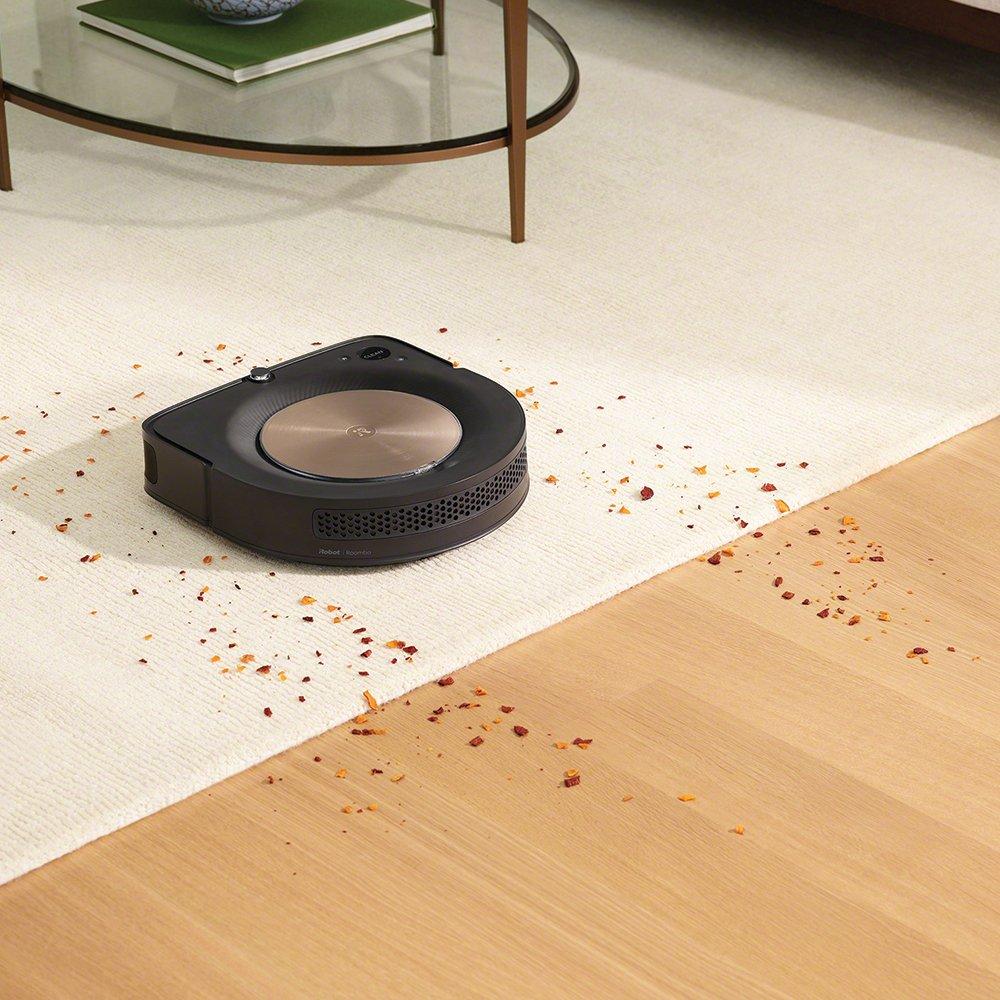
Why the iRobot Roomba s9+ Robot Vacuum not working
When the iRobot Roomba s9+ Robot Vacuum not working, the issue is usually tied to power, navigation, charging, or airflow. In my experience, most cases come down to one of three things: the robot cannot charge, the brushes or bin are blocked, or the software needs a reset.
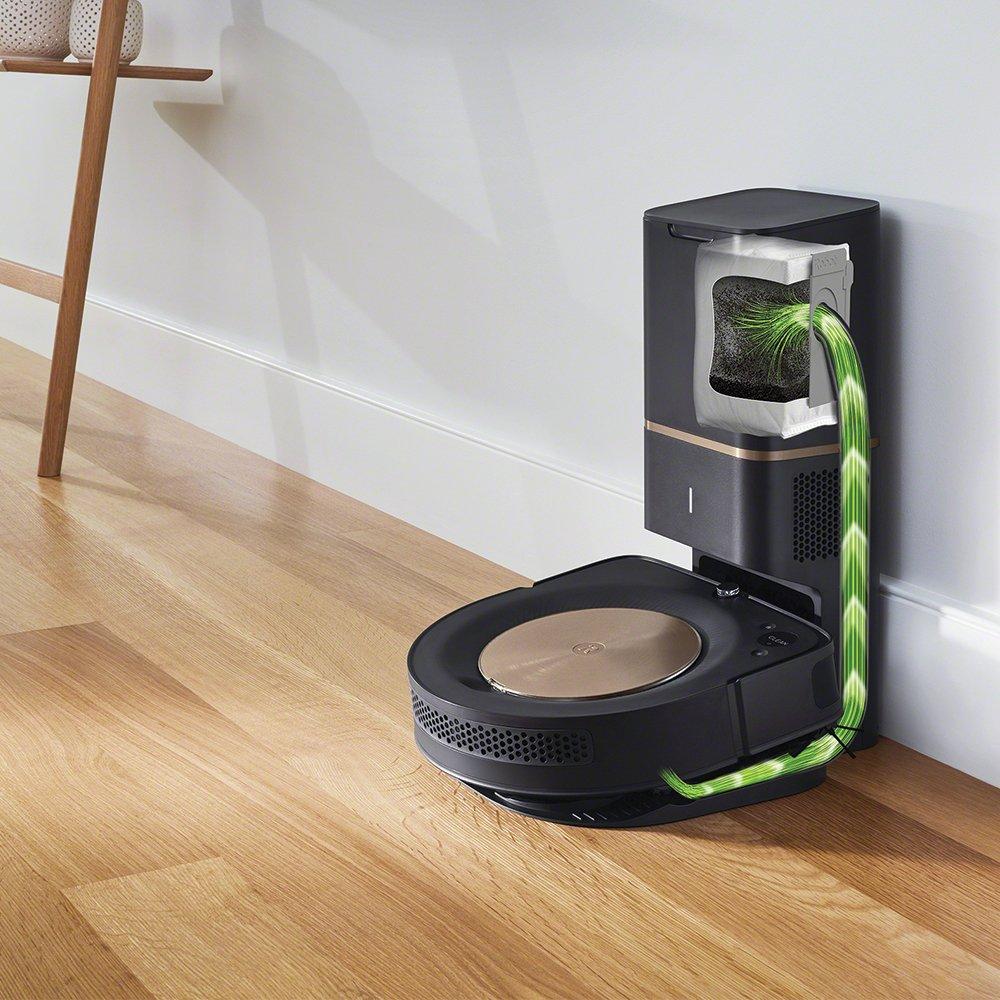
The s9+ is a high-end model with strong suction, smart mapping, and an automatic dirt disposal base. That also means it depends on several parts working together. If even one part fails, the whole system can seem dead.
Common signs include:
• No power at all
• Flashing error lights
• Docking problems
• Weak suction
• Brush errors
• The robot starts, then stops
• It spins in place or gets stuck often
A good first step is to check whether the problem is the robot itself, the Clean Base, or your home setup. I’ve seen people replace parts too fast when the real issue was a dirty charging contact or a map that had gone out of sync.

Common reasons the Roomba s9+ stops working
There are several reasons the iRobot Roomba s9+ Robot Vacuum not working, and the good news is that many are simple to fix.
Battery or charging failure
If the robot has no power or dies quickly, the battery may be drained, old, or not charging properly. A weak battery can make the Roomba act like it is broken even when the rest of the machine is fine.
What to check:
• Make sure the robot is seated firmly on the Home Base or Clean Base
• Clean the charging contacts on both the robot and the dock
• Check for debris on the dock pins
• Let it charge for several hours
• If the battery is very old, replacement may be needed
Dirty brushes, rollers, or bin
Hair, dust, and string can jam the side brush, dual rubber brushes, or dust bin. The s9+ is strong, but carpet fibers and pet hair can still wrap around moving parts like vines around a fence.
What to check:
• Remove the bin and empty it
• Clean the filter
• Inspect the rubber brushes for hair wrap
• Check the front caster wheel for dirt
• Make sure the bin is clicked in fully
Navigation and sensor problems
The s9+ uses sensors to move around your home. If those sensors are dirty or blocked, the robot may freeze, miss rooms, or keep bumping into furniture.
What to check:
• Wipe the cliff sensors under the robot
• Clean the camera and sensor area gently
• Move cords, rugs, or clutter out of the way
• Make sure there is enough light for navigation
Software glitches or app issues
Sometimes the iRobot Home app or the robot’s internal software gets stuck. This can cause the Roomba to ignore commands, fail to start, or not connect to Wi Fi.
What to check:
• Restart the robot
• Restart your router
• Reconnect the robot in the app
• Update the firmware if available
• Remove and re-add the device if needed
Clean Base problems
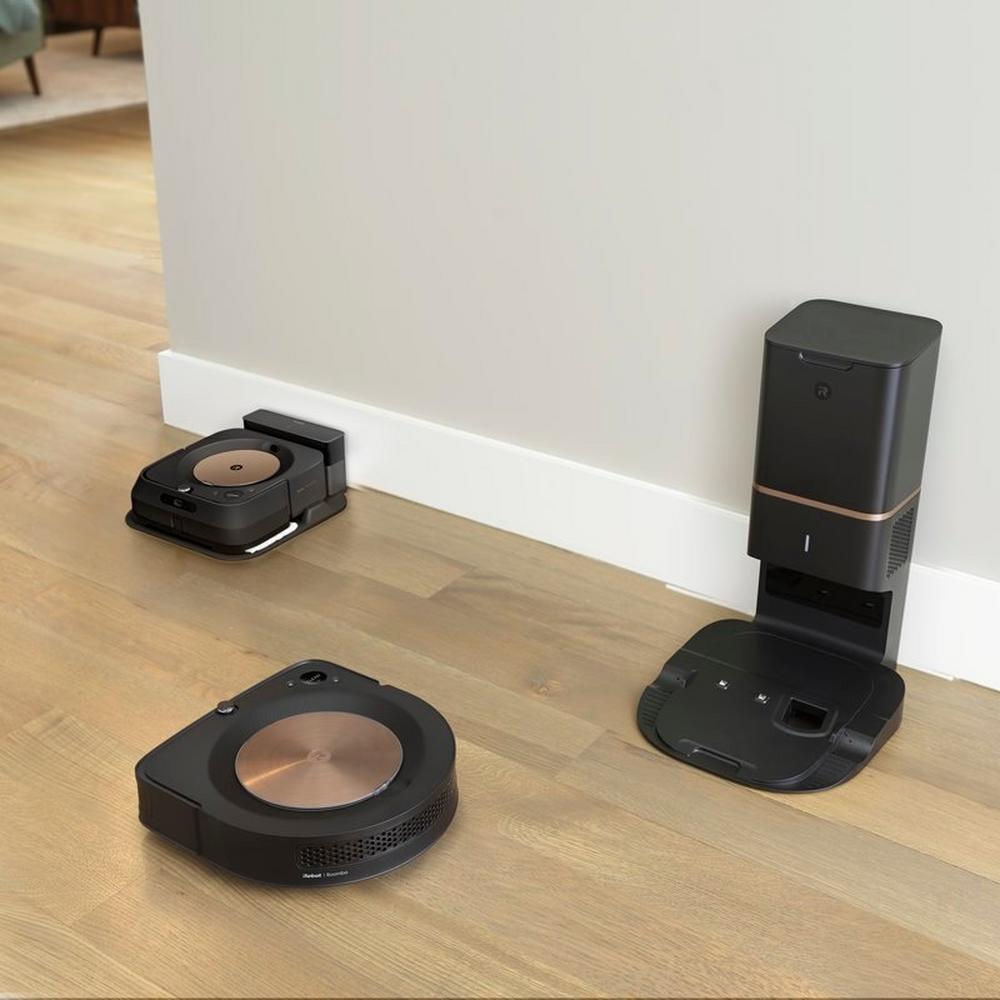
Because the s9+ comes with an automatic dirt disposal base, the dock itself can be part of the issue. If the base does not power on or the vacuum does not empty, the robot may seem like it is failing.
What to check:
• Confirm the outlet works
• Check the power cord
• Look for a full bag in the base
• Make sure the robot aligns properly with the dock
• Clean the dock charging points
Step-by-step fixes for iRobot Roomba s9+ Robot Vacuum not working
If your iRobot Roomba s9+ Robot Vacuum not working right now, follow these steps in order. I like this method because it saves time and helps you avoid guessing.
1. Restart the robot
A restart clears small software bugs and is often the fastest fix.
Try this:
• Press and hold the Clean button for about 20 seconds
• Wait until the lights turn off and the robot restarts
• Place it back on the dock and try again
2. Check the battery and dock
If the robot seems dead, power is the first thing to test.
Try this:
• Move the dock to a wall outlet you know works
• Reseat the robot on the dock
• Clean the charging contacts with a dry cloth
• Leave it on charge for at least 2 hours before testing
3. Clean the brushes and bin
A blocked airflow path can stop the robot from running well.
Try this:
• Remove the dust bin and empty it
• Wash or replace the filter if needed
• Pull hair from the brushes
• Check the brush caps and reinstall them correctly
• Clean the bin sensor area
4. Inspect the wheels and front caster
A stuck wheel can trigger errors or prevent movement.
Try this:
• Lift the robot and spin the wheels by hand
• Remove debris from the wheel wells
• Clean the front caster wheel
• Make sure nothing is jammed underneath
5. Reset the Wi Fi connection
If the app says the robot is offline, the issue may be network-related.
Try this:
• Confirm your Wi Fi is 2.4 GHz if your setup requires it
• Move the router closer during setup
• Remove the robot from the app and re-add it
• Reboot the router and the robot
6. Update the firmware
Outdated software can cause strange behavior.
Try this:
• Open the iRobot Home app
• Check for updates
• Keep the robot on the dock during updates
• Do not interrupt the process once it starts
7. Factory reset only if needed
A factory reset can fix stubborn bugs, but it should be a last resort because it clears settings and maps.
Use it when:
• The app no longer connects
• The robot keeps freezing
• Other resets fail
• You are okay setting up the home map again

Error signs you should not ignore
The iRobot Roomba s9+ Robot Vacuum not working often gives small clues before it stops completely. Paying attention to those clues can save you from a bigger headache later.
Watch for:
• Repeated charging failures
• Loud grinding sounds
• Brush error alerts
• Frequent dock misses
• Random shutoffs
• Poor suction on carpet
• The robot circling in one area
In my own testing and troubleshooting work, I’ve found that weird noises usually mean a mechanical problem, while app issues usually point to software or Wi Fi. That simple split can help you diagnose things faster.
How to keep the Roomba s9+ working well
Prevention matters just as much as repair. A little care each week can keep the iRobot Roomba s9+ Robot Vacuum not working from becoming a regular problem.
Helpful habits:
• Empty the bin often
• Clean the filter weekly if you have pets
• Remove hair from the brushes every few runs
• Wipe sensors and charging contacts
• Clear cords, socks, and small toys from the floor
• Keep the dock on a flat, open surface
• Replace worn parts when suction drops
The s9+ is like a runner with a clear track. If you keep the path clean and the parts tuned, it performs much better and lasts longer.
Mistakes to avoid when troubleshooting
A lot of people make the same mistakes when the iRobot Roomba s9+ Robot Vacuum not working, and those mistakes waste time.
Avoid these:
• Charging it on a dirty dock
• Ignoring hair wrapped around the brushes
• Using a damp cloth on sensitive parts
• Forcing the robot onto the dock at an angle
• Resetting the robot before checking the basics
• Assuming the battery is bad without testing the charger
One thing I learned the hard way is to never skip the simple checks. More than once, a “dead” robot turned out to be a clogged contact point or a full dirt bag in the base.
When to repair or replace
Not every issue with the iRobot Roomba s9+ Robot Vacuum not working can be fixed at home. If the battery no longer holds a charge, the motor sounds weak, or the base has a power fault, replacement parts may be the right move.
Consider repair or replacement when:
• The robot is several years old and fails often
• The battery drains too fast after full charging
• The motor or brush system makes loud noises
• The dock no longer powers on
• Multiple resets do not solve the problem
For many owners, replacing a battery, brush module, or dock cord is cheaper than buying a new vacuum. But if several major parts are failing at once, replacing the unit may make more sense.
Frequently Asked Questions of iRobot Roomba s9+ Robot Vacuum not working
Why is my Roomba s9+ not turning on?
A dead battery, bad charging contacts, or a faulty dock connection are the most common reasons. Start by cleaning the contacts and leaving the robot on the dock for a few hours.
Why does my Roomba s9+ keep stopping in the middle of cleaning?
It may be stuck, overheated, or dealing with a brush or wheel jam. Check for hair, debris, or objects blocking movement.
Why is my Roomba s9+ not connecting to Wi Fi?
This usually happens because of router settings, a weak signal, or an app setup issue. Reboot the router, confirm the network is compatible, and reconnect the robot in the app.
Why does my Roomba s9+ say it is charging but never finishes?
Dirty contacts, a weak battery, or a dock issue can cause that problem. Clean the dock and robot contacts, then test again after a long charge.
Why does my Roomba s9+ make a loud noise and stop?
A jammed brush, clogged roller, or debris in the wheel area is often the cause. Turn the robot off, inspect the underside, and remove anything wrapped or stuck.
How do I reset my Roomba s9+?
Hold the Clean button until the lights turn off and the robot restarts. If that does not help, a factory reset may be needed as a last step.
Conclusion
When the iRobot Roomba s9+ Robot Vacuum not working, the problem is usually easier to solve than it first appears. Most issues come from charging trouble, clogged parts, sensor dirt, or app glitches, and each one has a clear fix if you check things in order.
The best approach is simple: start with power, clean the robot well, reset the software only when needed, and keep the dock and sensors in good shape. If you follow those steps, you give your Roomba the best chance to get back to work fast.
If this guide helped, take a few minutes to inspect your robot now and apply the fixes before the next cleaning cycle. You can also explore more maintenance tips, subscribe for future troubleshooting guides, or leave a comment with the issue you’re seeing.

