Is your robot vacuum not cleaning as well as it used to? Sometimes, the secret to better performance is a simple software update.
Updating your robot vacuum’s software can fix bugs, add new features, and improve its efficiency. But how exactly do you do it? You’ll learn step-by-step how to update the software on your robot vacuum quickly and easily. Keep reading, and you’ll unlock the full potential of your smart cleaning device in no time.
Check Compatibility
Checking compatibility is a key step before updating your robot vacuum’s software. It ensures the update fits your device and runs smoothly. Skipping this step can cause errors or even stop your vacuum from working.
Compatibility involves knowing your vacuum model and matching it to the software needs. This prevents issues and helps keep your robot vacuum in top shape.
Identify Your Model
Locate the model number on your robot vacuum. It is usually on the bottom or inside the dustbin area. Write it down or take a photo for easy reference. This number tells you exactly which vacuum you have.
Knowing your model helps find the right software update. Different models may need different versions. Using the wrong one can cause problems.
Review Software Requirements
Check the update details for specific requirements. These often include the operating system, app version, or hardware limits. Confirm your device matches these before proceeding.
Some updates need a certain Wi-Fi speed or battery level. Meeting these requirements avoids failed updates and saves time. Always read the update notes carefully.

Prepare Your Robot Vacuum
Preparing your robot vacuum before updating its software is important. This step ensures the update works well and your device stays safe. Follow simple actions to get your vacuum ready.
Charge The Battery
Make sure your robot vacuum has a full battery. A low battery can stop the update and cause problems. Place the vacuum on its charging dock. Wait until the battery indicator shows it is fully charged. This step helps the update finish without interruptions.
Connect To Wi-fi
Your robot vacuum needs a stable Wi-Fi connection to download the update. Check that your vacuum is connected to your home Wi-Fi network. Use the app or the vacuum’s control panel to confirm the connection. A strong Wi-Fi signal makes the update process faster and smoother.
Access Update Settings
Accessing the update settings is the first step to keep your robot vacuum running smoothly. Updates improve performance and fix bugs. You can find these settings either on the mobile app or the vacuum’s control panel.
Both methods are simple and quick. Choose the one that suits you best to ensure your vacuum stays up to date.
Use The Mobile App
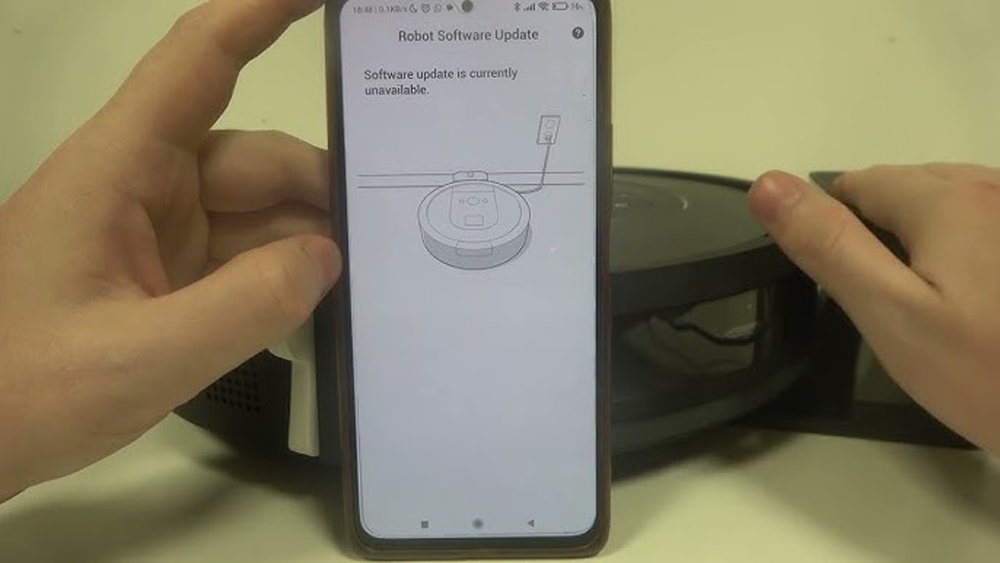
Most robot vacuums connect to a mobile app. Open the app on your phone or tablet. Look for a menu or settings icon. Tap on it to find the update section.
The app usually checks for updates automatically. If an update is available, you will see a notification. Tap the update button to start the process. Keep the vacuum and phone close to each other during the update.
Navigate The Control Panel
Some robot vacuums have a control panel with buttons or a screen. Press the menu or settings button. Use arrow keys to find the update or software section.
Select the update option. The vacuum will search for new software. Follow the on-screen instructions to complete the update. Make sure the vacuum is charged or connected to power.
Download And Install Update
Downloading and installing updates on your robot vacuum keeps it running smoothly. Updates fix bugs and add new features. They improve cleaning performance and battery life. The process is simple and takes just a few steps.
Start The Update Process
First, connect your robot vacuum to Wi-Fi. Open the vacuum’s app on your phone. Look for the “Software Update” option. Tap it to check for new updates. If an update is available, select “Download” to begin. Make sure your phone stays connected to the internet.
Monitor Progress
Watch the update bar as the software downloads. Do not turn off the vacuum or close the app. The installation starts automatically after download. Wait patiently until the process finishes. Your vacuum may restart during this time. After completion, the app will notify you.
Troubleshoot Common Issues
Updating software on a robot vacuum can sometimes cause problems. These issues may stop the update or make the vacuum work poorly. Troubleshooting common problems helps you fix errors fast. It keeps your vacuum running well and saves time.
Fix Connection Errors
Connection errors often stop the update from starting. Check your Wi-Fi is strong and steady. Move your router closer to the vacuum if the signal is weak. Restart your router and vacuum to refresh the connection. Make sure your vacuum is connected to the right network. Avoid using public or guest Wi-Fi for updates.
Handle Installation Failures
Installation failures happen if the update file is damaged or incomplete. Restart the update process after turning off the vacuum. Clear space on the vacuum’s memory if storage is low. Use the vacuum’s app or website to download the update again. Keep the vacuum plugged into power during installation. Patience helps; do not turn off the vacuum mid-update.

Verify The Update
After updating your robot vacuum’s software, verifying the update is important. This step ensures the new software works correctly. It also confirms the vacuum has the latest features and fixes. Proper verification helps avoid future problems during cleaning tasks.
Check Software Version
Start by checking the software version on your vacuum. Most robot vacuums show the version in their app or on the device. Compare this version with the one listed in the update notes. If they match, your vacuum has the latest software installed. This simple check confirms the update was successful.
Test Vacuum Functions
Next, test your vacuum’s main functions to ensure smooth operation. Turn it on and watch how it cleans a small area. Listen for any unusual sounds or errors. Try scheduling a cleaning session to confirm the timer works. Testing helps spot any issues caused by the update early.
Keep Software Updated
Keeping the software updated on your robot vacuum is important. Updates improve cleaning performance and fix bugs. They also add new features and enhance security. Regular updates keep your vacuum running smoothly and efficiently.
Enable Automatic Updates
Most robot vacuums allow automatic updates. Turn this feature on in the app or settings menu. Automatic updates download and install new software without your help. This saves time and ensures you never miss an update.
Schedule Regular Checks
Set a reminder to check for updates regularly. Look for new software every week or two. Manual checks catch updates if automatic updates are off. Staying on top of updates helps your vacuum stay at its best.

Frequently Asked Questions
How Do I Check For Robot Vacuum Software Updates?
You can check updates via the vacuum’s app or control panel. Most models notify you automatically when updates are available. Regularly checking ensures optimal performance and new feature access.
Can I Update My Robot Vacuum Without Wi-fi?
Some robot vacuums allow manual updates via USB or SD card. However, most rely on Wi-Fi to download and install software. Check your model’s manual for specific offline update options.
How Often Should I Update Robot Vacuum Software?
Updating your robot vacuum software monthly or when prompted is ideal. Frequent updates improve cleaning efficiency, fix bugs, and add new features. Staying current ensures the best performance.
Will Software Updates Improve My Robot Vacuum’s Cleaning?
Yes, updates often enhance navigation, suction power, and battery management. Manufacturers release patches to fix bugs and optimize cleaning paths. Regular updates keep your vacuum working efficiently.
Conclusion
Updating your robot vacuum’s software keeps it running smoothly. Regular updates fix bugs and add new features. Check the app or device settings to start updates. Stay patient while the update installs; do not turn off the vacuum. Keeping software current improves cleaning performance and battery life.
Simple steps lead to better results. Take a few minutes often to update. Your robot vacuum will thank you with cleaner floors.