

Updating Roborock firmware is simple: open the app, connect the robot, and install the latest update.
If you want your Roborock to clean better, map faster, and fix annoying bugs, learning how to update Roborock firmware is worth your time. I’ve seen firmware updates turn a “weirdly stubborn” robot into a much smoother helper, and I’ve also seen what happens when people rush the process. This guide walks you through how to update Roborock firmware the right way, what to check first, and how to avoid the common mistakes that can interrupt the update or leave your robot acting strange.
What Roborock firmware updates do
Firmware is the software that runs inside your Roborock vacuum or mop. It controls things like navigation, obstacle detection, suction logic, carpet behavior, mopping flow, and app communication.
When you update Roborock firmware, you may get:
- Better map accuracy
- Faster room recognition
- Bug fixes for charging or docking issues
- Improved obstacle avoidance
- New cleaning features or app options
- Better stability with Wi-Fi and the Roborock app
In simple terms, firmware updates are like tune-ups for the robot’s brain. They do not usually change the hardware, but they can make the machine feel much smarter and more reliable.

Before you update Roborock firmware
A little prep goes a long way. I’ve made the mistake of starting an update with a weak Wi-Fi signal, and the robot spent the next few minutes acting like it had forgotten its manners. It eventually worked, but it was unnecessary stress.
Before you begin, check these basics:
- Make sure your robot is on the charging dock
- Confirm your phone has a stable internet connection
- Update the Roborock app first if an app update is available
- Keep the robot and dock connected to power
- Leave enough time for the update to finish without interruption
- If possible, avoid updating during a cleaning job
A firmware update is safest when the robot is idle, charged, and connected to a steady network. That sounds simple, but it prevents most update failures.
How to update Roborock firmware in the app
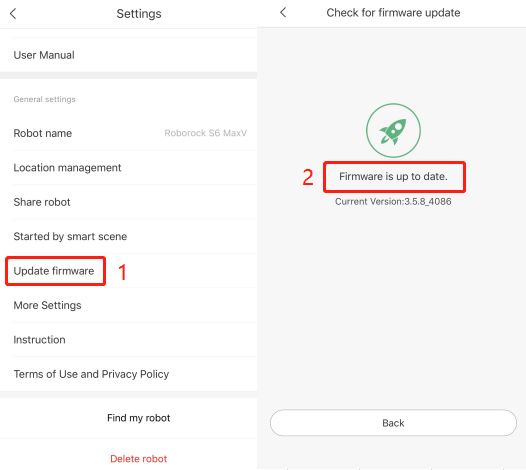
For most users, the easiest way to update Roborock firmware is through the Roborock app. The exact menu names can vary a little by model and app version, but the flow is usually the same.
Step 1: Open the Roborock app
Launch the app on your phone and make sure your robot is already paired. If you have multiple devices, select the correct one from the home screen.
Step 2: Check for a firmware notification
Many Roborock models show a banner or pop-up when a new update is available. If you do not see one, go into the robot settings and look for firmware or device update options.
Step 3: Start the update
Tap the update prompt and follow the on-screen instructions. Read the notes before confirming, because some updates may include bug fixes, new features, or behavior changes.
Step 4: Keep the robot on the dock
The robot should stay docked during the process. Do not move it, pause it, or start a cleaning cycle while the update is running.
Step 5: Wait for completion
The update can take several minutes. The robot may restart once or more during the process, which is normal. Let it finish without closing the app too early.
Step 6: Verify the new version
After the update, check the firmware version in the app settings. This confirms the install was successful and helps if you need to troubleshoot later.
A good update process should feel boring. That is actually a good sign. Smooth and uneventful usually means the firmware installed the way it should.
How to update Roborock firmware through Mi Home or other connected apps
Some Roborock models can also be managed through the Mi Home app or another supported ecosystem app, depending on region and device setup. The update process is similar, but the menu layout may look different.
Here’s the usual pattern:
- Open the connected app
- Select your Roborock device
- Go to device settings
- Find firmware update or device version
- Download and install the update if available
If your robot was originally set up in Mi Home, it may continue receiving updates there. What matters most is using the app that currently manages the device. Mixing apps can cause confusion, so it helps to stick with one primary control app whenever possible.
Common problems when updating Roborock firmware
Most firmware updates go smoothly, but a few issues come up often. I’ve dealt with enough of them to know they usually come down to connection, power, or timing.
Update stuck or frozen
If the update seems frozen, wait a little longer before doing anything. Some installs look stuck because the robot is restarting in the background.
Robot not connecting to Wi-Fi
Firmware updates depend on a stable network. If the robot drops connection, try moving the router closer, switching to a 2.4 GHz network if required, or restarting the router and app.
App does not show an update
Sometimes the update is rolled out in stages. That means not every user gets it at once. Also, make sure your app itself is current.
Robot won’t resume after update
After a major firmware change, the robot may need a few minutes to rebuild some settings or reconnect to the cloud. In rare cases, a full app restart or robot reboot helps.
Update failed midway
If the update fails, do not panic. Reboot the robot, check Wi-Fi strength, and try again from the app. If the problem repeats, the support team may need your model number and firmware version.
A lot of update errors look worse than they are. Think of them like a phone update that needs one extra try. Annoying, yes. Dangerous, usually not.
Best practices for a smooth Roborock firmware update
If you want fewer headaches, treat the update like a small maintenance task instead of a quick tap-and-forget moment.
Here are the best habits:
- Update the app first
- Use a stable 2.4 GHz Wi-Fi connection if your model requires it
- Keep the robot docked and charged
- Do not unplug the base station
- Avoid updating when your Wi-Fi is overloaded
- Wait until the robot is fully idle
- Read the release notes if they are shown
One thing I learned the hard way is that firmware updates and weak home Wi-Fi are a bad mix. Even a great robot can struggle if the network keeps dropping in and out. A steady connection makes the whole process feel effortless.
Why firmware updates matter for daily cleaning
It is easy to ignore firmware until something breaks. But updates often improve the little things that make a robot vacuum feel polished.
For example, an update may help with:
- Better room separation in your map
- Smarter path planning around chairs and cords
- Fewer docking mistakes
- More accurate no-go zone behavior
- Better mop lifting on carpet
- Less random bumper contact with furniture
These changes may seem small, but they add up. A robot vacuum lives or dies by consistency, and firmware is a big part of that.
What firmware updates cannot do
It is also important to stay realistic. Firmware updates are useful, but they are not magic.
They usually cannot fix:
- A bad battery that no longer holds charge
- A broken wheel or brush motor
- A clogged sensor that needs cleaning
- Physical damage from a drop or water exposure
- A router problem in your home network
If your Roborock has a hardware issue, firmware alone will not solve it. That is why I always suggest cleaning the robot and checking the dock before blaming software.
How often should you update Roborock firmware
There is no universal schedule, because updates are released when needed. Some come often, while others take months.
A good rule is:
- Check after major app notifications
- Review updates when you notice odd behavior
- Install updates that mention bug fixes or stability improvements
- Avoid delaying important security or connectivity patches
If your robot is working well, you do not need to chase every release the second it appears. But if an update addresses a problem you are seeing, it is usually worth installing.
Frequently Asked Questions of How to Update Roborock Firmware
How do I know if my Roborock firmware is up to date?
You can check the firmware version in the Roborock app under your robot’s settings. If no update prompt appears and the version matches the latest available for your model, you are likely up to date.
Can I use my Roborock while firmware is updating?
No, it is best to leave it docked and idle during the update. Starting a cleaning cycle or moving the robot can interrupt the process and cause the update to fail.
Why is my Roborock firmware update taking so long?
Firmware updates can take several minutes because the robot may be downloading files, installing changes, and restarting. If it takes unusually long, check your Wi-Fi connection and wait a bit longer before assuming it is stuck.
Will updating Roborock firmware delete my map?
Usually, no. In most cases, your saved maps remain intact, but it is still smart to back up important settings if your app supports it. Major updates can sometimes reset certain preferences, so review your settings afterward.
What should I do if the firmware update fails?
Restart the robot, confirm strong Wi-Fi, and try the update again through the app. If it still fails, note the robot model, app version, and firmware version before contacting support.
Conclusion
Keeping your robot current is one of the easiest ways to get better cleaning performance without buying new hardware. When you update Roborock firmware, you can improve stability, fix bugs, and unlock smarter cleaning behavior that makes the robot feel more reliable day to day.
The key is simple: prepare the robot, keep the connection steady, and let the update finish without interruption. If your Roborock has been acting a little off lately, a firmware update may be the reset it needs. Try the steps above, and if you want better results from your robot long term, make firmware checks part of your regular routine.

