

Most Eufy RoboVac resets are done by holding the power button, then re-pairing or reconfiguring the robot.
If your Eufy RoboVac is stuck, unresponsive, not charging, or acting strange, knowing how to reset Eufy RoboVac can save you a lot of time and frustration. I’ve seen this simple fix solve issues that looked serious at first, from failed Wi Fi pairing to random stop and start behavior, so this guide walks you through the reset process in a clear, practical way.
Why you may need to reset a Eufy RoboVac
A reset is one of the fastest ways to clear small software glitches. Think of it like restarting a phone that froze during a bad app update. It does not repair broken hardware, but it often brings the robot back to normal when the problem is caused by software, memory issues, or connection errors.
Common reasons to reset Eufy RoboVac include:
- The vacuum will not respond to buttons or the app
- Wi Fi setup failed or the robot keeps dropping offline
- Cleaning schedules are missing or acting odd
- The RoboVac stops in the middle of a job for no clear reason
- Charging behavior seems unusual
- You want to prepare the unit for a new home or a fresh setup
In my experience, people often try a full reset too early. I usually recommend starting with a simple power cycle first, then moving to a factory reset only if the issue keeps coming back. That small step can save time and prevent you from losing settings you still need.
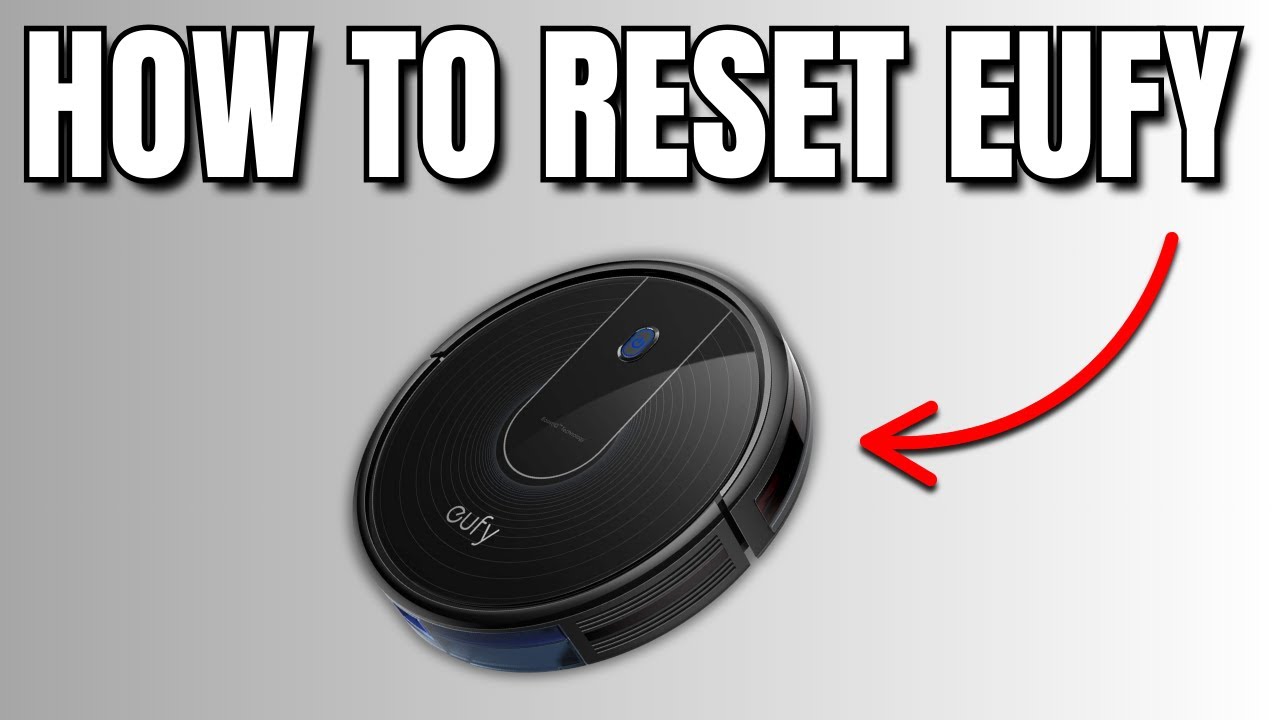
Types of reset on a Eufy RoboVac
Not every reset does the same thing. Eufy RoboVac models generally support two broad approaches: a soft reset and a factory reset. Knowing the difference helps you choose the right fix without doing more work than needed.
Soft reset
A soft reset is basically a restart. It refreshes the system without fully wiping settings.
Use a soft reset when:
- The robot is frozen
- The app is lagging
- A cleaning cycle pauses for no reason
- You want a quick troubleshooting step before doing anything more serious
Factory reset
A factory reset clears saved data and returns the RoboVac to a fresh state. This is more complete and more useful when Wi Fi problems or persistent bugs keep returning.
Use a factory reset when:
- The app will not connect
- You are passing the unit to someone else
- Repeated glitches keep happening
- You have already tried basic troubleshooting
A good rule I follow is simple: restart first, reset second. That saves time and keeps you from erasing settings unless you really need to.
How to reset Eufy RoboVac: step-by-step
The exact buttons can vary a little by model, but the reset process is usually easy. Most Eufy RoboVac models use a power button on the top of the unit, and many also use a reset hole or a specific button combo for app connection.
Step 1: Turn off the RoboVac
If the unit is on, switch it off first. If it is frozen, press and hold the power button until it shuts down.
Before you do anything else, place the RoboVac on a flat surface and make sure it is not caught under furniture. This helps avoid false error behavior caused by blocked wheels or sensors.
Step 2: Wait about 10 to 15 seconds
Let the machine sit for a short moment. This helps discharge leftover power in the system and gives the internal board time to clear temporary issues.
I’ve found this small pause matters more than people expect. Skipping it can make the robot seem like it reset when it really just kept the same glitch in memory.
Step 3: Power it back on
Press the power button again to restart the unit. If the RoboVac wakes up normally, test a short cleaning run.
If the robot still acts up, move on to a deeper reset. At this point, you are no longer just rebooting. You are checking whether the issue is tied to settings, app pairing, or a deeper system fault.
Step 4: Perform a factory reset if needed
For many Eufy RoboVac models, a factory reset involves holding the power button or using the Wi Fi reset function, depending on the device version. Some units have a small reset button or reset pinhole near the charging contacts or underside area.
Typical reset method:
- Turn the RoboVac on
- Press and hold the power button for several seconds
- Watch for indicator lights, voice prompts, or a shutdown and restart cycle
- Release the button once the reset action starts
If your model has Wi Fi setup issues, you may need to hold the Wi Fi or spot/edge cleaning button combination instead. The exact reset method depends on the model line, so checking the model label is always smart.
Step 5: Reconnect the app and Wi Fi
After the reset, open the Eufy Clean app again and set up the RoboVac like it is new. This often fixes app sync problems, because the robot and app can start fresh.
During this step:
- Make sure your phone is on the same 2.4 GHz Wi Fi network
- Keep the RoboVac close to the router
- Follow the pairing prompts carefully
- Wait for any voice prompt or light signal to confirm connection
I have seen a lot of pairing failures caused by one simple thing: the phone was on the wrong network band. Many smart home devices, including robotic vacuums, work best on 2.4 GHz rather than 5 GHz for initial setup.

Model-specific notes for Eufy RoboVac
Different RoboVac models can reset a little differently. That is normal, and it is one of the reasons users get confused. The good news is that the core idea stays the same: restart the unit, then re-pair if needed.
Older Eufy RoboVac models
Older models often use physical buttons only. You may need to press and hold the power button, then wait for a light change or voice cue.
If your older model has no app support, a reset may be limited to a full power cycle and a manual restart. In those cases, checking the battery, dust bin, wheels, and brushes becomes even more important.
App-connected models
App-connected models usually need a Wi Fi reset after a factory reset. This is especially true when the robot keeps going offline or refuses to pair again.
For these models, the reset is useful because it clears network confusion. In practice, this often fixes the problem faster than repeated pairing attempts that never fully complete.
Models with voice prompts
Some Eufy RoboVac units speak or make tone sounds during setup. Those voice prompts are useful clues.
Pay attention to:
- Shutdown tones
- Startup chimes
- Wi Fi reset prompts
- Pairing confirmation messages
Those small sounds can tell you whether the reset worked even before you open the app.
Troubleshooting if the reset did not work
A reset helps with many problems, but it is not magic. If the RoboVac still misbehaves, the cause may be mechanical, electrical, or battery related. That is where a careful check can save a lot of guesswork.
Check the battery and charging dock
If the battery is weak or the charging contacts are dirty, the vacuum may seem broken when it is really just underpowered. Clean the charging plates and make sure the dock is plugged in securely.
Look for:
- Flashing charge indicators
- Loose dock connections
- Dirt on metal contact points
- A battery that drains too fast
Clean the sensors and wheels
Sensors and wheels get dirty fast. Hair, dust, and debris can make the robot act confused, stop suddenly, or fail to dock.
Clean these areas:
- Drop sensors
- Side brushes
- Main brush
- Front wheel
- Charging contacts
Remove network setup issues
If the app is the problem, the issue may be your router settings rather than the RoboVac itself. Smart home devices can be picky, especially during setup.
Try these fixes:
- Restart the router
- Use a 2.4 GHz network
- Move closer to the router
- Disable VPN during setup
- Make sure the app is updated
Check for a firmware or app issue
Sometimes the vacuum is fine, but the app is outdated or the firmware needs a refresh. Updating both can fix bugs that a reset alone cannot.
This is one reason I always tell people not to stop at the reset button. Resetting is step one, not the whole story.
When a reset is the right fix and when it is not
A reset is a good tool, but it is best used for software-like problems. If your RoboVac has a broken wheel motor, worn battery, or damaged charging base, a reset will not solve it.
A reset is likely helpful when:
- The robot is unresponsive
- Wi Fi pairing fails
- The app cannot find the vacuum
- The machine behaves erratically after a setup change
A reset is less likely to help when:
- The battery will not hold charge at all
- The unit makes grinding noises
- A wheel is jammed or broken
- The charging dock is physically damaged
I think of a reset like clearing fog from a window. It helps you see clearly again, but it does not fix a cracked pane.
Best practices after you reset Eufy RoboVac
Once you reset Eufy RoboVac, a few small habits can help keep it working well. These steps are simple, but they make a real difference over time.
- Place the dock on a flat, open surface
- Keep cords and loose items off the floor
- Empty the dust bin often
- Clean brushes and filters regularly
- Use the app only after the robot is fully paired
- Test one short cleaning cycle before trusting a full schedule
The first cleaning after a reset is a useful check. If the robot finishes that run cleanly, you know the reset likely did its job.
Frequently Asked Questions
How do I reset my Eufy RoboVac?
Most models reset by holding the power button or using a Wi Fi reset sequence, then setting the robot up again in the app. The exact steps depend on your model, so check the label on the bottom or near the battery area if you are unsure.
Will resetting delete my settings?
A soft reset usually does not delete everything, but a factory reset can remove saved Wi Fi and app settings. If your RoboVac is connected to the Eufy Clean app, expect to pair it again afterward.
Why is my Eufy RoboVac not connecting after reset?
This often happens when the phone is on the wrong Wi Fi band, the router is too far away, or the app permissions are not set correctly. Try 2.4 GHz Wi Fi, stay close to the router, and make sure the app is fully updated.
How often should I reset my RoboVac?
You should not need to reset it often. Use a reset only when the robot is frozen, disconnected, or showing repeated problems that normal restarting does not fix.
Can I reset Eufy RoboVac without the app?
Yes, many models can be reset using the physical power button or a reset button on the device. The app is usually needed only after the reset if you want to reconnect Wi Fi or restore smart features.
Conclusion
Learning how to reset Eufy RoboVac is one of those small skills that pays off again and again. A simple restart can clear temporary glitches, while a factory reset can solve stubborn app and Wi Fi problems that keep the robot from working the way it should.
If your RoboVac has been acting up, start with the easiest fix, then move step by step. That calm, methodical approach usually beats random button pressing every time. Try the reset process, test the vacuum, and if needed, pair it again with a clean setup so it can get back to work.
If you found this guide helpful, take a moment to bookmark it, share it, or leave a comment with your RoboVac model and issue.

