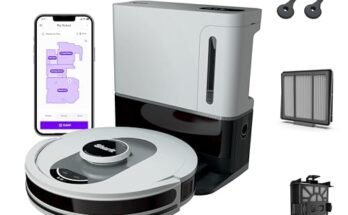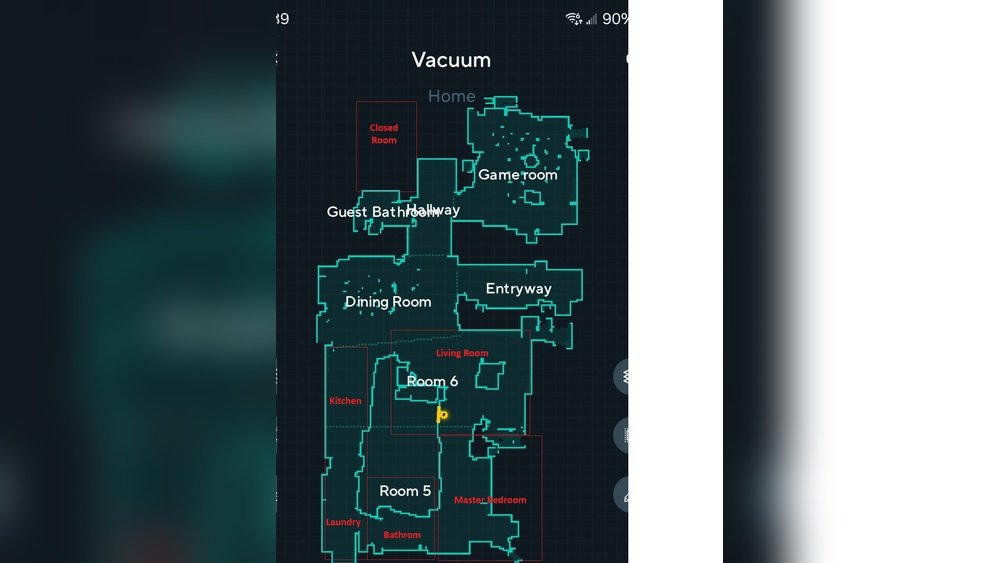
Is your robot vacuum struggling to map your rooms properly? You’re not alone.
When your smart cleaner can’t create an accurate map, it misses spots, wastes time, and leaves you frustrated. But don’t worry—there are simple steps you can take right now to fix this issue. Keep reading, and you’ll discover easy tips to get your robot vacuum back on track, so your home stays spotless without any hassle.

Common Mapping Issues
Robot vacuums use mapping to clean your home efficiently. Sometimes, the map they create is not accurate. This causes problems during cleaning. Common mapping issues can make your robot miss spots or clean the same area repeatedly. Understanding these problems helps to fix them quickly.
Skipped Areas
Skipped areas happen when the robot misses parts of a room. Obstacles like furniture or cables can block its sensors. The robot might think the area is unreachable. Dirt and dust stay in these spots after cleaning. Clear the floor and remove small objects for better mapping.
Incorrect Room Boundaries
Sometimes, the robot draws wrong lines between rooms. It may think one room is part of another. This causes confusion during cleaning cycles. The vacuum might clean too much or too little in some rooms. Use virtual walls or barriers to guide the robot correctly.
Repeated Cleaning Patterns
The robot vacuum may clean the same area over and over. This happens when it cannot recognize areas it already cleaned. Sensors or software glitches can cause this issue. Restart the vacuum or update its software to improve mapping. Proper maintenance keeps cleaning efficient.
Check Sensor Cleanliness
Robot vacuums use sensors to map your rooms and clean efficiently. Dirt or dust on these sensors can cause wrong mapping. Checking and cleaning the sensors helps your robot see better.
Clean sensors improve navigation and prevent missed spots. Regular maintenance keeps the vacuum working well over time.
Wiping Lidar And Cameras
Lidar and cameras help your robot understand room layout. Dust or smudges block their view and confuse mapping. Use a soft, dry cloth to gently wipe these parts.
Do not press too hard. Avoid using water or cleaning sprays. Keep these sensors clear for accurate room scanning.
Cleaning Cliff Sensors
Cliff sensors stop the vacuum from falling down stairs or ledges. Dirt on these sensors may cause errors in movement. Wipe them with a soft, dry cloth regularly.
Check for any debris stuck near the sensors. Keeping cliff sensors clean ensures safe and smooth navigation.
Update Firmware And Software
Updating your robot vacuum’s firmware and software can fix mapping problems. These updates improve how the vacuum understands and navigates your home. They often include bug fixes and better mapping features. Keeping your device and app updated helps the vacuum work as it should.
Checking For Updates
Open your robot vacuum’s app on your phone. Look for the settings or device section. Find the option to check for firmware updates. If an update is available, download and install it. Make sure your vacuum is charged or connected to power during the update.
Check the app store for updates too. Sometimes the app itself needs the latest version. Updated apps can improve how the vacuum connects and maps rooms.
Reinstalling The App
Sometimes the app may not work correctly. Uninstall the robot vacuum app from your phone. Restart your phone to clear temporary files. Then, reinstall the app from the app store. Log in again and reconnect your vacuum.
Reinstalling the app can fix bugs and connection issues. It may also reset the map data, helping the vacuum create accurate maps.

Optimize Room Setup
Optimizing your room setup can help your robot vacuum map rooms better. A clear and organized space lets the vacuum move freely. It also helps the device recognize room boundaries more easily. Simple changes to your room can improve cleaning and mapping accuracy.
Removing Obstacles
Clear the floor of small objects like toys and cables. These items can confuse the vacuum’s sensors. Remove clutter so the robot can move smoothly. Less clutter means fewer mapping errors.
Adjusting Furniture Placement
Move furniture slightly away from walls and corners. This creates clear paths for the vacuum. Avoid tight spaces where the robot might get stuck. Open spaces help the vacuum scan rooms better.
Using Virtual Barriers
Use virtual barriers or no-go lines in the app. These barriers stop the vacuum from entering certain areas. They help guide the robot to clean only where you want. Virtual barriers improve room mapping and control.
Reset Mapping Data
Resetting the mapping data of your robot vacuum can help fix room mapping issues. The vacuum might store old, incorrect maps that cause confusion. Clearing these maps lets the vacuum start fresh. This often improves its ability to map rooms correctly and clean efficiently.
Deleting Old Maps
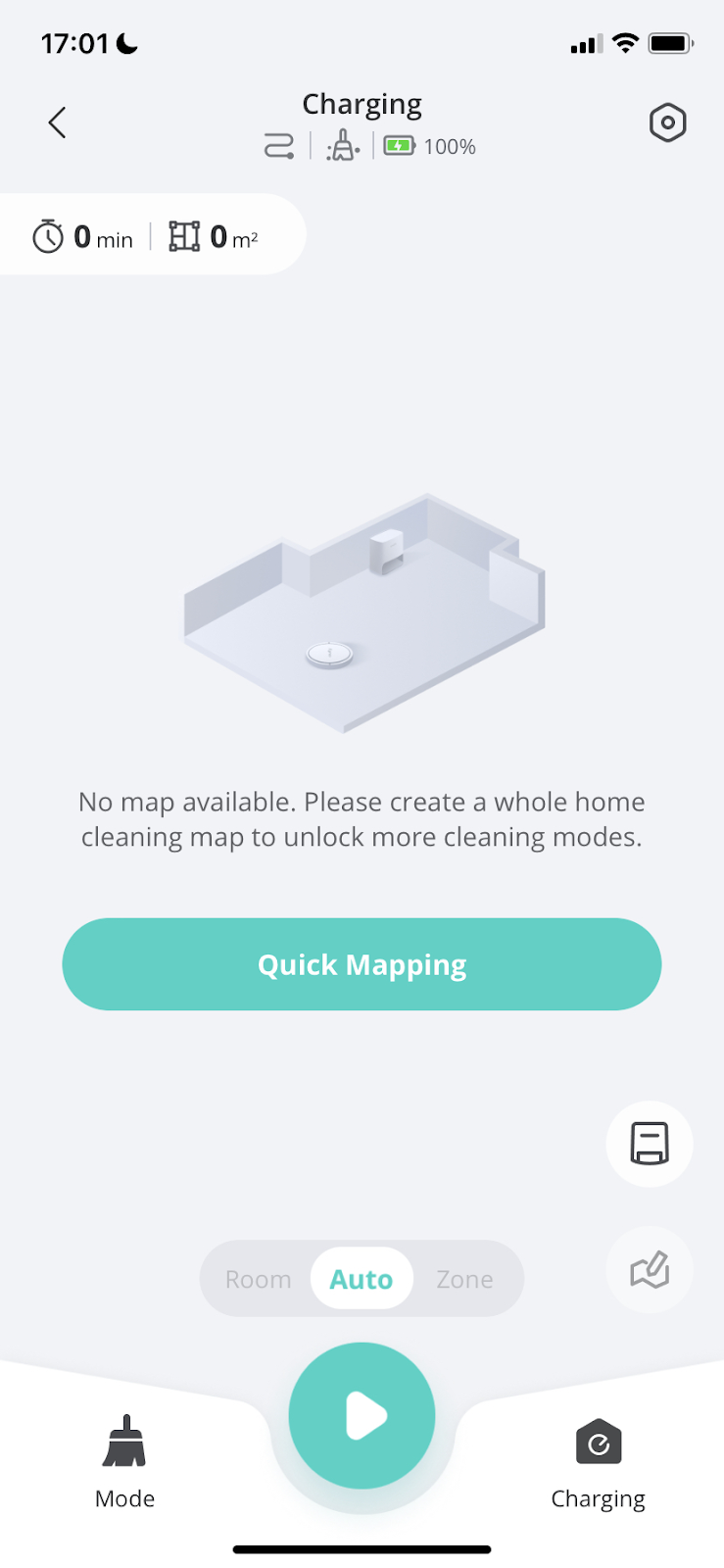
Start by opening the vacuum’s app. Find the map settings or storage option. Look for the saved maps list. Select the old maps you want to remove. Delete them carefully to avoid losing important data. This clears clutter and prevents mapping errors.
Starting Fresh Mapping
After deleting old maps, place your vacuum in a central spot. Turn it on and start a new cleaning cycle. The vacuum will scan and create new room maps. Watch its progress to ensure it maps each room properly. This fresh start helps the vacuum learn your home’s layout again.
Check Robot Placement
Robot vacuums rely on accurate placement to map rooms correctly. The spot where you start your robot affects its ability to learn the layout. Poor placement can cause confusion in navigation and mapping errors. Checking the robot’s initial position helps improve its path and coverage.
Starting Location Tips
Place the robot on a flat, open floor space. Avoid corners or close proximity to walls at the start. A central location gives the robot a better overview. Clear the area of obstacles to prevent early blockages. This simple step helps the robot gather better data.
Avoiding Dark Or Reflective Surfaces
Dark floors or shiny surfaces can confuse sensors. The robot may misread these areas as empty or blocked. Choose a starting spot with neutral lighting and non-reflective flooring. This reduces errors in mapping and navigation. Proper surface choice improves overall robot performance.
Contact Support And Repairs
Contacting support and repairs is important when your robot vacuum is not mapping rooms correctly. This step helps you fix the problem with expert advice. It can save time and avoid further damage. Knowing when to ask for help and understanding your warranty options makes the process easier.
When To Seek Professional Help
Seek professional help if your vacuum keeps missing rooms. Also, ask for support if the device stops working after troubleshooting. Persistent errors in mapping or sensor problems need expert care. Avoid trying complex repairs on your own. Professionals have the right tools and knowledge. They can diagnose and fix hidden issues quickly.
Warranty And Service Options
Check your vacuum’s warranty before calling support. Many models come with a one-year or longer warranty. This can cover parts and repairs at no extra cost. Contact the manufacturer’s service center for warranty claims. Some brands offer paid repairs for devices out of warranty. Always keep your purchase receipt and warranty card ready. This speeds up the repair process and ensures a smooth experience.
Frequently Asked Questions
Why Is My Robot Vacuum Not Mapping Rooms Properly?
Your robot vacuum may have dirty sensors or low battery. Ensure sensors are clean and fully charged. Also, update the firmware for improved mapping accuracy.
How Can I Reset My Robot Vacuum’s Map?
To reset the map, access your vacuum’s app settings. Look for “Reset Map” or “Delete Map” option and confirm. This allows your device to remap rooms from scratch.
Does Furniture Affect My Robot Vacuum’s Mapping?
Yes, clutter or transparent furniture can confuse sensors. Clear pathways and avoid glass or shiny surfaces to enhance accurate room mapping.
Can Software Updates Fix Mapping Issues?
Yes, updates often improve navigation algorithms. Regularly update your vacuum’s software via the app to fix bugs and boost mapping performance.
Conclusion
Robot vacuums need clear paths to map rooms well. Clean sensors and remove obstacles often. Restart the device to refresh mapping data. Update the vacuum’s software for better performance. Check the manual for specific troubleshooting tips. Small fixes can improve your robot’s mapping.
Keep your space tidy to help its work. Regular care makes your vacuum more reliable. A well-mapped room means a cleaner home. Don’t give up—simple steps bring better results.