Is your robot vacuum refusing to start just when you need it most? It’s frustrating when your trusty cleaning helper suddenly stops working, leaving you with a mess and no easy fix.
But don’t worry—this guide will help you quickly find out what’s wrong and get your robot vacuum back to cleaning in no time. By the end, you’ll know simple steps you can take right now to troubleshoot the problem and avoid expensive repairs.
Keep reading—your robot vacuum’s rescue is just a few easy tips away!
Check Power Supply
Checking the power supply is the first step in troubleshooting a robot vacuum that won’t start. The vacuum needs power to work. No power means no cleaning. Problems with power can come from the charging dock, battery, or power outlet. Let’s explore each part to find the issue.
Inspect Charging Dock
Look at the charging dock for any dirt or damage. Dust or debris can stop the vacuum from connecting to the dock. Check if the dock’s lights are on. Lights show if the dock has power. Make sure the vacuum sits correctly on the dock. Misalignment can block charging.
Verify Battery Status
Check the battery inside the vacuum. Some models show battery health on the app or screen. A dead or old battery may not hold charge. Remove and reinsert the battery if possible. This can reset the power connection. Replace the battery if it no longer charges.
Test Power Outlet
Plug another device into the same outlet as the charging dock. The device should work to confirm power. If it doesn’t, the outlet might be faulty. Try a different outlet to charge the dock. A working outlet is essential for the dock and vacuum to get power.

Examine Robot Vacuum Components
Examining the robot vacuum’s components is a key step in troubleshooting. Dirt, dust, and small objects can block its parts. These blockages can stop the vacuum from starting or working properly. Checking each part carefully helps find hidden problems. This section guides you on what to look for and how to fix common issues.
Clean Sensors And Brushes
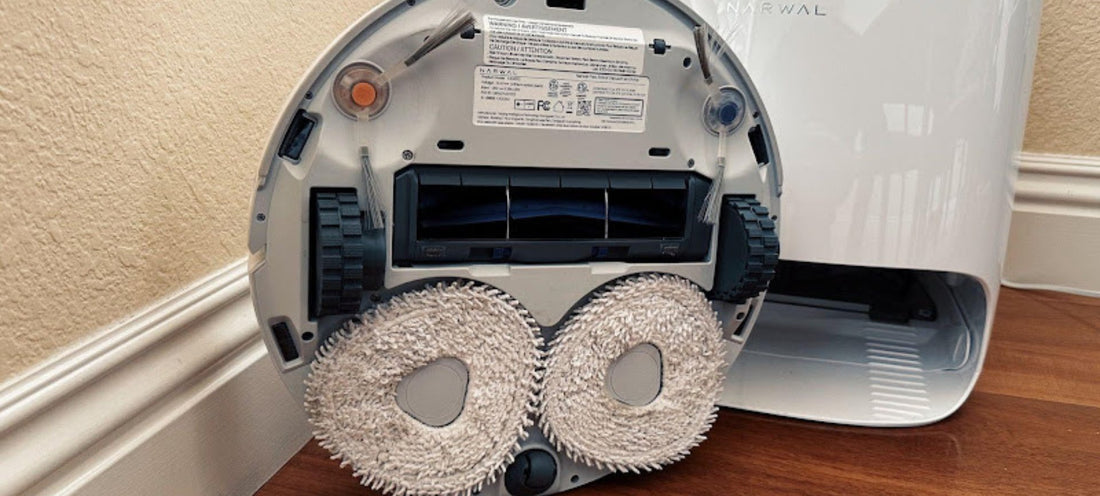
Sensors help the vacuum detect obstacles and avoid falling. Dust or dirt on sensors can confuse the robot. Use a soft cloth to wipe them gently. The brushes pick up dust and hair but can get tangled. Remove hair and debris from brushes regularly. Clean brushes work better and keep the vacuum running smoothly.
Remove Obstructions
Small toys, cords, or debris can block the vacuum’s path. Check the vacuum’s intake and brushes for stuck objects. Clear any dirt or debris that might stop the parts from moving. Look inside the dustbin and suction area for clogs. Removing these obstructions often solves start-up problems quickly.
Check Wheels And Motors
Wheels must turn freely for the vacuum to move. Dirt or hair can get tangled around wheels and motors. Inspect each wheel and clean off any debris. Listen for unusual noises from the motors. If a motor feels stuck or noisy, it may need repair. Properly working wheels and motors keep the vacuum mobile and effective.
Reset The Robot Vacuum
Resetting a robot vacuum can solve many starting problems. It clears minor errors and refreshes the device’s system. This step often helps the vacuum work like new again. There are two main reset types: soft reset and factory reset. Each has its own use and method.
Soft Reset Steps
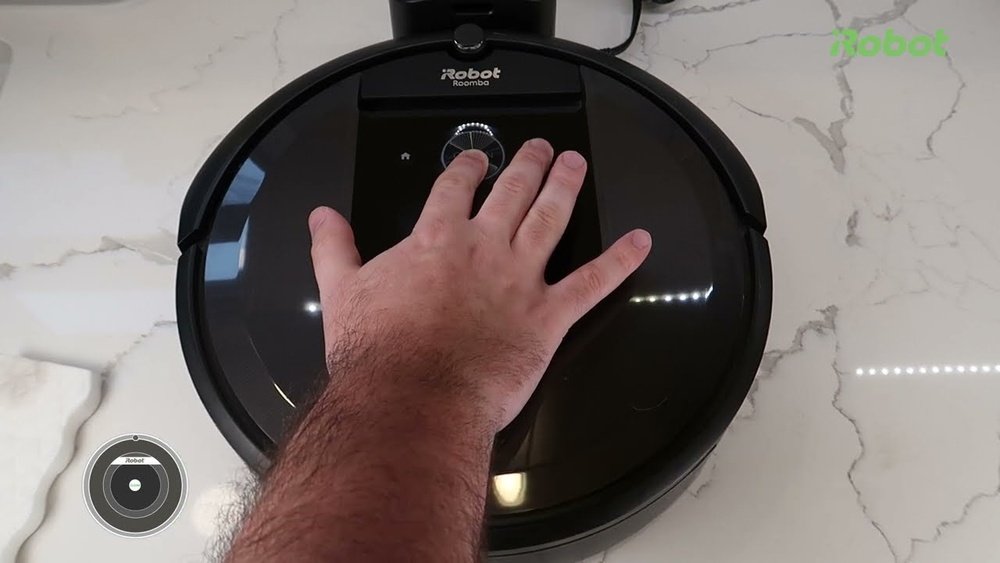
A soft reset restarts the vacuum without erasing settings. First, turn off the robot vacuum using the power button. Wait for about 10 seconds. Press the power button again to turn it back on. Some models need you to hold the button for 5 seconds. Check the user manual for exact instructions. This reset clears small glitches quickly.
Factory Reset Procedure
A factory reset erases all settings and data. Use this only if the soft reset does not help. Find the reset button or use a pin to press a small hole button. Hold it for 10-15 seconds until lights blink or the vacuum beeps. The vacuum will restart and return to default settings. Set up the device again after this reset. This step fixes deeper system issues.

Update Firmware And Software
Updating the firmware and software of your robot vacuum can solve many start-up problems. These updates fix bugs and improve performance. Keeping your device updated ensures it runs smoothly and avoids glitches.
Connect To App
First, connect your robot vacuum to its app on your smartphone. Make sure your phone and vacuum are on the same Wi-Fi network. Open the app and check if it shows your device as connected. This connection allows you to manage updates easily.
Check For Updates
Next, look for the update section in the app. Tap on it to see if any new firmware or software versions are available. If updates exist, download and install them. Wait until the process completes before using the vacuum again. Updates often fix start problems and improve battery life.
Troubleshoot Common Error Messages
Robot vacuums often show error messages when they won’t start. These messages help identify the problem fast. Understanding common errors saves time and effort. It guides you to fix the vacuum quickly. This section explains how to handle frequent error messages.
Battery Errors
Battery errors stop the robot from starting. The vacuum may show low battery or charging issues. Check if the vacuum is on the charging dock. Clean the charging contacts on the vacuum and dock. Replace the battery if it no longer holds charge. A fresh battery helps the vacuum start and run properly.
Navigation Issues
Navigation problems prevent the vacuum from moving. The vacuum may say “stuck” or “cliff detected.” Clear any obstacles blocking its path. Clean the sensors on the bottom and sides. Reset the vacuum to refresh its navigation system. This fixes errors related to movement and pathfinding.
Connectivity Problems
Connectivity errors stop the vacuum from syncing with the app. The vacuum may show “Wi-Fi error” or “connection lost.” Restart your router and the vacuum. Make sure the vacuum is within Wi-Fi range. Reconnect the vacuum to your network through the app. This restores communication between the vacuum and your device.
Contact Support Or Service
Contacting support or service is a smart step when your robot vacuum won’t start. Sometimes, the problem is more complex than a quick fix. Experts can guide you through specific solutions or arrange professional help. Don’t hesitate to reach out for assistance to avoid further damage.
Warranty Check
Check your vacuum’s warranty status before calling support. A valid warranty can cover repairs or replacements at no extra cost. Find your purchase receipt and warranty card. Note the warranty period and terms. This information helps the support team assist you faster and better.
Professional Repair Options
Authorized service centers offer reliable repair services. They use genuine parts and have skilled technicians. Repairs outside warranty may cost money but extend your vacuum’s life. Ask about repair time and costs upfront. Choose professional repair to ensure your vacuum works well again.
Frequently Asked Questions
Why Won’t My Robot Vacuum Start At All?
Check if the battery is charged and properly installed. Ensure the power button is pressed correctly. Look for any error lights or messages on the display. Clean the sensors and wheels to avoid blockages. Reset the vacuum if needed by following the user manual.
How Do I Reset My Robot Vacuum To Fix Startup?
Most models reset by holding the power button for 10 seconds. Alternatively, remove the battery, wait 30 seconds, then reinsert it. Consult your user manual for model-specific reset instructions. Resetting clears minor software glitches that prevent starting. This often restores normal function quickly.
Could A Dirty Sensor Stop My Robot Vacuum Starting?
Yes, dirty or blocked sensors can prevent startup. Sensors detect obstacles and docking stations, so dirt causes errors. Clean sensors gently with a soft cloth. Regular maintenance keeps sensors working properly. This simple step often resolves startup issues.
How Do I Know If The Battery Is Causing Startup Issues?
If the vacuum won’t start or runs briefly, the battery may be weak. Check if the battery is properly seated. Test charging with the original charger and docking station. Replace the battery if it no longer holds a charge. A healthy battery is essential for startup.
Conclusion
Troubleshooting a robot vacuum that won’t start can be simple. Check the power source and battery first. Clean sensors and wheels to ensure smooth operation. Reset the device if it still does not work. Small fixes often solve common problems quickly.
Keep your vacuum maintained to avoid future issues. Stay patient and follow steps one by one. Your vacuum will be running again soon. Simple care helps your robot vacuum last longer.