
Imagine controlling your robot vacuum with just your voice. No more bending down or searching for the remote—just say the word, and your home gets cleaner.
If you’ve ever wondered how to connect a robot vacuum to Alexa, you’re in the right place. This simple step can save you time, effort, and make your cleaning routine smoother than ever. Keep reading, and you’ll discover easy steps to make your smart home even smarter.
Check Robot Vacuum Compatibility
Connecting a robot vacuum to Alexa lets you control cleaning with your voice. First, check if your robot vacuum supports Alexa. Not all models work with Alexa, so this step saves time and frustration.
Check the product manual or the manufacturer’s website for Alexa support. Look for keywords like “works with Alexa” or “Alexa compatible.” Some brands offer specific Alexa skills that enable voice commands.
Find Alexa-compatible Robot Vacuum Models
Most major brands list Alexa compatibility on product pages. Popular models from Roomba, Eufy, and Roborock often have this feature. Check the model number carefully; some versions may lack Alexa support.
Check Your Alexa Device Compatibility
Make sure your Alexa device supports smart home integrations. Most Echo devices work well, but older versions might not. Update your Alexa app to the latest version for smooth setup.
Verify Wi-fi Network Requirements
Robot vacuums and Alexa connect through Wi-Fi. Confirm your vacuum supports your home Wi-Fi band, usually 2.4 GHz. Dual-band routers may require specific settings for both devices to communicate.
Prepare Alexa Device
Preparing your Alexa device is the first step to connect your robot vacuum. This process ensures Alexa can recognize and control your vacuum easily. Follow these simple steps to get your device ready.
Make sure your Alexa device is powered on and connected to the internet. A stable Wi-Fi connection is essential for smooth communication between Alexa and your robot vacuum.
Check Alexa Device Compatibility
Not all Alexa devices support robot vacuum controls. Confirm that your Alexa model works with smart home devices. Most Echo devices with Alexa support this feature.
Update Alexa Software
Keep your Alexa device software up to date. Updates improve device performance and add new features. Use the Alexa app to check for updates and install them if needed.
Enable Alexa Skills For Your Robot Vacuum
Open the Alexa app on your phone. Search for the skill related to your robot vacuum brand. Enable the skill to link your vacuum with Alexa.
Set Up Voice Profiles
Create voice profiles in the Alexa app for personalized control. Alexa recognizes your voice and responds accordingly. This step helps avoid confusion with multiple users.
Download Required Apps
Before connecting your robot vacuum to Alexa, you need the right apps. These apps allow Alexa and your vacuum to communicate smoothly.
Downloading the necessary apps is the first step in setting up your smart home cleaning. Each brand may require different applications.
Download The Robot Vacuum Manufacturer’s App
Start by finding the official app from your robot vacuum’s maker. Search for it in the App Store or Google Play.
This app helps you control the vacuum and link it to Alexa later. Make sure to download the latest version.
Install The Amazon Alexa App
Next, get the Amazon Alexa app on your smartphone or tablet. It works as the control center for all Alexa devices.
You will use this app to add skills and manage connected devices, including your robot vacuum.
Enable The Robot Vacuum Skill In Alexa App
Open the Alexa app and go to the Skills section. Search for your robot vacuum’s skill.
Enable the skill to let Alexa control your vacuum. Sign in with your vacuum app account if asked.
Set Up Robot Vacuum Wi-fi
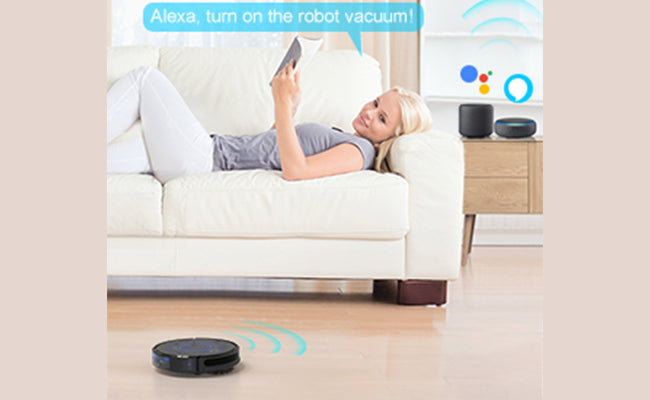
Setting up your robot vacuum’s Wi-Fi is the first step to connect it to Alexa. This connection lets you control your vacuum with voice commands. A stable Wi-Fi network helps your vacuum work smoothly and respond quickly.
Follow these simple steps to get your robot vacuum online and ready for Alexa integration.
Find Your Robot Vacuum’s Wi-fi Settings
Start by turning on your robot vacuum. Open its app on your smartphone. Look for the Wi-Fi or network settings in the app. This section lets you connect your vacuum to your home Wi-Fi.
Connect To Your Home Wi-fi Network
Choose your Wi-Fi network from the list shown in the app. Enter your Wi-Fi password carefully. Make sure the password is correct to avoid connection errors. Wait for the vacuum to confirm it is connected.
Verify The Wi-fi Connection
Check the app for a confirmation message or a connected status. Your vacuum might beep or show a light to signal connection. Test the connection by sending a command from the app. This confirms the vacuum is ready for Alexa.
Enable Robot Vacuum Skill On Alexa
Enabling the robot vacuum skill on Alexa is the key step to control your vacuum with voice commands. This skill acts as a bridge between Alexa and your robot vacuum. Without it, Alexa cannot communicate with the vacuum.
Activating the skill is simple and quick. It connects your vacuum account to Alexa, allowing commands like “start cleaning” or “stop vacuum” through your smart speaker.
Open The Alexa App
Start by opening the Alexa app on your smartphone or tablet. This app manages all Alexa settings and skills. Make sure you are logged in with your Amazon account.
Search For Your Robot Vacuum Skill
Go to the menu and tap on “Skills & Games.” Use the search bar to find your robot vacuum’s skill by typing its brand or model name. This helps you find the right skill quickly.
Enable The Skill
Tap on the skill you found. Then press the “Enable to Use” button. This will start the process to link your vacuum’s account with Alexa. It usually takes a few seconds.
Log Into Your Vacuum Account
A prompt will ask you to enter your robot vacuum account details. Use the same username and password you use for the vacuum’s app. This step authorizes Alexa to control the device.
Confirm The Connection
After logging in, you will see a confirmation screen. Alexa now has permission to access your vacuum. This means you can use voice commands to control it.
Link Robot Vacuum Account To Alexa
Linking your robot vacuum account to Alexa lets you control your vacuum with voice commands. It makes cleaning easy and hands-free. Alexa can start, stop, and check the status of your vacuum.
This connection works through the Alexa app and your vacuum’s app. The process is quick and simple. Follow the steps below to link your accounts and enjoy smart cleaning.
Open The Alexa App
Start by opening the Alexa app on your smartphone. Make sure you are logged in with your Amazon account. This app is the central hub for connecting smart devices.
Find The Skills Section
In the Alexa app menu, tap on “Skills & Games.” This section helps you add new features. Search for the skill that matches your robot vacuum brand.
Enable The Robot Vacuum Skill
Select the skill for your vacuum and tap “Enable to Use.” This action links Alexa to your vacuum’s service. You will need to enter your vacuum account details next.
Sign In To Your Robot Vacuum Account
Enter the username and password for your vacuum account. This step connects Alexa with your robot vacuum. After signing in, Alexa will request permission to control the device.
Authorize Alexa To Access Your Vacuum
Allow Alexa to access your vacuum’s controls. This permission lets Alexa send commands to your vacuum. Once authorized, the connection is complete.
Discover Your Robot Vacuum Device
Ask Alexa to find new devices or tap “Discover Devices” in the app. Alexa will search for your linked vacuum. After discovery, the vacuum will appear in your device list.
Test The Connection
Try simple commands like “Alexa, start the vacuum.” Check if your vacuum responds. If yes, your accounts are linked successfully.
Discover Devices In Alexa App
Discovering devices in the Alexa app is a key step to control your robot vacuum with voice commands. This process helps Alexa find your vacuum and link it to your smart home system. It takes just a few taps to start cleaning with simple voice instructions.
After connecting your vacuum to Wi-Fi and setting up its app, open the Alexa app on your phone. The app searches for compatible devices to add to your list. This makes it easy to manage all smart gadgets from one place.
Open The Alexa App
Launch the Alexa app on your smartphone or tablet. Make sure you are logged in with your Amazon account. This is necessary to access all Alexa features and settings.
Navigate To Devices Tab
Tap on the “Devices” icon at the bottom of the screen. This section shows all smart devices linked to your Alexa account. It lets you add, remove, or control devices easily.
Tap ‘add Device’ Button
Press the “+” sign or “Add Device” button in the top right corner. Alexa will show a list of device types you can connect. This includes your robot vacuum among other smart home items.
Select Your Robot Vacuum Brand
Find and tap your robot vacuum’s brand from the list. Some brands may require you to sign into their account. This step links your vacuum’s app with Alexa securely.
Follow On-screen Instructions
Complete the setup by following Alexa’s prompts. This might include connecting to Wi-Fi or enabling skills. Wait while Alexa discovers your robot vacuum automatically.
Confirm Device Discovery
Once found, Alexa will show your robot vacuum as connected. You can now rename it or assign it to a group. This makes voice commands more natural and personalized.
Control Robot Vacuum With Voice Commands
Controlling your robot vacuum with voice commands makes cleaning easier and hands-free. Alexa lets you manage your vacuum using simple spoken instructions. This section explains how to start, stop, schedule, and check your vacuum’s status through Alexa.
Start And Stop Cleaning
Use Alexa to start cleaning right away. Say, “Alexa, ask [vacuum name] to start cleaning.” The vacuum will begin its task without you lifting a finger. To stop cleaning, say, “Alexa, ask [vacuum name] to stop.” This quick control saves time and effort.
Schedule Cleaning Sessions
Set cleaning times with your voice. Say, “Alexa, ask [vacuum name] to schedule cleaning at 2 PM.” The vacuum will clean at that time daily or on chosen days. Scheduling helps keep your home tidy without manual setup.
Check Vacuum Status
Alexa can tell you the current status of your robot vacuum. Say, “Alexa, ask [vacuum name] for its status.” You will hear if the vacuum is cleaning, charging, or finished. This keeps you informed without checking the device.
Troubleshoot Connection Issues
Connecting your robot vacuum to Alexa can make cleaning easier. Sometimes, the connection faces issues. Troubleshooting these problems helps get your device working fast. Below are common connection problems and how to fix them.
Wi-fi Connectivity Problems
Check if your Wi-Fi is working well. The robot vacuum and Alexa must be on the same network. Restart your router if the connection is slow. Move your vacuum closer to the router for better signal. Avoid using public or guest Wi-Fi networks. A strong, stable Wi-Fi helps keep the devices linked.
Skill Activation Errors
Ensure you have enabled the correct Alexa skill for your robot vacuum. Sometimes, the skill may not activate properly. Disable and then re-enable the skill in the Alexa app. Sign in with the right account linked to your vacuum. This step allows Alexa to control your device smoothly.
Device Discovery Failures
Alexa may not find your vacuum if it is not in discovery mode. Restart your robot vacuum and put it in pairing mode again. Use the Alexa app to scan for new devices. Check that your vacuum’s firmware is up to date. Updated software helps Alexa detect and connect to your robot.

Tips For Optimizing Smart Control
Optimizing smart control enhances your robot vacuum experience with Alexa. It helps you clean more efficiently and with less effort. Small adjustments make your device work better and fit your daily routine. Simple tips can improve how Alexa and your robot vacuum work together.
Try these smart control tips to get the most from your setup.
Create Alexa Routines
Alexa routines let you automate cleaning tasks easily. Set your robot vacuum to start cleaning at specific times. You can also add voice commands that trigger multiple actions. For example, say “Alexa, start cleaning” to run the vacuum and turn off lights. This saves time and keeps your home tidy without extra effort.
Use Multi-room Audio Integration
Multi-room audio allows your robot vacuum to pause when you talk to Alexa. It makes the voice commands clearer and more effective. You can also link your vacuum to other smart devices that play music or announcements. This creates a smooth smart home experience and keeps cleaning quiet during conversations.
Keep Firmware Updated
Regularly update your robot vacuum’s firmware for best performance. Updates fix bugs and add new features. They improve Alexa compatibility and smart control functions. Check the vacuum app or website often to download the latest updates. Staying updated avoids connection problems and keeps your device running smoothly.

Frequently Asked Questions
How Do I Connect My Robot Vacuum To Alexa?
First, download the robot vacuum’s app and Alexa app. Link your vacuum account in the Alexa app. Enable the vacuum’s Alexa skill. Then, discover devices in Alexa to complete the connection.
Which Robot Vacuums Work With Alexa?
Popular brands like Roomba, Eufy, Roborock, and Neato support Alexa. Check your vacuum’s manual or website for Alexa compatibility before buying.
Can I Control My Robot Vacuum With Alexa Voice Commands?
Yes, after linking your vacuum to Alexa, you can start, stop, pause, or dock it using voice commands. Alexa responds instantly for hands-free cleaning control.
What Should I Do If Alexa Can’t Find My Vacuum?
Ensure both devices are on the same Wi-Fi network. Restart your vacuum, Alexa device, and router. Re-enable the vacuum’s Alexa skill and try discovering devices again.
Conclusion
Connecting a robot vacuum to Alexa makes cleaning easier and hands-free. Just follow simple steps to link your devices and start voice control. You can tell Alexa to clean anytime without moving a finger. This saves time and keeps your home tidy.
Enjoy the convenience of smart cleaning today. Simple setup, easy use, and better cleaning all in one. Give it a try and see the difference.