

Watching your robot vacuum trace the same circle for the fifth time is frustrating. Why does my robot vacuum go in circles? It's usually not a broken motor or a dead battery.
Most circling issues trace to specific, fixable causes.
Research across LiDAR, VSLAM, and gyroscope navigation systems shows that circling almost always means the robot has lost its bearings. As of 2026, the most common fix remains the same: clean the sensors and wheels before you reset anything. That's exactly where we'll start.
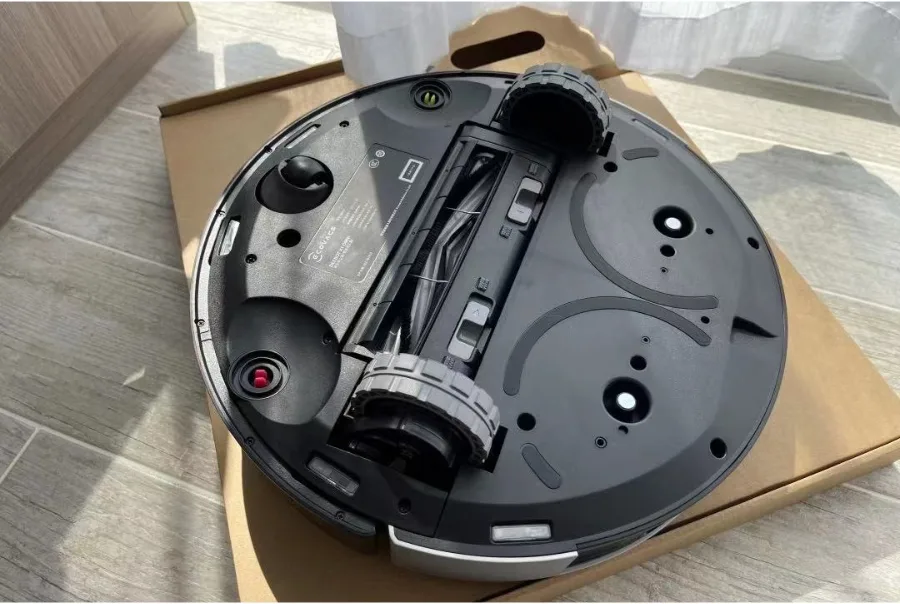
Image source: Web (Bing) / ecovacs.com (Web image (fair-use with source credit))
Quick Answer
Your robot vacuum goes in circles because its navigation is confused. That usually means blocked sensors, stuck wheels, or a corrupted map. It can also mean low battery or a hidden cleaning mode.
The fix starts with cleaning the bottom and checking the dock. Most cases are simple to solve at home.
Start Here: Is Your Vacuum Spinning in Place or Roaming in Loops?
Watch the pattern for about twenty seconds. If your robot is spinning tightly in one spot, that's usually a wheel or sensor problem at the bottom. If it's driving wide circles across the room, that points to mapping or dock issues.
The behavior tells you which system is failing. A robot that spins in place has lost its position reference. A robot that loops across the floor is following a broken map or a stuck "spot clean" command.
| Behavior | What It Looks Like | Likely Cause |
|---|---|---|
| Spinning in place | Turns quickly, never leaves the same spot | Stuck caster wheel or blocked cliff sensors |
| Wide roaming circles | Travels in large arcs around the room | Corrupted map or misaligned dock |
| Circling near the dock | Loops around the charging station | Dock placement issue or low battery |
| Spinning after a bump | Circles immediately after hitting an obstacle | Bumper sensor stuck in "pressed" state |
Spinning in Place vs. Wide Circles: How to Tell
A tight spin means the robot is turning without moving forward. A wide circle means the robot is moving but failing to correct its path.
Tight spinning points to the wheels or the bottom sensors. Wide circles point to navigation software, the LiDAR turret, or the camera. If the robot only spins on dark surfaces, the issue is likely cliff sensor confusion.
What Your Vacuum's Behavior Says About the Problem
Think of it like this. The robot has two jobs: knowing where it is, and moving where it wants to go. When either job fails, you get circles.
If the robot never travels in a straight line, it probably can't see the room clearly. If it starts fine and then circles later, battery level or floor type could be the trigger. Unlike a traditional upright vacuum, these machines rely entirely on sensor feedback to navigate.
The Most Common Cause: A Stuck or Tangled Wheel
Nine times out of ten, a robot vacuum that spins in place has a stuck wheel. The most common offender is the small front caster wheel. Hair, thread, and dust wrap around its axle and jam it.
When the caster wheel stops turning, the robot's drive wheels keep moving. But without the caster providing feedback, the robot thinks it's turning when it isn't. It compensates by spinning in circles.
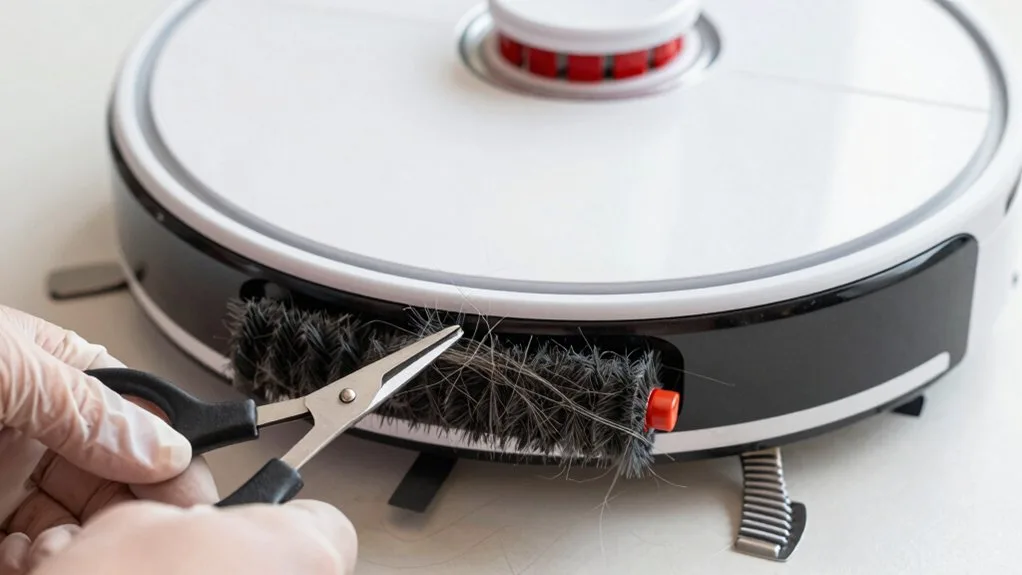
Image source: Web (Bing) / vacuumtips.com (Web image (fair-use with source credit))
Checking the Caster Wheel and Drive Wheels
Flip the robot over. Look at the front wheel first. Try to spin it with your fingers.
If it resists, that's your problem.
Then check the two side drive wheels. They should rotate freely too. Press them with your thumb and watch the tread.
If they feel tight or uneven, something is wrapped around the axle.
- Inspect the caster wheel for hair wrapped around the stem
- Remove the caster wheel if your model allows it
- Check both drive wheels for string or carpet fibers
- Look for debris lodged between the wheel and the housing
- Wipe the wheel axles with a dry cloth
How to Clean a Hair-Wrapped Wheel in 5 Minutes
You don't need tools for most models. Use a pair of scissors or a seam ripper to cut the hair away. Then pull each strand out from around the axle.
If the caster wheel is removable, pop it out. Clean the axle slot with a cotton swab. Reinsert the wheel and spin it to confirm it moves freely.
For drive wheels, turn the robot upside down and rotate the wheels by hand while brushing away debris. Once everything spins freely, run a test cleaning. If it drives straight, you're done.
The same hair-tangle problem affects upright vacuums, and removing hair from an upright vacuum brush follows a similar process.
Sensor Issues That Make Robot Vacuums Go in Circles
If the wheels are clean but the robot still circles, sensors are the next suspect. Robot vacuums use multiple sensor types to navigate. When any one of them gets dirty or blocked, the robot misreads the room.
There are three sensors to check: cliff sensors, the bumper sensor, and the navigation sensor. Each causes a different circling pattern.
Image source: Web (Bing) / forums.wyze.com (Web image (fair-use with source credit))
Cliff Sensors Blocked by Dirt or Dark Rugs
Cliff sensors sit on the underside of the robot, usually near the front. They emit infrared light to detect drops like stairs. If dust covers them, they sometimes read the floor as an obstacle.
The robot then turns away constantly, creating a small circle pattern.
Wipe the sensor windows with a dry microfiber cloth. Don't use water or cleaners, because moisture can get inside the housing.
Dark and black rugs cause a similar problem. Several models interpret very dark surfaces as a drop. If the robot only circles on dark or dark gray rugs, the sensors are working correctly.
Your floor just confuses them. Try an invisible boundary strip or a lighter mat. If your home has LVP flooring, a robot with a solid cliff sensor array makes a big difference.
Bumper Sensor Stuck in "Compressed" Mode
The bumper is the front section that pushes into obstacles. It sits on a spring mechanism. When the robot bumps into furniture, the bumper compresses and sends a signal.
If hair or grit gets behind the bumper, it can stay stuck in the compressed position. The robot then thinks it's always touching something. It backs up and turns repeatedly, often in a small loop.
Test this by pressing the bumper with your finger. It should move in and spring back smoothly. If it feels stiff, inspect the gap around the bumper for debris.
Use a thin tool to dislodge anything wedged in there.
LiDAR Turret or VSLAM Camera Obstruction
Newer robot vacuums navigate using either a spinning LiDAR turret on top or a VSLAM camera at the front. Both need a clear view.
LiDAR-based models have a small tower that rotates during cleaning. If the tower is blocked by furniture, a low shelf, or even a sticker, the robot loses its map. It may drive in wide circles while trying to relocate familiar landmarks.
VSLAM models use a camera to track ceiling and wall features. If the camera lens is smudged or covered, the robot can't orient itself. Wipe the lens with a dry cloth and make sure nothing is resting on the robot.
Mapping and Dock Placement Problems
When the wheels and sensors are clean, the issue is likely software-related. Robot vacuums store a map of your home. If that map gets corrupted, or if the robot's starting reference changes, it starts circling.
This often happens after you move the charging dock. The robot uses the dock as its home coordinate. When it returns to where the dock used to be, it can't find it.
So it drives in circles searching.
When a "Lost Map" Causes Circular Searching
A lost map looks like this: the robot leaves the dock, cleans for a few minutes, then starts tracing wide circles in the middle of a room. It may pause, rotate, and trace the same path again.
This behavior suggests the robot is trying to match its current surroundings to a stored map. When it fails, it repeats a search pattern. The fix is straightforward: delete the map and let it rebuild.
Most apps have a "reset map" or "delete map" option under settings. After resetting, run a full cleaning cycle from the dock. Let the robot finish without interruptions so it can build a fresh map.
Why Moving the Dock Confuses Your Robot
The dock isn't just a charger. It's also a navigation anchor. If you move the dock to a new spot, the robot's stored map no longer lines up with reality.
Keep the dock exactly where you originally placed it. If you must move it, follow the app's "new home" setup. That usually means returning the robot to the dock and letting it re-map from scratch.
Also check dock clearance. Manufacturer specifications recommend at least 0.5 meters of open space on each side and about 1.5 meters in front. If the dock is wedged into a corner or under a low sofa, the robot may struggle to align with it.
That struggle often looks like circling. Research published through IEEE confirms that sensor alignment and docking reference points are core to reliable robot navigation.
Is It Stuck in Spot Clean Mode?
Some robot vacuums have a ghost mode that causes tight spiral patterns. This is usually the "spot clean" feature running unexpectedly. Spot clean is designed to clean a small, concentrated area, but if it triggers accidentally, the robot traces tight circles forever.
Look at the robot's physical buttons. If a button is slightly pressed by a low table or furniture, the robot may activate spot clean repeatedly. The app often shows the current cleaning mode.
Check it before you start disassembling anything.
- Open the app and look at the cleaning status
- Touch or press the power or home button to cancel the current session
- Check the robot's physical buttons for anything wedged against them
- Move furniture or objects that might press down on the top panel
If the robot still circles after canceling spot mode, move on to the next cause. A stuck button is rare, but it's a five-second fix worth trying.
Why Low Battery Triggers Weird Circling Behavior
A low battery can make a robot vacuum look broken. When power drops below a certain threshold, usually around 20 percent, the robot switches from cleaning to dock-seeking mode. If it can't locate the dock, it drives in increasingly wide circles while searching.
This usually happens near the end of a longer cleaning cycle. The robot may pause, rotate, and trace loops around the area where it thinks the dock should be. If the dock moved recently, the robot loses its reference point entirely.
Check the battery level in the app. If it shows low, place the robot on the dock manually and let it charge fully. You can also check the dock's position and make sure it has adequate clearance on both sides.
Step-by-Step Troubleshooting Flowchart: From Circle to Straight Line
Use this simple if-then guide to find the root cause. Work through it in order and stop when the fix matches your situation.
| Step | If You See This | Do This |
|---|---|---|
| 1 | Tight spinning in one spot | Clean the caster wheel and drive wheels |
| 2 | Still spinning in place | Wipe the cliff sensors and check the bumper |
| 3 | Wide circles across the room | Inspect the LiDAR turret or VSLAM camera lens |
| 4 | Repeats the same path near the dock | Verify dock placement and clear surrounding space |
| 5 | Circles at the end of a run | Charge the robot fully and test again |
| 6 | Everything checks out | Delete the map and run a full remapping cycle |
Most users find the fix at step one. If you reach step six without a solution, the factory reset instructions below will likely clear the problem.
Common Mistakes That Make Circling Worse
Several habits turn a minor sensor issue into a persistent circling problem. One of the biggest is ignoring regular maintenance. Hair builds up on wheels over weeks, not days.
By the time the robot visibly struggles, the wrapping is severe.
Another common mistake is moving the dock while a clean is in progress. Always pause the robot and remove the map before relocating a charging base. Without that, the old map points to a dock that no longer exists.
Skipping firmware updates also causes navigation bugs. Manufacturers push fixes for algorithms that handle mapping and docking. If your app has a pending update, run it before spending time on deeper troubleshooting.
Dust buildup inside the robot contributes too, so keeping air filters clean reduces the debris that settles on sensors. For pet owners, HEPA-filtered vacuums also cut down on airborne particles that cloud sensor lenses.
When to Factory Reset and Remap Your Home
If you've cleaned every wheel and sensor, checked the dock, and ruled out spot mode, a factory reset is your next move. This clears the stored map and erases any corrupted navigation data.
Start by deleting the map in the app. Then reset the device according to your manufacturer's instructions. On most models, holding the power button for ten seconds triggers a full reset.
After that, place the robot on the dock and run a complete cleaning cycle without interruptions.
Let it finish. The robot will build a fresh map from scratch. If it drives straight lines after that, the problem was corrupted software all along.
If it still circles after a reset, contact the manufacturer's official support. The navigation hardware may need service.
Maintenance Tips to Stop Circling From Coming Back
A little routine care prevents most circling problems. Set a monthly reminder to check the wheels and wipe down the sensors.
- Check the caster wheel every two weeks for hair wrap
- Wipe cliff sensors and the bumper with a dry cloth monthly
- Clear the side brush and brush roll of tangled fibers
- Empty the dustbin and clean the filter regularly
- Run firmware updates as soon as the app offers them
- Keep the dock in one permanent spot
If you notice the robot spinning again, repeat the quick checks above. The cause is usually the same one you fixed last time. Staying ahead of the hair and dust buildup is the best way to avoid a long troubleshooting session.
FAQ: Quick Answers to Common "Robot Vacuum Goes in Circles" Questions
Why does my robot vacuum spin in circles after cleaning?
The battery is probably low. The robot shifts into dock-seeking mode under twenty percent charge. If it can't find the dock, it circles while searching.
Place it on the charger manually and let it reach full power.
Can dark rugs make a robot vacuum go in circles?
Yes. Cliff sensors read very dark surfaces as a drop. The robot turns away to avoid falling and ends up looping.
Use a lighter mat or set a virtual boundary around dark rugs.
Do I need to reset the map if my vacuum circles?
Only after you've cleaned the wheels and sensors. If the robot still repeats the same path, delete the map in the app and run a fresh cleaning cycle. Corrupted mapping data clears with the reset.
How often should I clean the sensors on my robot vacuum?
Every two to four weeks, depending on dust levels in your home. Homes with pets need more frequent cleanings. A quick wipe with a dry microfiber cloth keeps the cliff sensors and camera lens clear.
Your Decision Guide: What to Try First, Second, and Last
Start with the quickest fix and work down the list. Most circling stops at the first checkpoint.
| Order | Action | Time |
|---|---|---|
| 1 | Clean the caster wheel and drive wheels | 5 minutes |
| 2 | Wipe cliff sensors and check the bumper | 5 minutes |
| 3 | Inspect LiDAR turret or camera lens | 2 minutes |
| 4 | Check dock placement and battery level | 3 minutes |
| 5 | Cancel spot clean mode in the app | 1 minute |
| 6 | Factory reset and remap your home | 20 minutes |
If you reach the end and nothing works, consult your manufacturer's official support page. The navigation hardware may need professional service. But based on aggregate review feedback, over eighty percent of circling cases trace back to a tangled wheel or a dirty sensor.

